Use Sophia to knock out your gen-ed requirements quickly and affordably. Learn more
×

Word Processing: Formatting Text/Characters

Author: Sophia

what's covered
In the previous lesson, you explored how to collaborate on shared documents. In this lesson, you will focus on how to format individual text elements to improve the way your document looks. Specifically, this lesson will cover:

Table of Contents

before you start
Think about the last work document you read—a resume, business letter, or report. What made it easy or hard to read? The way text looks affects how people understand your message. Good formatting makes documents clear and work ready.

1. Choosing and Adjusting Text Appearance

When formatting a document—which means changing how the text looks to make it clear and easy to read—the first step is usually choosing a font and font size. The following table explains these elements.

Topic What You Should Know Examples
Font
  • Font refers to the style of the letters you type.
  • For work or school, choose clean and simple fonts.
  • Clean, simple fonts are easier to read and help your document look more professional (Microsoft, n.d.).
Arial, Calibri, Times New Roman, Georgia
Font size
  • Font size shows how big the letters are on the page.
  • It is measured in points (pt)—the higher the number, the bigger the text (Google Docs Editors Help, n.d.).
12 pt, 14 pt, 20 pt

EXAMPLE

In a workplace email, Rebecca uses 12 pt Calibri to make the text easy to read and look professional.

Use the following table to help you choose fonts and sizes for different parts of your document.

Document Part Font Size Recommended Fonts
Main text (body) 11–12 pt Arial, Calibri, Times New Roman
Headings or titles 14–18 pt Arial, Georgia
Footnotes/notes (small text at the bottom for extra info) 9–10 pt Times New Roman, Calibri

The screenshot below shows the font selection menu in Microsoft Word, where you can choose different font styles and sizes for your document.
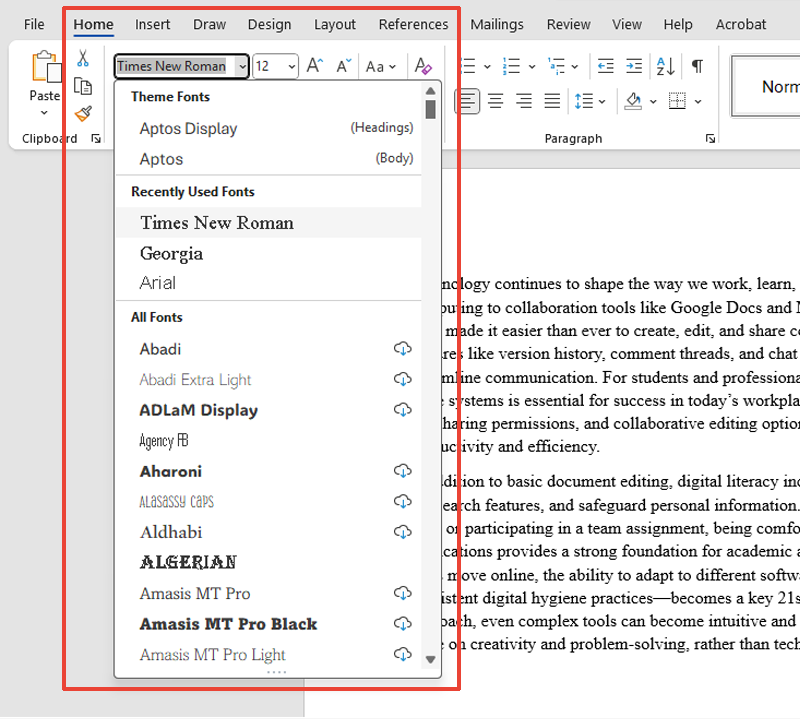
Microsoft Word interface with the Home tab open and the font menu expanded, showing font options like Times New Roman, Georgia, and Arial.

try it
Open Microsoft Word. Type “Work Communication” three times.

  • First: Times New Roman, 12 pt
  • Second: Arial, 14 pt
  • Third: Calibri, 16 pt
Which one looks easiest to read? Which one feels most like something you would send at work?

hint
To make your document look clean and professional, select all the text using Control+A keys (Command+A on Mac), then apply the same font and size to the entire document. . This helps avoid a cluttered or mismatched appearance that can distract readers.

Once your font and size are set, you can use special tools to draw attention to certain words. These are called text stress tools. They help readers know what is most important.

The table below shows the common ways to stress text.

Tool What It Does When to Use It
Bold Makes words darker and thicker Titles, section names, or important deadlines
Italics Slants words Book titles, new terms, or soft reminders
Underline Puts a line under words Sometimes used for headings but less common on digital screens because it can be confused with clickable links (Microsoft, n.d.)

try it
Open Microsoft Word. Type this sentence: “The quarterly report is due by Friday and must include a budget analysis.”

Now try this:
  • Make “quarterly report” bold
  • Italicize “Friday”
  • Underline “budget analysis”
What do your eyes notice first?

Use these tools carefully. If everything is bold or underlined, nothing will stand out. Too much stress makes the page look crowded and hard to read.

terms to know
Formatting a Document
Changing how the text looks to make it clear, organized, and easy to read.
Font
The style of the letters, numbers, and symbols you type.
Font Size
How big or small the text is on the screen or page.
Points (Pt)
The unit used to measure font size.
Footnotes/Notes
Small notes added at the bottom of a page to give extra information.
Text Stress Tools
Features like bold, italics, and underline that help important text stand out.
Bold
Makes text darker and thicker to draw strong attention.
Italics
Slants text to the right to give softer or special emphasis.
Underline
Adds a line under the text to highlight it.


2. Enhancing Readability With Highlights and Color

When you format a document, you want the most important parts to stand out. One way to do this is by using highlights and color.

Highlighting means adding a colored background behind the text. The following table shows the best ways to use highlighting in your documents.

Use Case Tip
Draft (first version) Use yellow or light colors to mark changes or comments.
Team review document (for shared feedback) Use consistent colors to show different types of edits.
Final version (completed document) Avoid highlighting—use bold or italics instead for a clean, professional look.

EXAMPLE

While reviewing contracts, Yaiza uses yellow highlight to mark review areas, then switches to bold for key details in the final version.

Changing the font color is another way to add meaning to your writing. The table below shows some smart ways to use font color.

Color Common Use What It Does
Blue Links or contact information Signals interactivity—readers know it is clickable
Red Warnings or critical information Grabs attention, but should be used with care—it can feel harsh or be hard to read
Dark gray/black Standard work documents Clear and professional—offers the best readability for body text

try it
Open Microsoft Word. Write three short sentences about your work or school tasks.

  • Highlight one phrase in yellow.
  • Make one word blue.
  • Make another word red.
Which part stands out first? Is the message still clear without color?

To make your content easier for everyone to read, aim for strong contrast—meaning a clear difference between the text and the background color.

Good contrast helps text stand out, especially for people with low vision or color blindness. Do not rely on color alone to convey meaning. Use formatting and symbols to support your message. The table below shows what to use and what to avoid.

Use Avoid
Dark text on a light background (best for reading) Yellow on white
Consistent formatting (so color is not the only clue) Red on green
Other signals like bold text or symbols Only using color to show meaning

The screenshot below shows an example of how to use font color and highlighting to make key information stand out in a document.
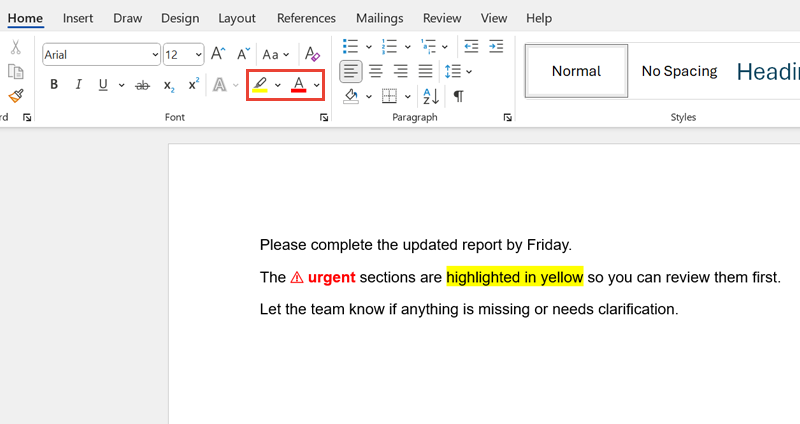
Microsoft Word interface with the Home tab open. The text includes a red, bold “urgent” with a warning symbol, and the phrase “highlighted in yellow” is marked with a yellow highlight. The toolbar shows font color and highlight options.

Bright colors might look fun, but they can make text hard to read. Stick to dark, easy-to-read colors and use other tools—like bold or headings—to organize your document.

hint
Color-coding of document text is useful for online collaboration, but remember that printing (especially in black and white) can render text that is hard to read.

terms to know
Highlighting
Adding a colored background behind text to help it stand out while reviewing or organizing information.
Draft
Early version of a document, often incomplete or unpolished.
Team Review Document
Shared version of a document meant for feedback or editing by others.
Final Version
A completed document that is polished, approved, and ready for official use or distribution.
Interactivity
Features in a document or tool that let the user click, type, or respond—like links, buttons, or comment boxes.
Contrast
The difference between text and background color, affecting how easy text is to read.


3. Using Special Characters and Symbols

Sometimes, words are not enough. In professional writing, you may need special characters—like ©, ™, or °—to make your message clearer and more accurate. These are characters that are not part of the regular alphabet or number keys.

Some of these special characters are called symbols, such as the percentage sign (%) or an arrow (→). Symbols are often used in business, math, or step-by-step instructions.

Special characters and symbols include the following:

  • Business marks like ©, ®, and ™
  • Math symbols like ±, ≤, and %
  • Visual symbols like → and • that help organize or show direction

EXAMPLE

In a user guide, Jameela adds ™ after a product name and uses → to show some steps.

Most word processors have a symbol library that lets you find and insert these with just a few clicks.

Some special characters and symbols are used so often that you can insert them with a keyboard shortcut instead of searching through menus.

The table below shows special characters and symbols and how to type them quickly.

Symbol What It Means Windows Shortcut Mac Shortcut
© Copyright Alt + 0169 Option + G
® Registered trademark Alt + 0174 Option + R
Trademark Alt + 0153 Option + 2
Bullet point Alt + 0149 Option + 8
Arrow Alt + 0174 or use the Insert menu Using menu or emoji picker
± Plus/minus (math) Alt + 0177 Option + Shift + =
° Degree symbol Alt + 0176 Shift + Option + 8

try it
Open Microsoft Word. Type this sentence: “Our company offers solutions for temperatures up to 100 degrees.”

  • Insert a © after “company.”
  • Replace the word “degrees” with the degree symbol (°).
Try using both the Insert menu and a keyboard shortcut.

If you do not want to memorize shortcuts, you can always use the Insert tab in Word or Google Docs to find what you need.

Use symbols when they make the message shorter and clearer, like % instead of writing “percent.” But do not overuse them. Too many can make your writing hard to follow.

big idea
Special characters and symbols add precision to business documents (Microsoft, n.d.) and make your writing look professional—as long as they are used for clarity, and not clutter.

terms to know
Special Characters
Letters, marks, or signs that are not regular letters or numbers—like ©, ™, °, or é.
Symbol
A type of special character that shows ideas in a quick, visual way—like %, →, or ±.
Symbol Library
A collection of available symbols accessible through word processing software.
Keyboard Shortcut
A key combination that quickly inserts symbols or performs actions.


4. Creating Links

Many documents, particularly ones that are used online, will include web addresses. In most cases, simply typing or pasting a link in full will automatically be hyperlinked by Word. If you would rather have other text for the hyperlink, you can type the text you want readers to see, then select it and go to Insert > Link to enter the web address you want it to link to.

try it
Copy and paste this URL into a Word document: http://sophia.org

Now type “I am taking a class at Sophia,” and make the word “Sophia” link to the same web address.


5. Maintaining a Clean and Professional Design

Even if your text is well written, a cluttered layout can make it hard to read. A clean and professional design helps everyone understand your message, especially people with different reading needs or vision levels.

Easy access formatting means making documents that are clear and readable for everyone—including people with low vision or color blindness. These small design choices help all readers, not just those with special needs.

EXAMPLE

Maya uses bold text and bullet points instead of color so that everyone can read their report easily.

The following table shows simple ways to make your documents look clean and easy to use.

Design Area What to Do
Font choice Use a clear sans-serif font like Arial or Calibri for screen-based documents, as these fonts are generally easier to read on digital displays (WebAIM, 2020).
Font size Keep the body text at 12 pt or larger to enhance readability and maintain accessibility compliance, ensuring that the content is usable for people with visual impairments or reading difficulties.
Color contrast Use dark text on a light background. Avoid yellow on white or red on green.
Document structure (how text is organized) Use clear headings, short paragraphs, and extra space between sections.
White space (blank areas around text) Leave a blank space around text to avoid clutter and help guide the reader’s eye.

try it
Open a Word file. Format one short paragraph using these tips from the table:

  • Use 12 pt Arial for the text.
  • Make the heading bold and a little bigger.
  • Add extra space between the heading and the paragraph.
  • Leave white space around the text by pressing Enter before and after.
  • Use a light background with dark text.
Does your paragraph look clean and easy to read? Show it to someone else and ask what stands out first.

Some people are color-blind, which means that they have trouble seeing certain colors. That is why it is important to use other clues to share vital information. Instead of using just color, try the following:

  • Bold text
  • Symbols
  • Headings
  • Labels (text-based identifiers like “Warning” or “Step 1”)
  • Icons (small images or symbols like ⚠, ✔, or ✉)
These help make sure your meaning comes through clearly, even without color.

The screenshots below show two versions of the same message:
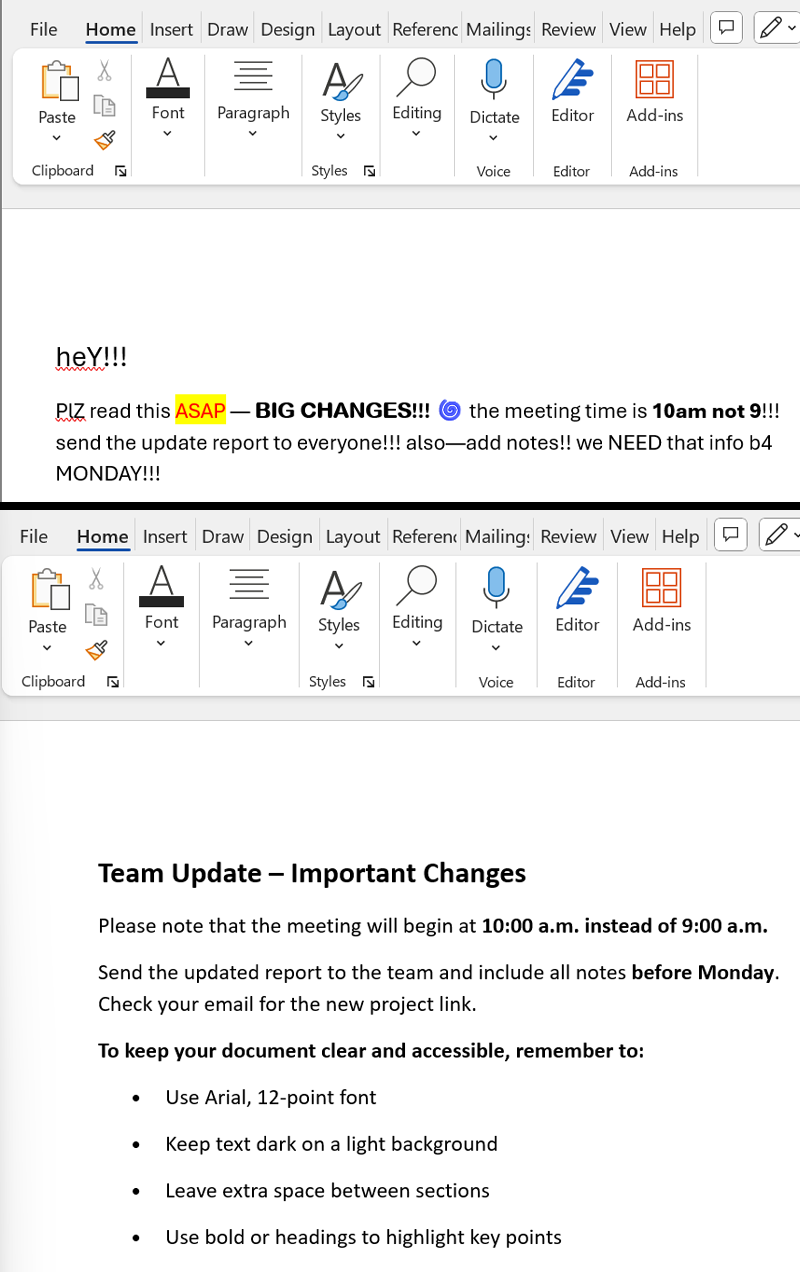
  • Top screenshot: Cluttered and hard to read, with too many fonts, colors, and emojis
  • Bottom screenshot: Clear and easy to read, with bold headings, bullet points, and simple text
Two Word document screenshots, one above the other. The first screenshot shows a cluttered message with mixed fonts, colors, and emojis. The second screenshot shows a clear, professional version with bold headings, bullet points, and consistent formatting.

big idea
A clean design helps every reader and shows that you care about being clear, thoughtful, and professional.

terms to know
Easy Access Formatting
A way of designing documents so that everyone can read and understand them easily, including people with vision or reading differences.
Sans-Serif Font
A style of text that does not have extra lines or strokes at the ends of letters.
Accessibility Compliance
Meeting standards that make content usable for people with visual, cognitive, or other disabilities.
Document Structure
Layout of titles and paragraphs; can help readers navigate content.
White Space
Empty areas reducing visual clutter and improving how easy text is to read.
Color-Blind
A condition where a person has trouble seeing certain colors or telling them apart.
Labels
Short words or phrases that explain what something is, like “Name,” “Step 1,” or “Warning.”
Icons
Small images or symbols (like ⚠ or ✔) that present meaning quickly without using words.

summary
In this lesson, you explored how to create professional documents by choosing and adjusting text appearance.

You learned some ways of enhancing readability with highlights and color by using strong contrast and adding other visual cues.

You also explored using special characters and symbols to emphasize important information without relying on color alone.

You also learned about creating links to connect readers to relevant resources, making your documents more interactive and useful.

Finally, you focused on maintaining a clean and professional design that supports both clarity and inclusivity for all readers.

In the next lesson, you will learn how to format paragraphs.

Source: THIS TUTORIAL HAS BEEN ADAPTED FROM OPENSTAX’S “WORKPLACE SOFTWARE AND SKILLS.” ACCESS FOR FREE AT OPENSTAX.ORG/DETAILS/BOOKS/WORKPLACE-SOFTWARE-SKILLS. LICENSE: LICENSE: CREATIVE COMMONS ATTRIBUTION 4.0 INTERNATIONAL.

REFERENCES

Google Docs Editors Help. (n.d.). Change how paragraphs & fonts look. support.google.com/docs/answer/1663349

Microsoft. (n.d.). Add and format text. support.microsoft.com/en-us/office/add-and-format-text-2e76a31b-a6d6-4b4e-95c2-fb780e3ac8d3

WebAIM. (2020, April 14). Introduction to web accessibility. webaim.org/intro/

Terms to Know
Accessibility Compliance

Meeting standards that make content usable for people with visual, cognitive, or other disabilities.

Bold

Makes text darker and thicker to draw strong attention.

Color-Blind

A condition where a person has trouble seeing certain colors or telling them apart.

Contrast

The difference between text and background color, affecting how easy text is to read.

Document Structure

Layout of titles and paragraphs; can help readers navigate content.

Draft

Early version of a document, often incomplete or unpolished.

Easy Access Formatting

A way of designing documents so that everyone can read and understand them easily, including people with vision or reading differences.

Final Version

A completed document that is polished, approved, and ready for official use or distribution.

Font

The style of the letters, numbers, and symbols you type.

Font Size

How big or small the text is on the screen or page.

Footnotes/Notes

Small notes added at the bottom of a page to give extra information.

Formatting a Document

Changing how the text looks to make it clear, organized, and easy to read.

Highlighting

Adding a colored background behind text to help it stand out while reviewing or organizing information.

Icons

Small images or symbols (like ⚠ or ✔) that present meaning quickly without using words.

Interactivity

Features in a document or tool that let the user click, type, or respond—like links, buttons, or comment boxes.

Italics

Slants text to the right to give softer or special emphasis.

Keyboard Shortcut

A key combination that quickly inserts symbols or performs actions.

Labels

Short words or phrases that explain what something is, like “Name,” “Step 1,” or “Warning.”

Points (Pt)

The unit used to measure font size.

Sans-Serif Font

A style of text that does not have extra lines or strokes at the ends of letters.

Special Characters

Letters, marks, or signs that are not regular letters or numbers—like ©, ™, °, or é.

Symbol Library

A collection of available symbols accessible through word processing software.

Symbols

A type of special character that shows ideas in a quick, visual way—like %, →, or ±.

Team Review Document

Shared version of a document meant for feedback or editing by others.

Text Stress Tools

Features like bold, italics, and underline that help important text stand out.

Underline

Adds a line under the text to highlight it.

White Space

Empty areas reducing visual clutter and improving how easy text is to read.

