Table of Contents |
Every website project needs a home—a central location where all files and folders live. In GitHub Codespaces, this home appears as a project folder in the file explorer panel. Understanding how this folder is structured is the foundation of organized web development and will help you navigate and manage real projects inside your development environment.
The root folder is the main container for your entire website project. Think of it as the top-level folder that holds everything related to one website. When you create a new project in your IDE, you typically create or open a root folder to work within. When you open a project in GitHub Codespaces, the root folder is the top-level folder shown in the file explorer and contains all files for that website.
The root folder serves several important purposes:
my-portfolio or coffee-shop-website. Inside this root folder, you will organize your files into subfolders based on their purpose.
EXAMPLE
The following structure shows how files and folders are commonly organized within a website project:This same structure is mirrored in Codespaces:my-portfolio/
├──index.html
├──about.html
├──contact.html
├──css/
├──js/
└──images/
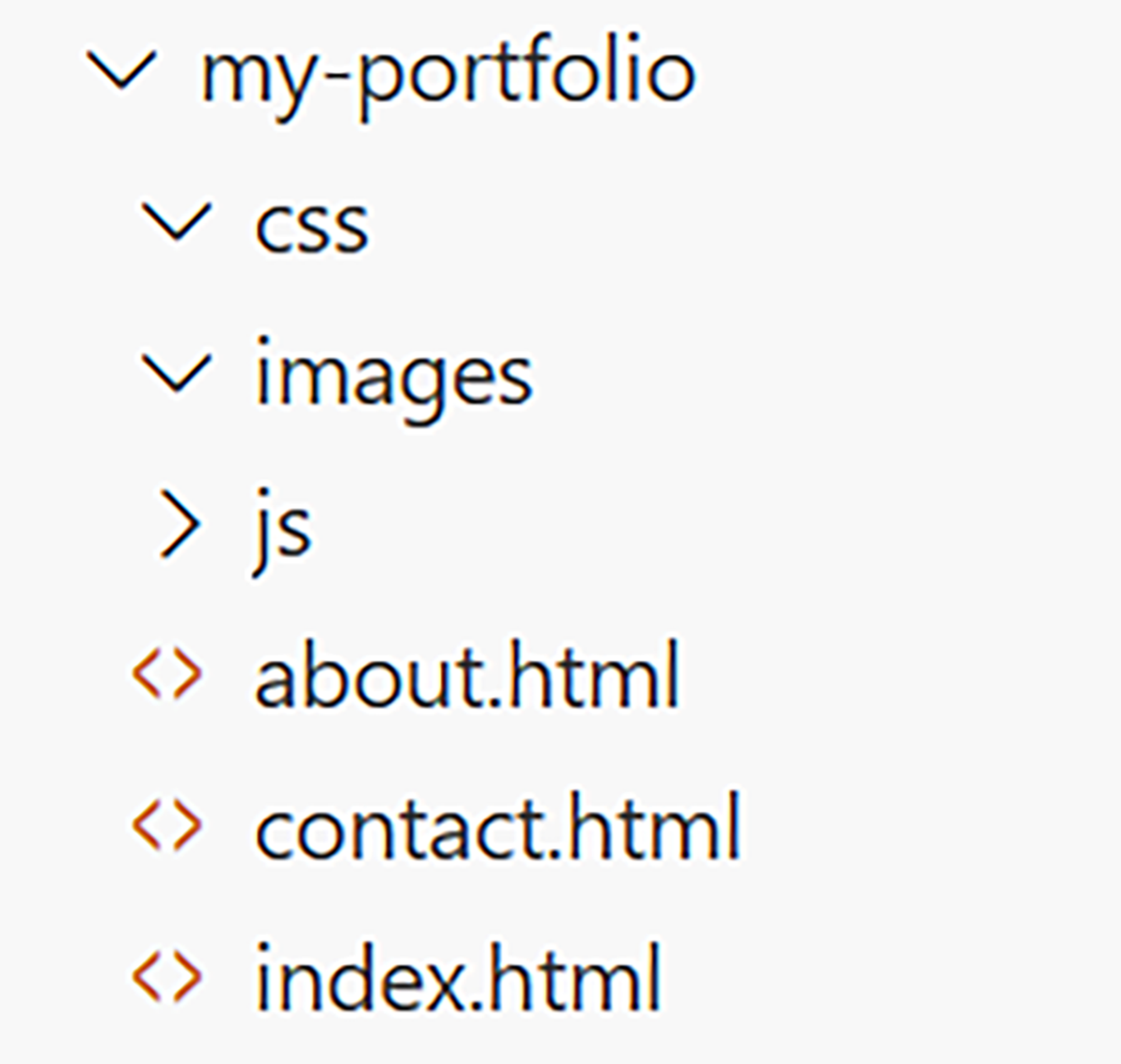
my-portfolio folder is the root folder, and all files related to the website are organized within it.
Professional web developers follow consistent patterns for organizing files within the root folder. While there is some flexibility, certain conventions have become standard practice because they make projects predictable and easy to navigate. These folder organization patterns are visible in the GitHub Codespaces file explorer and help you quickly locate related files as projects grow.
| Standard Folder Structure | ||
|---|---|---|
| Folder Name | Purpose | Example Contents |
| css/ | Stylesheet files | styles.css, navigation.css |
| js/ | JavaScript files | main.js, form-validation.js |
| images/ | Image files | logo.png, hero-background.jpg |
| assets/ | Mixed media files | Fonts, videos, icons, downloads |
| pages/ | Secondary HTML pages | about.html, contact.html |
Here is what a well-organized project structure looks like in practice:
IMAGE
Notice how the images folder contains a subfolder called menu-items. As projects grow, you can create subfolders within subfolders to maintain organization. This is called nesting, and it helps keep related files grouped together. In Codespaces, nested folders appear indented beneath their parent folders in the file explorer.
Now that you understand how website projects are organized, you will begin creating files and folders inside the GitHub Codespaces workspace. In this section, you will use the file explorer to build a basic project structure that follows common web development conventions.
The focus is on creating and placing files and folders correctly.
Folders are used to group related files together within a website project. Creating folders early helps keep projects organized and easier to maintain as they grow.
In GitHub Codespaces, folders are created using the file explorer panel. New folders should be created inside the project’s root folder unless otherwise noted.
Folder names should be short, descriptive, and consistent. Following naming conventions now prevents confusion later.
Files store the content and behavior of a website. When creating a file, both the filename and the file extension matter. The extension tells the browser how the file should be interpreted.
In GitHub Codespaces, files are created directly inside folders using the file explorer.
index.html or styles.css). css inside the root folder index.html in the root folder styles.css inside the css folder Choosing clear and consistent names for files and folders helps ensure your website works correctly across different systems and is easy to understand later. These rules are known as naming conventions, and they guide how developers name project files and folders.
In this section, you will apply naming conventions to the files and folders you created in your GitHub Codespaces workspace.
Web developers follow a small set of standard rules when naming files and folders. These rules exist because web servers and browsers treat filenames very precisely.
Essential Naming Rules:
.html, .css, or .js). The following examples show how naming conventions improve clarity and reliability.
| Filename Comparisons | ||
|---|---|---|
| Poor Filename | What’s Wrong | Improved Filename |
About Us.html
|
Uses spaces and uppercase letters |
about-us.html
|
MainStyles.CSS
|
Uses uppercase letters |
main-styles.css
|
script(1).js
|
Uses special characters |
form-validation.js
|
contactformvalidationscript.js
|
Difficult to read |
contact-form-validation.js
|
| Folder Name Comparisons | ||
|---|---|---|
| Poor Folder Name | What’s Wrong | Improved Folder Name |
| CSS Files | Uses spaces and uppercase letters | css |
| assets & media | Uses special characters and spaces | assets |
Website projects are made up of different file types that work together. Each file type has a specific purpose and is identified by its file extension. In this section, you will recognize common website file types by locating them in your GitHub Codespaces workspace.
Most websites rely on three core file types that work together to create structure, appearance, and behavior. Each file type is identified by its file extension and is typically stored in a specific location within a website project.
Files with the .html extension contain the structure and content of web pages. Examples include index.html and about.html, which are commonly stored in the root folder or a dedicated pages folder. In GitHub Codespaces, HTML files appear in the file explorer and open in the code editor when selected.
Files with the .css extension control the visual appearance of a website. These files are commonly stored inside a css folder to keep styling resources organized. The styles.css file you created earlier is an example of this file type.
Files with the .js extension add behavior and interactivity to a website. JavaScript files are typically stored inside a js folder. You may not have JavaScript files in your project yet, but organizing your folders this way prepares your project for future lessons.
| File Extension | File Type | Common Folder Location |
|---|---|---|
| .png, .jpg, .gif, .svg, .webp | Images | images folder |
| .woff, .woff2, .ttf | Fonts | assets/fonts folder |
| .mp4, .webm | Videos | assets/videos folder |
| Documents | assets or downloads folder | |
| .ico | Favicon | root folder |
Among all the files in a website project, index.html holds a special position. This file serves as the default home page that web servers automatically display when visitors access your website.
When someone visits www.example.com, the web server looks for a file named index.html in the root folder and displays it. This happens automatically without the visitor needing to type www.example.com/index.html.
Why index.html Matters:
index.html as the default file to serve. index.html file in the root folder. Web servers automatically serve this file as the home page when visitors access your domain without specifying a particular page.
EXAMPLE
A visitor typeswww.local-bakery.com into their browser. The web server automatically serves the content of index.html from the root folder:
index.html file were missing or named something else like home.html, visitors would see an error or directory listing instead of the home page.
Once your files are organized into folders, you need to link them together. When an HTML file references a CSS stylesheet or displays an image, it uses a file path to locate that resource. Understanding how to write correct file paths is essential for making your website function properly. You can observe these paths by looking at how files and folders are nested in the GitHub Codespaces file explorer.
A relative path describes the location of a file based on where the current file is located. Instead of starting from the top of the website, a relative path starts from the file you are working in and navigates through folders from that position.
Relative paths are commonly used when linking files within a website because they continue to work even if the entire project is moved to a different server or location.
Relative paths are read step by step, moving through folders as needed.
| Path | What It Means |
|---|---|
styles.css
|
The file is in the same folder as the current file. |
css/styles.css
|
Go into the css folder, then find styles.css.
|
../styles.css
|
Go up one folder level, then find styles.css.
|
../css/styles.css
|
Go up one level, then into the css folder. |
../../images/logo.png
|
Go up two levels, then into the images folder. |
Consider this project structure:
IMAGE
When you are working in index.html, which is located in the root folder, relative paths move directly into subfolders:
css/styles.css js/main.js images/logo.png index.html is already at the top level, no upward navigation is needed.
When you are working in about.html, which is inside the pages folder, you must first move up one level to reach the root folder before accessing other folders:
../css/styles.css ../js/main.js ../images/logo.png ../ notation means “go up one folder level.” In GitHub Codespaces, this corresponds to visually moving up one level in the file explorer hierarchy before navigating into another folder.
EXAMPLE
In this HTML file located atpages/about.html, relative paths link to resources in other folders. You do not need to understand or write this HTML code yet. Focus only on the file paths shown inside the quotes (" "), which demonstrate how relative paths work.
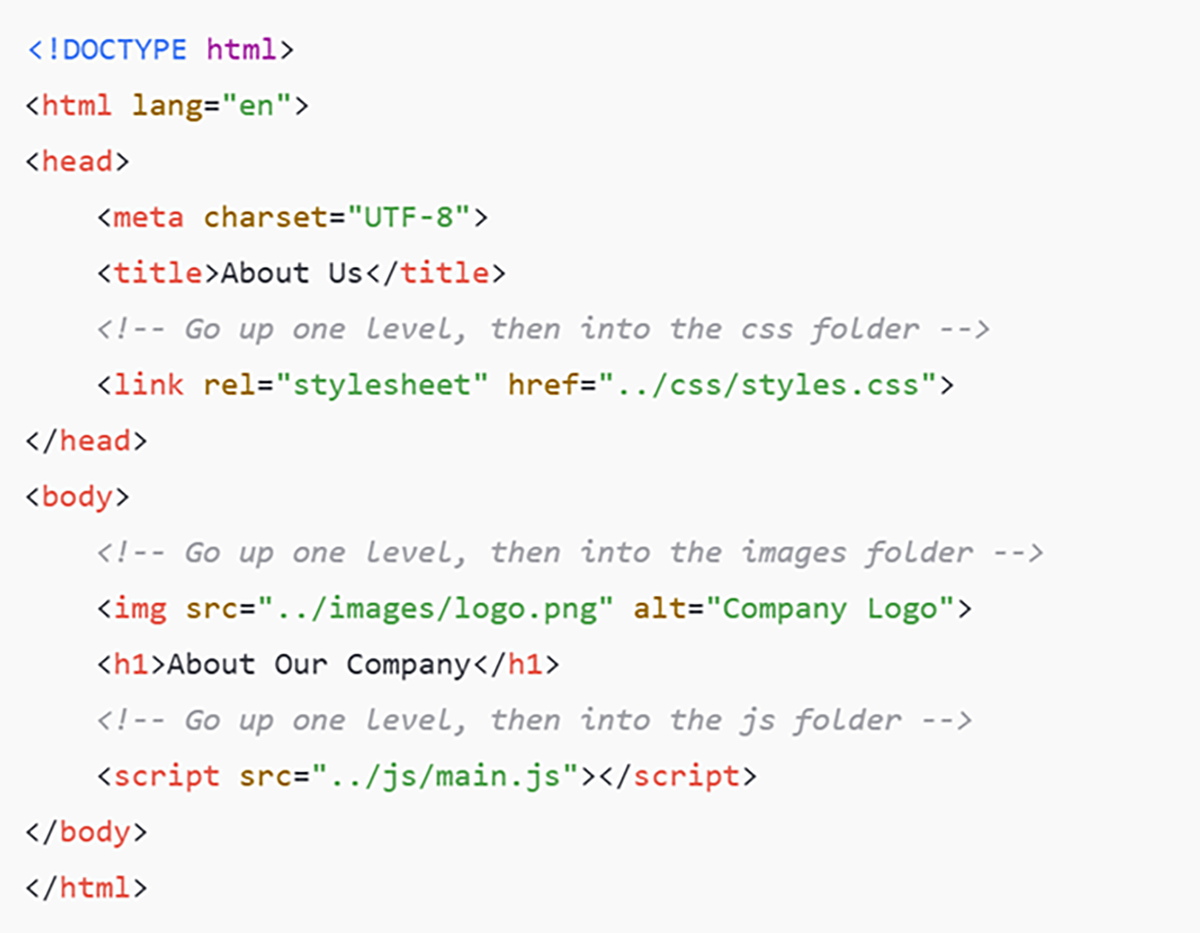
../, which moves up one level from the pages folder to the root folder. From there, the path continues into the appropriate subfolder, such as css, images, or js. This structure matches what you see in the GitHub Codespaces file explorer.
An absolute path provides the full location of a file starting from a fixed reference point rather than from the current file’s location. Unlike relative paths, absolute paths do not depend on where the file doing the linking is located.
There are two common types of absolute paths used in web development.
Root-Relative Absolute Paths:
Root-relative paths start with a forward slash (/), which represents the root folder of the website on the server.
/css/styles.css /images/logo.png In GitHub Codespaces, you can recognize root-relative paths by imagining that the slash (/) points to the top-level project folder you see in the file explorer.
Full URL Absolute Paths:
Some absolute paths include the entire web address and are typically used for files hosted outside your project.
https://example.com/images/photo.jpg https://cdn.example.com/library.js | Path Type | Best Used For |
|---|---|
| Relative paths | Linking files within your project |
| Root-relative paths | Large projects with many nested folders |
| Full URL paths | Resources hosted on external websites |
details.html, write the relative path to link to styles.css.
Source: THIS TUTORIAL WAS AUTHORED BY SOPHIA LEARNING. PLEASE SEE OUR TERMS OF USE.



