Table of Contents |
Many teams use video conferencing to connect when they cannot meet in person. Video conferencing is a technology that lets people in different places meet and talk using live video and audio over the internet.
Most organizations use one of three main video conferencing platforms: Google Meet, Microsoft Teams, or Zoom. Each platform offers similar core features but has different strengths that make them suitable for different organizational needs.
EXAMPLE
A remote team uses Zoom for weekly check-ins, Microsoft Teams for daily collaboration, and Google Meet for quick client calls.The image below shows the interfaces for Google Meet, Microsoft Teams, and Zoom. While each layout looks slightly different, all platforms include familiar controls for muting, screen sharing, and ending the call.
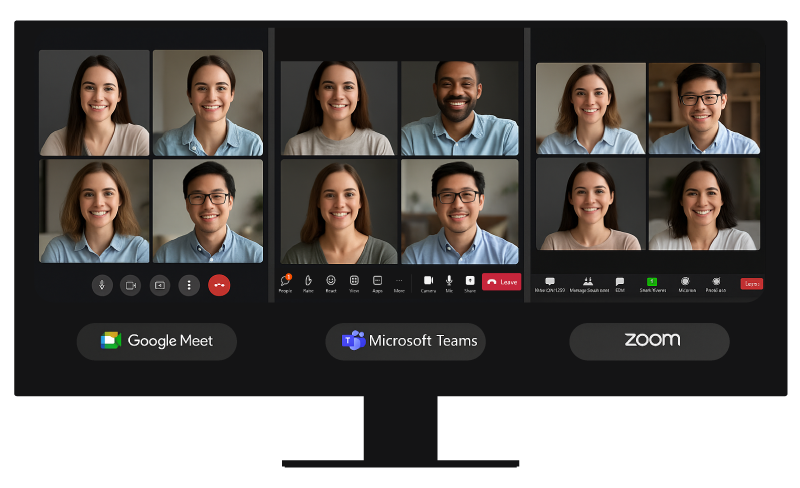
To help you understand the differences more clearly, the table below compares key features of Google Meet, Microsoft Teams, and Zoom. It shows how each platform integrates with other tools, what features are built in, and when each one is most useful. This comparison can help you feel more prepared when joining or hosting virtual meetings across different platforms.
| Feature | Google Meet | Microsoft Teams | Zoom |
|---|---|---|---|
| Main integration | Google Workspace (Gmail, Google Calendar) | Microsoft 365 (Outlook, Word, Excel, SharePoint) | Stand-alone, integrates with many tools |
| Joining method | Click the link from an email or calendar invite | Join via the Teams app, calendar invite, or channel | Click the meeting link, join from a browser or an app |
| Interface | Clean and simple | Full-featured dashboard with tabs (chat, files, calendar) | User-friendly with basic controls |
| In-meeting tools | Screen sharing (showing your screen to others), captions (on-screen text showing spoken words), layout options (ways to arrange video tiles) | Screen sharing, in-meeting chat, reactions | Screen sharing, chat, reactions |
| Advanced features | Integration with Google apps | Breakout rooms (smaller discussion groups), file collaboration (editing shared documents in real time), channel chat before/after meetings | Breakout rooms, virtual backgrounds (digital or blurred backdrops), filters, and effects |
| Best for | Quick meetings in Google-based environments | Teams that work together regularly and use Microsoft tools | Classes, large events, and group discussions |
| Post-meeting support | Relies on Gmail/Calendar notifications | Ongoing collaboration via Teams channels | Support follow-up, though some organizations may rely on separate tools like emails or team chat apps |
Once you have joined a virtual meeting, your audio and video setup plays a key role in how others experience your presence and professionalism.
Your audio quality—meaning how clear and loud your voice sounds during virtual meetings—and your video quality—which includes your lighting, camera clarity, and how well your face is positioned on screen—directly affect how others perceive your professionalism in virtual meetings.
If your sound or video is not working well, it can be hard for others to focus on what you are saying and may cause frustration during the meeting.
EXAMPLE
You adjust your lighting and use a headset so your team can hear and see you clearly during the meeting.Before you even turn on your camera or microphone, your environment sets the tone for how you are perceived in a virtual meeting.
Choose a quiet environment with minimal background noise. Position yourself in front of a neutral background or use your platform’s virtual background feature.
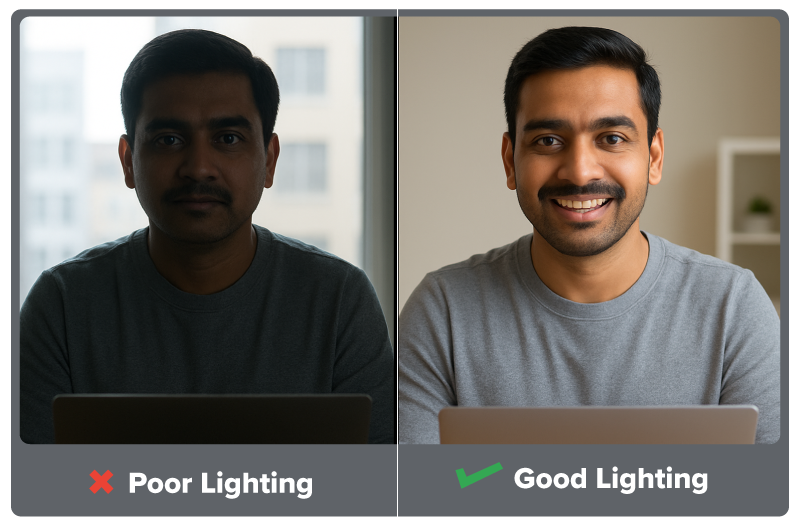
Ensure that your face is well lit by positioning a light source—such as a window or a desk lamp—behind your webcam, facing you.
IN CONTEXT: Getting Camera Ready for a Virtual Interview
You are getting ready for a virtual job interview on Zoom. To prepare, you choose a quiet room where you will not be interrupted by pets, family, or street noises.
You turn off any background music and close extra tabs on your computer. You sit facing a window so your face is clearly visible, and you place a small lamp behind your screen to reduce shadows.
Instead of using a messy or busy background, you either find a plain wall or turn on your platform’s virtual background feature to look more professional. You check how you appear on camera before the meeting starts to make sure your head and shoulders are centered in the frame.
These simple steps help you show up prepared, respectful, and focused—just like you would in an in-person meeting.
The image below shows how proper lighting can make a big difference in how clearly you are seen—and how professionally you come across—during a virtual meeting. Sitting in front of a sunny window can cast you in shadow; if possible, turn and face the window so you are well-lit.
Once your environment is ready, the next step is making sure your camera and microphone help you look and sound your best.
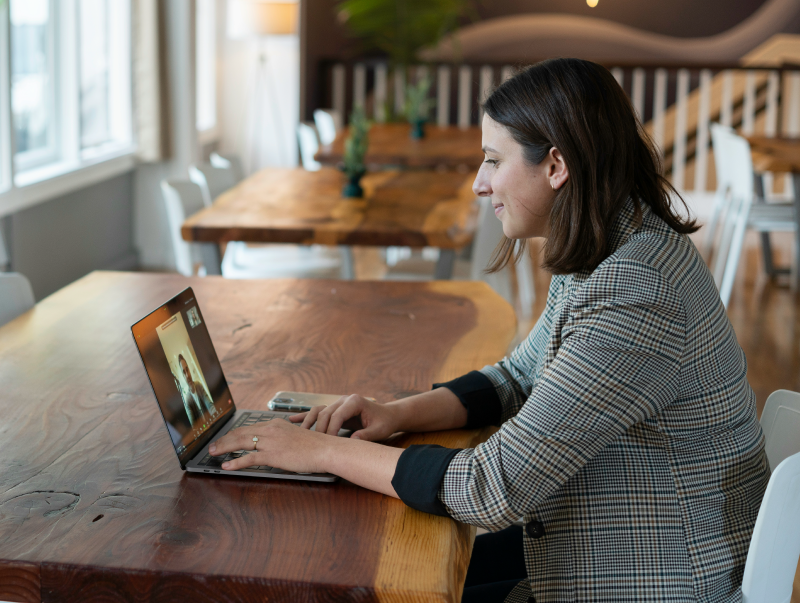
Camera positioning matters significantly for professional appearance. Use eye-level positioning—place your camera at eye level to maintain natural eye contact and appear more engaged. Placing the camera too low makes you appear to look down at others, while positioning the camera too high creates an unflattering angle.
Invest in a decent headset or external microphone, if possible. Built-in laptop microphones often pick up keyboard typing, background noise, and echo. Clear audio helps maintain meeting flow and reduces the need for participants to repeat themselves.
Technology is just one part of a successful meeting—how you present yourself also matters.
Virtual presence refers to how focused and professional you seem during online meetings. Since people cannot see your full body language like they would in person, you have to be more intentional about how you communicate.
Try to glance at your camera lens periodically, especially while speaking, to create the impression of direct eye contact with other participants. Practice good posture and avoid distracting movements that might draw attention away from the meeting content.
Practice mute etiquette by muting yourself when you are not talking to avoid background noise. Stay engaged by nodding and showing expressions. When you do speak, unmute clearly and pause briefly to ensure others can hear you before beginning.
EXAMPLE
In a team meeting, you mute yourself while listening, nod to show engagement, then unmute and pause briefly before giving your update.Professional dress standards still apply in virtual meetings, even when working from home. Dress as you would for an in-person meeting with the same colleagues. Your appearance communicates respect for the meeting and helps maintain professional boundaries—which means following appropriate workplace standards for how you look and act, even in remote settings.
Participate actively through verbal contributions, chat messages, and the appropriate use of reaction features, when available. Demonstrating engagement helps maintain team connection and shows your commitment to collaborative work.
IN CONTEXT: Demonstrating Professionalism in a Virtual Meeting
During a quarterly review meeting with senior leadership, a project manager shows strong virtual presence and professionalism. They wear professional clothing, prepare talking points in advance, and use eye-level positioning to maintain natural eye contact with the camera instead of constantly looking down at their notes.
While presenting project updates, the project manager speaks clearly, pauses for questions, and uses the chat to share helpful links without interrupting. They also use reaction buttons—like a thumbs-up—to show agreement and engagement in a respectful way.
When another participant briefly drops from the meeting because of technical issues, the project manager stays calm and continues the discussion. Once the person reconnects, they provide a quick summary so no one is left behind.
Source: THIS TUTORIAL HAS BEEN ADAPTED FROM OPENSTAX "WORKPLACE SOFTWARE AND SKILLS." ACCESS FOR FREE AT OPENSTAX.ORG/DETAILS/BOOKS/WORKPLACE-SOFTWARE-SKILLS. LICENSE: CREATIVE COMMONS ATTRIBUTION 4.0 INTERNATIONAL. Accessed by June 2025.
REFERENCES
Owl Labs. (2023, June 15). Video conferencing etiquette: 10 tips for a successful video conference. resources.owllabs.com/blog/video-conferencing-etiquette



