Table of Contents |
Spreadsheets are digital tools that help you organize information in a table-like layout, making it easy to read and compare. They serve three main functions: data storage, data manipulation and visualization, and project management (Microsoft, n.d.). These applications make spreadsheets valuable across industries. Let’s review these in detail.
| Function | Purpose | Description |
|---|---|---|
| Data storage | Organizing information | Spreadsheets store data in a structured format. Instead of keeping customer lists in separate documents, spreadsheets provide one location where information stays organized. Each piece of data has a specific place. |
| Data manipulation and visualization | Analyzing and presenting | Spreadsheets let users sort and filter data, calculate totals and averages, and create charts or graphs. These tools highlight trends and make information easier for others to understand. |
| Project management | Planning and coordination | Spreadsheets track timelines, tasks, and deadlines. Teams use shared spreadsheets to stay on schedule and stay organized, without needing special software. |
IN CONTEXT: Using a Spreadsheet to Manage Donations
A nonprofit group uses a spreadsheet to keep track of their donors. The coordinator enters names, contact details, and donation amounts in a structured layout. This helps store information in an organized way.
When it is time to plan a fundraiser, the coordinator sorts the list to see who donated the most and filters it to find people who have not donated in a while. They add up the total donations and make a simple chart to show the results.
Instead of using paper files, this one spreadsheet helps the team stay organized, plan better, and make smart decisions.
However, for very large databases, complex visuals, or real-time collaboration with many people, other tools like project management apps may work better.
Now that you have seen how spreadsheets can be used in different ways, let’s look at how they are organized.
Most spreadsheet files include more than just one page of data. That is where sheets and tabs come in.
| Term | Definition |
|---|---|
| Sheet | A single digital workspace in a spreadsheet file where you can enter and organize data in a structured layout |
| Tab | A clickable label at the bottom of the screen that lets you move between different sheets in the same file |
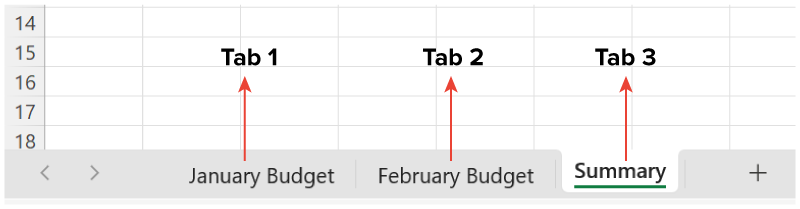
Think of tabs like dividers in a binder. Each tab represents a different sheet, and clicking on a tab opens that page. You can rename tabs to reflect their contents, such as “January Sales” or “Employee Directory.” This makes it easy to find information quickly.
EXAMPLE
A store owner uses one sheet to track sales, another for inventory, and a third for employee hours—all in the same spreadsheet file, organized by tabs.Most applications let you add, delete, and rearrange tabs. You might start with one sheet and add more as your project grows. You can copy information between sheets. This flexibility helps organize complex projects without creating separate files.
The screenshot below shows three tabs in a spreadsheet. Each tab opens a different sheet.
Now that you have explored how spreadsheets use sheets and tabs to organize different pages, let’s zoom in and look at how each sheet is structured.
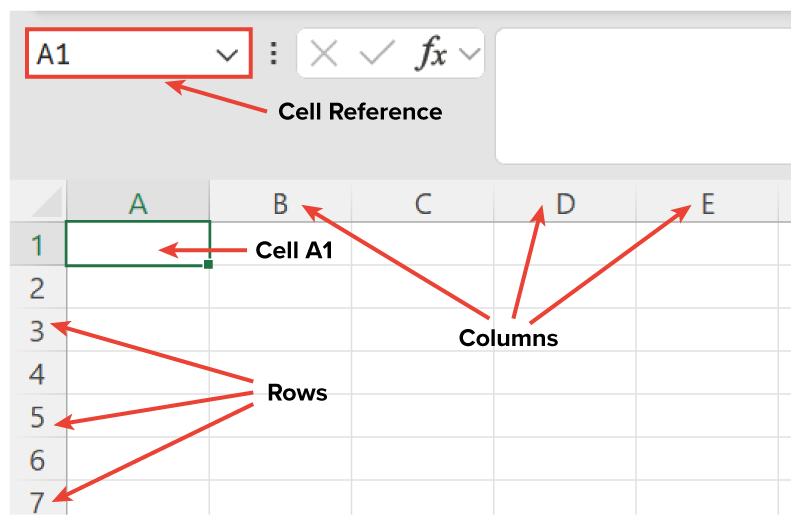
Spreadsheets organize data using columns and rows, and their intersection creates a cell. The table below explains these elements.
| Part | Description | Example |
|---|---|---|
| Column | Runs vertically in a spreadsheet and is labeled with letters | Column A, B, et cetera |
| Row | Runs horizontally in a spreadsheet and is labeled with numbers | Row 1, 2, et cetera |
| Cell | The box where a column and row meet, identified by its column letter and row number | Cell A1, A2, B1, et cetera |
Each cell in a spreadsheet has a name based on its column and row. This is called a cell reference. For instance:
This grid system—the pattern of rows and columns that makes up a spreadsheet—helps keep information organized and easy to find. Once you know how to read cell references, it becomes much easier to enter, locate, and manage data in a spreadsheet.
EXAMPLE
A teacher makes a list of students in a spreadsheet. One student’s name goes in A2, their grade in B2, and their attendance in C2. Each new student’s information goes in the next row, keeping columns consistent. The teacher uses cell names like A2 and B2 to stay organized.The screenshot below shows how a spreadsheet is organized into columns, rows, and cells. It highlights Cell A1, which is where Column A and Row 1 meet, along with labels for the column letters and row numbers that help you find any cell quickly.
Each cell in a spreadsheet holds information—but not all information is the same. Spreadsheets recognize different data types and format them accordingly (Microsoft, n.d.).
The main types include text data, number data, date data, and currency data. Understanding these types can help you enter data correctly. Let’s review these in detail.
| Data Type | What It Is Used For | How It Looks | Note |
|---|---|---|---|
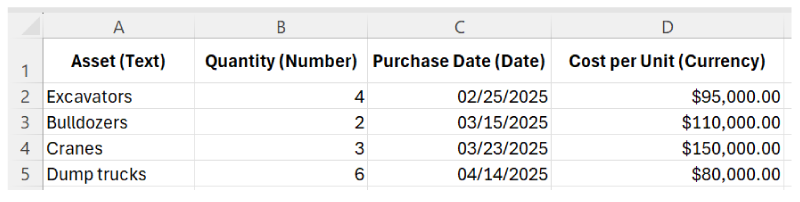
| Text | Names, labels, and descriptions | Aligned to the left by default | Not used for calculations; can include letters, numbers, or both |
| Number | Values used in calculations (e.g., totals, percentages) | Aligned to the right; can show decimals or % symbols | Used in calculations; formatting changes how the number appears, but not the value used in formulas |
| Date and currency | Dates (e.g., deadlines) and money amounts (e.g., prices) | Dates like 12/31/2025; currency-related signs like $ and decimals | Recognized automatically; usable for calculations |
EXAMPLE
A manager tracks employee pay in a spreadsheet. Names go in the text column, hours worked in the number column, and pay dates in the date column. The final column uses a currency format to display the calculated pay with dollar signs.The screenshot below shows a spreadsheet with four types of data: text in the first column, numbers in the second, dates in the third, and currency in the fourth.
Source: THIS TUTORIAL HAS BEEN ADAPTED FROM OPENSTAX’S “WORKPLACE SOFTWARE AND SKILLS.” ACCESS FOR FREE AT OPENSTAX.ORG/DETAILS/BOOKS/WORKPLACE-SOFTWARE-SKILLS. LICENSE: LICENSE: CREATIVE COMMONS ATTRIBUTION 4.0 INTERNATIONAL.
REFERENCES
Microsoft. (n.d.). Excel help & learning. support.microsoft.com/en-us/excel



