Table of Contents |
As we discussed in a previous challenge, prior to the proliferation of cell phones equipped with web browsers, all websites were designed with the standard desktop computer screen in mind. Most HTML content was configured with fixed sizes set in pixels—not percentages—and the content was not rearranged when the browser window’s size was reduced. Once cell phones started coming equipped with web browsers, site administrators needed a solution to make their site function properly on smaller screens.
Initially, the solution was to design a separate website for mobile devices, then use JavaScript to detect the browser type as mobile versus desktop, and then redirect the user to a subdomain that contains the mobile version.
EXAMPLE
Attempting to access mywebsite.com using a mobile phone would redirect you to the subdomain m.mywebsite.com.Today, CSS3 and HTML5 provide all of the necessary tools for making a website responsive. That is to say, a website will respond to the screen’s size and rearrange its content to best fit the device’s aspect ratio and orientation.
Media queries, as discussed previously, are powerful mechanisms that can react based on the user’s screen size and either activate or deactivate blocks of CSS that override default CSS properties. The overriding CSS is what changes properties to rearrange the content, such as overriding flex-direction from “row” to “column” to allow sections of content to stack vertically rather than side by side. Another property that may be overridden by a media query is font size. Smaller screens with higher DPI may render text that is too small for the user to read. Instead, the font size may be increased for smaller screens.
In the next sections, we will look at the viewport setting, how to rearrange content based on screen size, as well as how to implement a content swap and deploy a hamburger menu for smaller screens.
Viewport
The area of a computer program that is currently shown on the screen and an important setting for making a website responsive.
The first step in making a website responsive is to set the viewport value. The viewport value allows the browser to determine how to control the page’s dimensions and scaling.
EXAMPLE
We do this using a meta tag within the head section and give it the following HTML attributes:
<meta name="viewport" content="width=device-width, initial-scale=1.0">
Once this has been set, the browser will be able to automatically adjust elements to better fit on the screen, but this also gives it the ability to better handle media queries. In general, the reason this works is that all elements that use relative units of measurement, such as percentage and rem, need to have a parent with some sort of fixed size.
Returning to the page structure example wherein we used flexbox to make the main and aside sections sit side by side, we will prepare this page to adapt to narrower screen sizes by changing the flex-direction when the screen becomes too narrow.
The first step is to set the arrangement according to the initial design, that is, mobile first.
EXAMPLE
We will set the mobile as the default CSS and make the media query adapt to a larger size.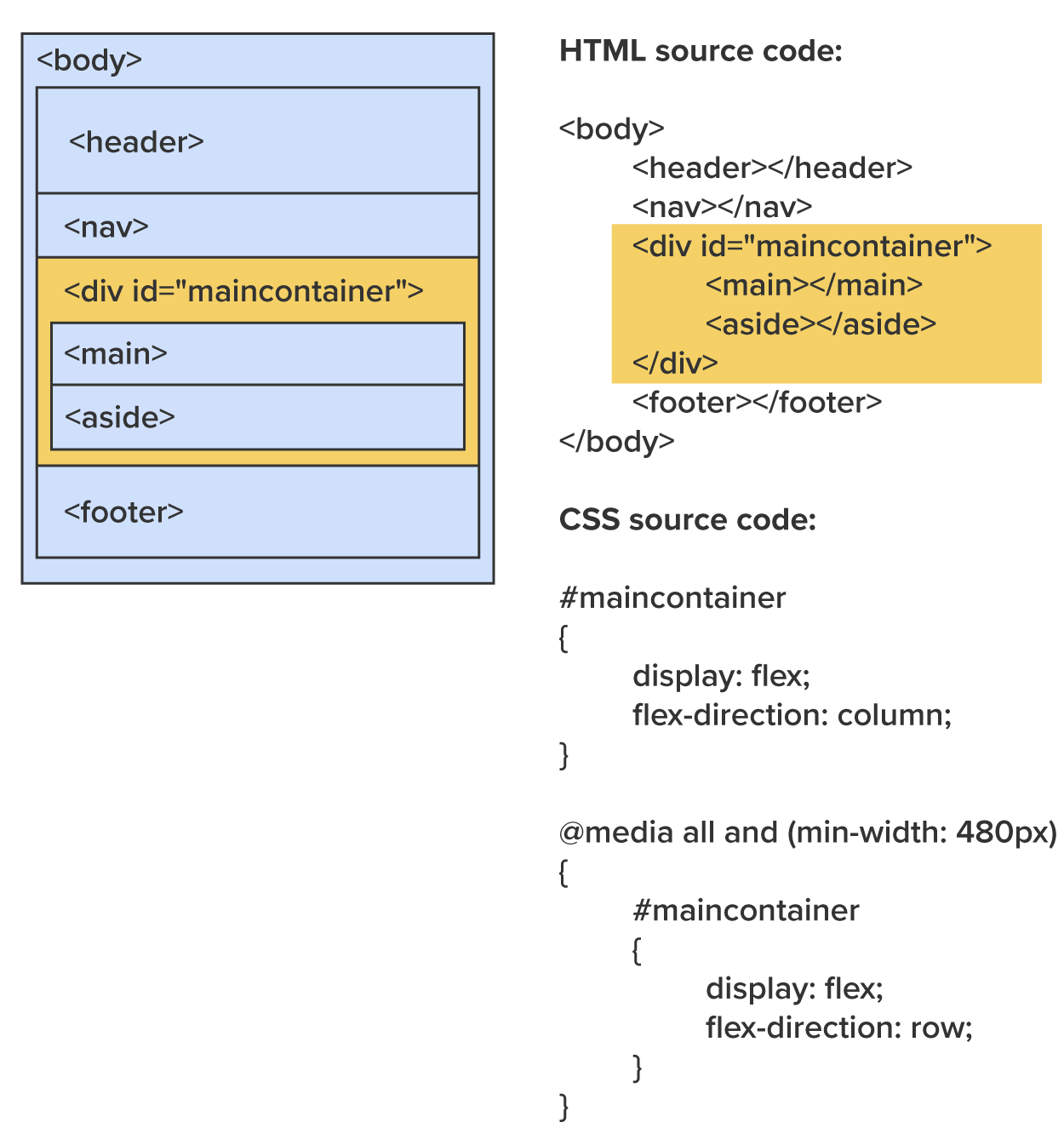
In the example, we set the #maincontainer as the flex container using “display:flex” and set the flex-direction to “column.” This allows the sections to stack vertically and allows for all content to fit on the screen and avoid forcing the user to scroll horizontally. Then, whenever the screen width reaches 480 pixels or more, the media query will activate its block of style rules and override the flex-direction with “row.” This allows both the main and aside sections to be displayed on screen and take advantage of the wider viewport.
Directions: Now that you have learned about how content can be rearranged with flexbox and media queries, it is time to try it yourself.
Note: At any time if you do not see the change occur, make sure to select the refresh button in the IDE.
1. Return to your StackBlitz account and open the project you were working on in the Forms lesson. We will be adding background colors to the main and aside sections, setting their widths to 70% and 30%, respectively, and preparing them to respond to the width of the screen and change their orientation.
2. In the head section of the index.html, create a style element and add the following properties to the main and aside sections:
EXAMPLE
The expected output is as follows: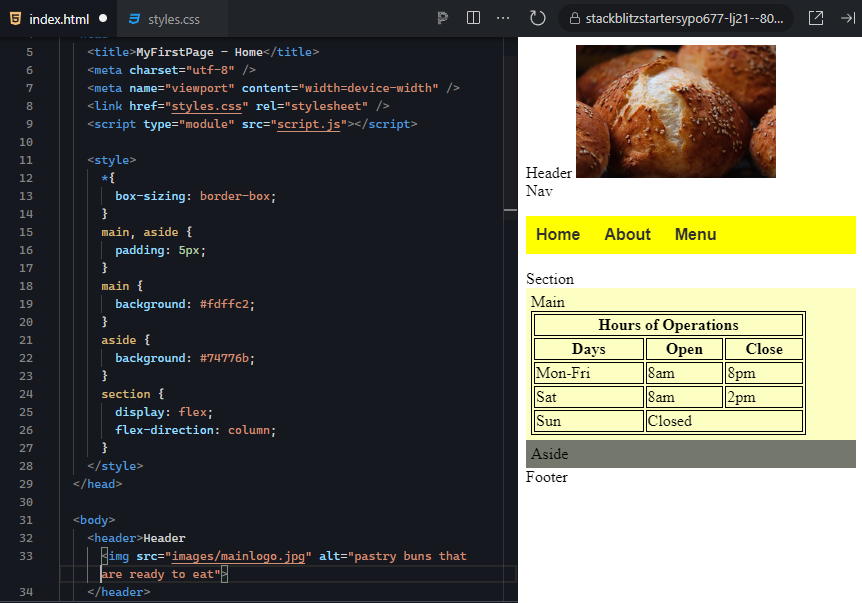
Remember, we are going to assume a mobile-first approach, so the default styles should be set up for a narrow screen. In this case, we stack them in a column and give them widths of 100%.
#FDFFC2.#74776B.3. Next, we will finish by adding the media query and overriding the flex-direction and the main and aside widths.
@media all and (min-width: 480px) { }
EXAMPLE
The expected output is as follows: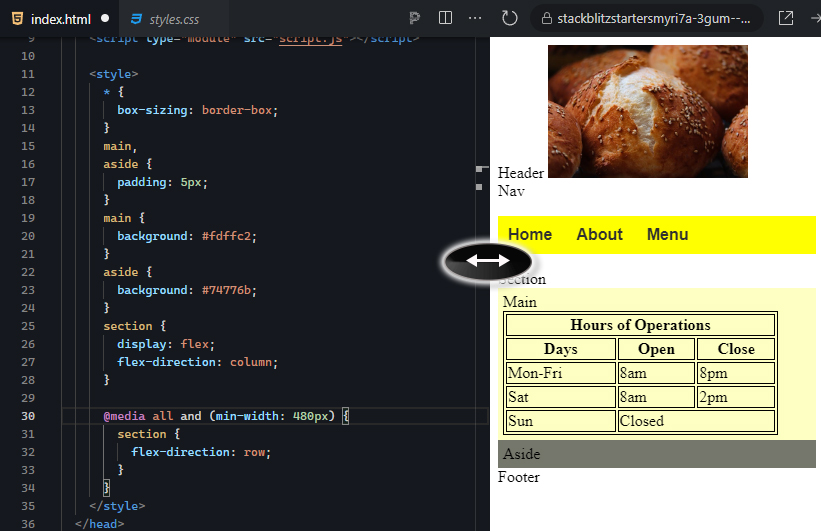
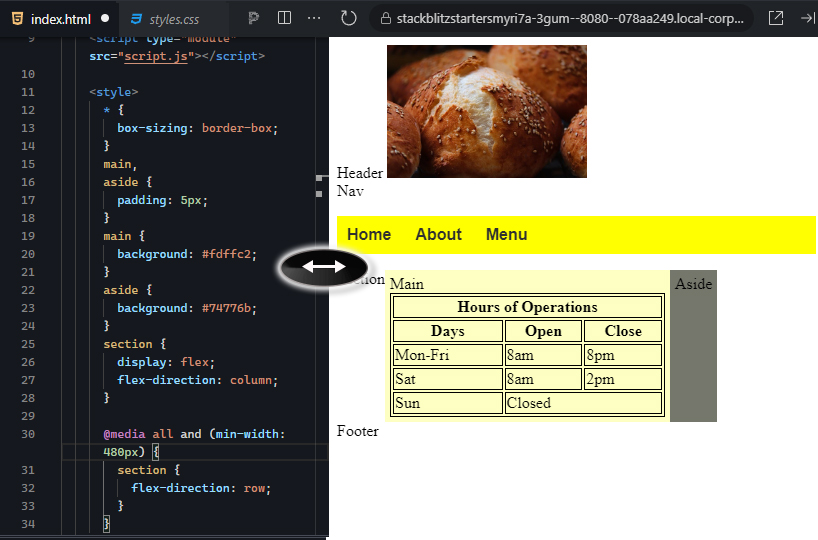
Congratulations! You successfully set up your main and aside sections to be responsive to the width of the viewport. Think about how this may be useful in other areas of your website. Other content sections, such as the footer, galleries of images, and the navigation menu, which we will explore next.
Remember that the hamburger menu is a menu that saves screenspace while it is not in use, which is particularly helpful for mobile users. The technique for allowing a full-size menu to switch into a hidden popup menu requires creating two complete menus and always having one hidden. Then, when the media query affects the page, it swaps the visibility of the two menus.
The process for preparing a page with a responsive navigation menu is as follows:
1. Prepare the hamburger menu using the CSS tooltip technique.
2. Prepare the standard navigation menu.
3. Surround both in their own division container, each with a unique id, that is, “burgermenu” and “fullmenu.” (NOTE: Keep in mind that class and id names cannot contain spaces. Follow the names as they are written in the tutorial.)
4. Within the site’s stylesheet, use the default CSS to hide the full menu using the id selector and set display to “none.” Set the hamburger menu using its id selector and set its display property to “block.”
5. Create a media query that reacts when the viewport width reaches at least 480 pixels. Use this media query to swap the display values, setting the burger menu to display “none” and the full menu to display “block.”
Directions: Now that you have learned about the process of creating a responsive navigation menu using media queries, let us start by creating the hamburger menu below the regular navigation menu so that both are on the screen. We will then make them responsive by hiding one and using the media query to swap their visibility using the display property.
Note: At any time if you do not see the change occur, make sure to select the refresh button in the IDE.
1. Let us make some changes to the original menu (full menu). In the index.html, locate the unordered list of your full navigation menu, and surround it in a division. Give the division an id of “fullmenu.”
2. Go to your stylesheet, and at the bottom of the stylesheet, create a new style rule with the #fullmenu selector and set the display to “none.” This will make your full menu disappear as the default style (it will be made to reappear when the screen meets the media query requirements).
EXAMPLE
The expected output is as follows: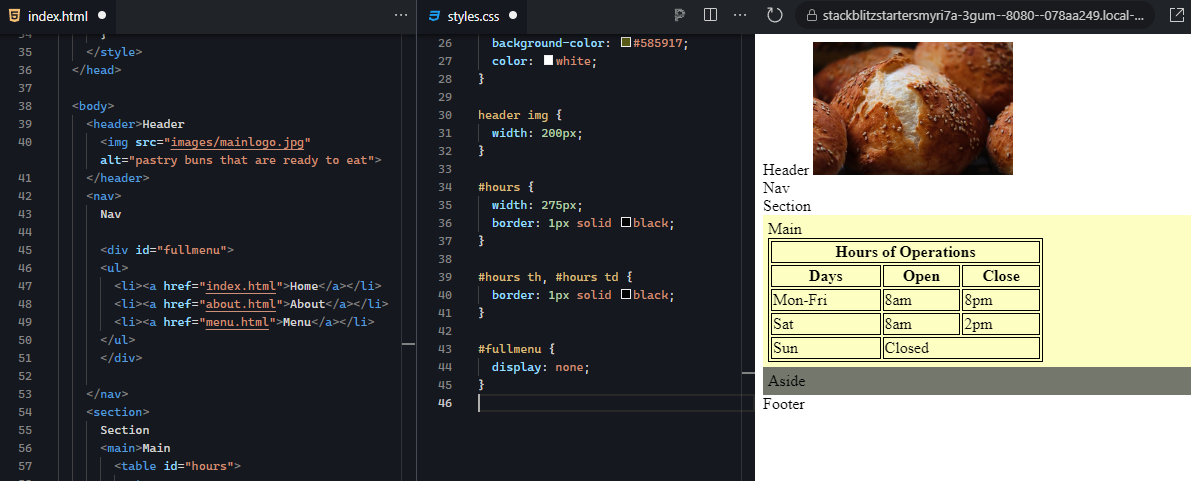
3. Now, add the same media query as we did before:
@media all and (min-width: 480px) { }
4. Within the curly brackets, add the same style rule for the #fullmenu and set its display to “block.” You should now be able to resize the viewport and see that your menu appears when the screen becomes wider than 480 pixels and disappears when it is less than 480 pixels.
EXAMPLE
The expected output is as follows: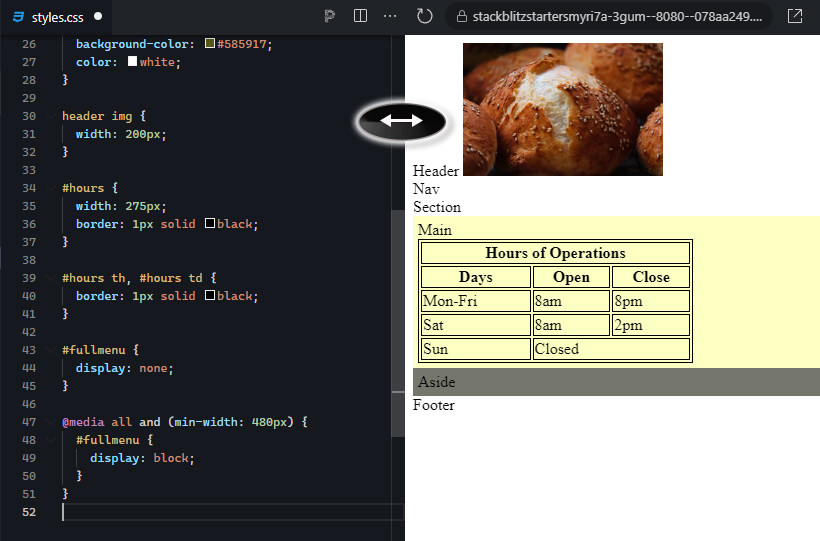
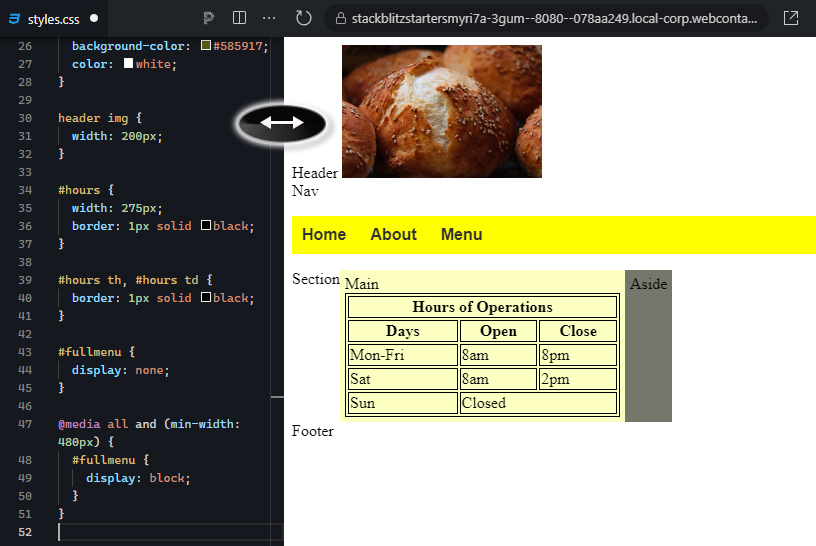
5. Next, we will create the burger menu. Copy and paste the entire full menu structure, including the entire division container, and paste the copy below the full menu division container.
6. Change the id value of the new menu to “burgermenu,” and give the unordered list within an id of “burgermenulinks.”
7. Surround the unordered list with a division element. Give the division element an id of “burgermenu.”
8. Give the unordered list tag an id of “burgermenulinks.”
9. Just below the burgermenu division and before the burgermenulinks, paste the following SVG code from Font Awesome. This is a burger menu icon and will be the hover target that will show the burger menu:
If your viewport is wide enough, you will see two copies of your original full menu and the hamburger icon between them. The upper menu should disappear when you reduce the width of the viewport:
EXAMPLE
The expected output is as follows: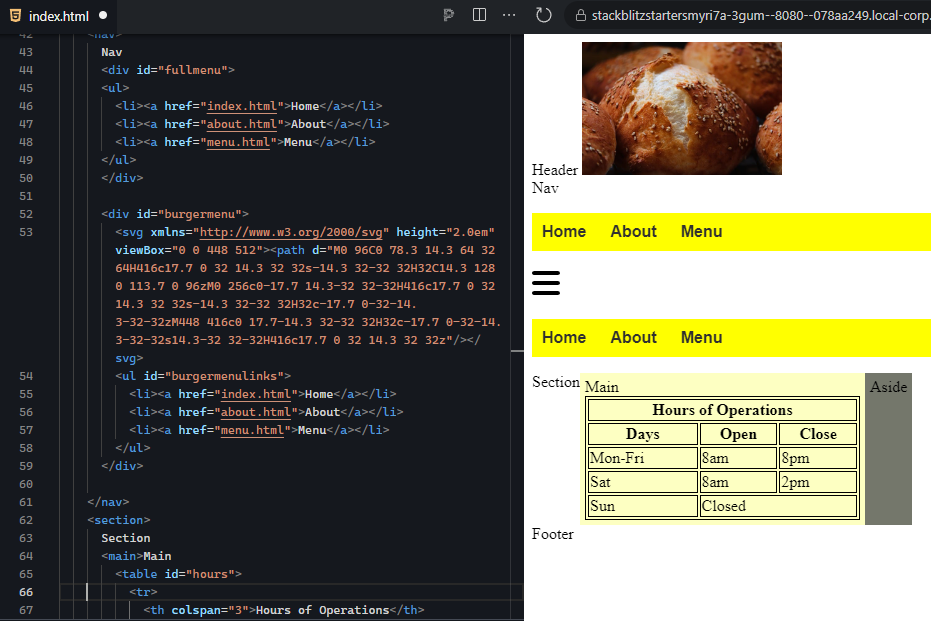
However, we need to separate the two menus for styling purposes. To do this, we need to make the selectors for the original full menu more specific. Everywhere you see a selector that starts with “nav,” replace the “nav” with “#fullmenu.” If you refresh, you will see that the burger menu will appear as an unstyled unordered list.
10. Now, let us make the hamburger menu function properly using the CSS tooltip technique. In the external stylesheet in the default styles (before the media query), set the burgermenu with the following properties:
11. Next, create another default style rule with the selector #burgermenu #burgermenulinks.
This is where you get to stylize your burger menu:
#171717.#9e9e9e.12. Next, we will set up the burger menu to respond to a mouse hover, display the menu, and control the menu’s position. Create a new style rule below the previous one with the following selector: #burgermenu:hover #burgermenulinks.
EXAMPLE
The expected output is as follows: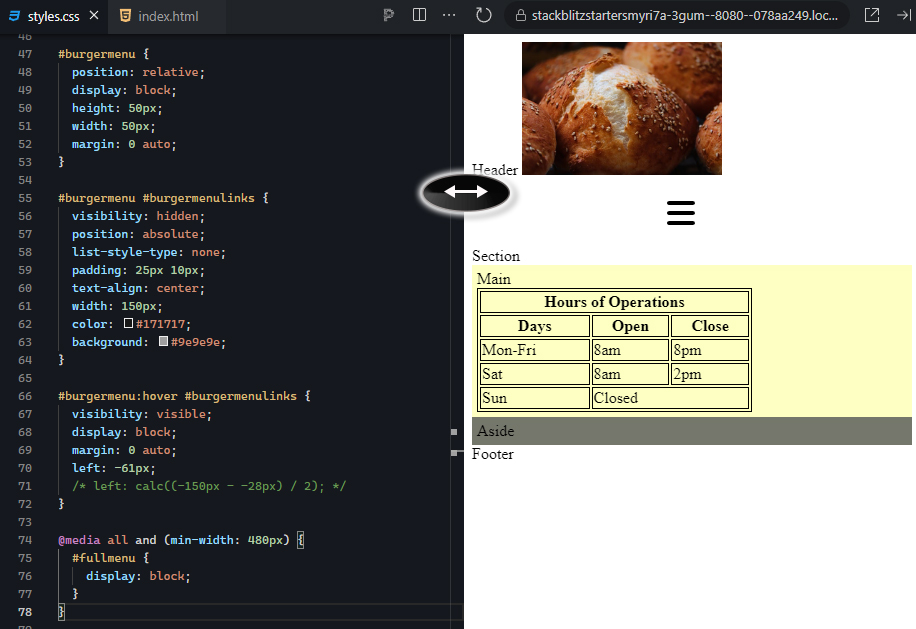
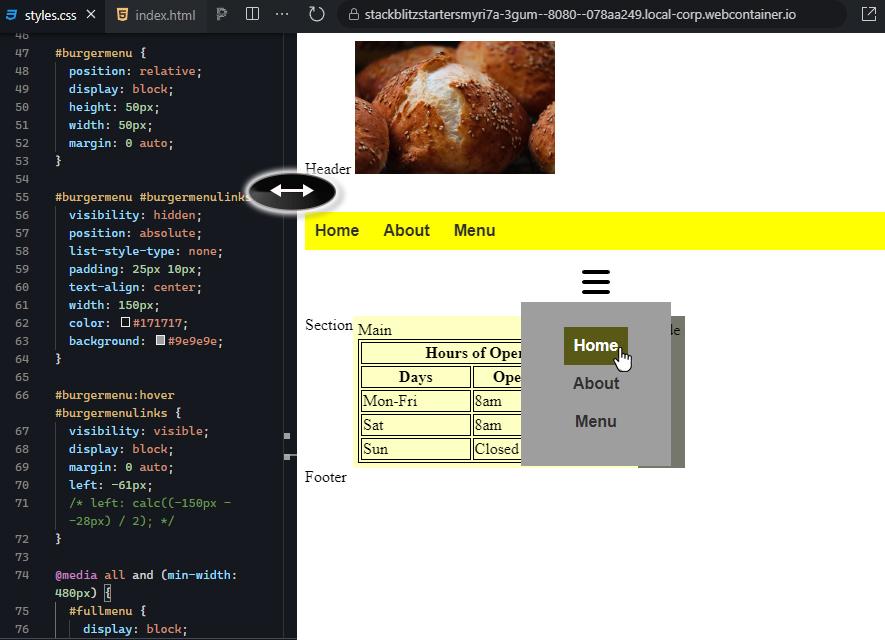
13. The second to last step is to hide the burger menu when the full menu is visible. Go to the media query section, and below the #fullmenu style rule, add a new rule for #burgermenu and set its display to “none.” Your navigation menu is now responsive.
14. Finally, copy and paste the entire nav section from the index.html and paste it into the about.html, overwriting the old nav section. Now, your about.html page’s navigation menu is also responsive. Remember to refresh your project.
EXAMPLE
The expected output is as follows: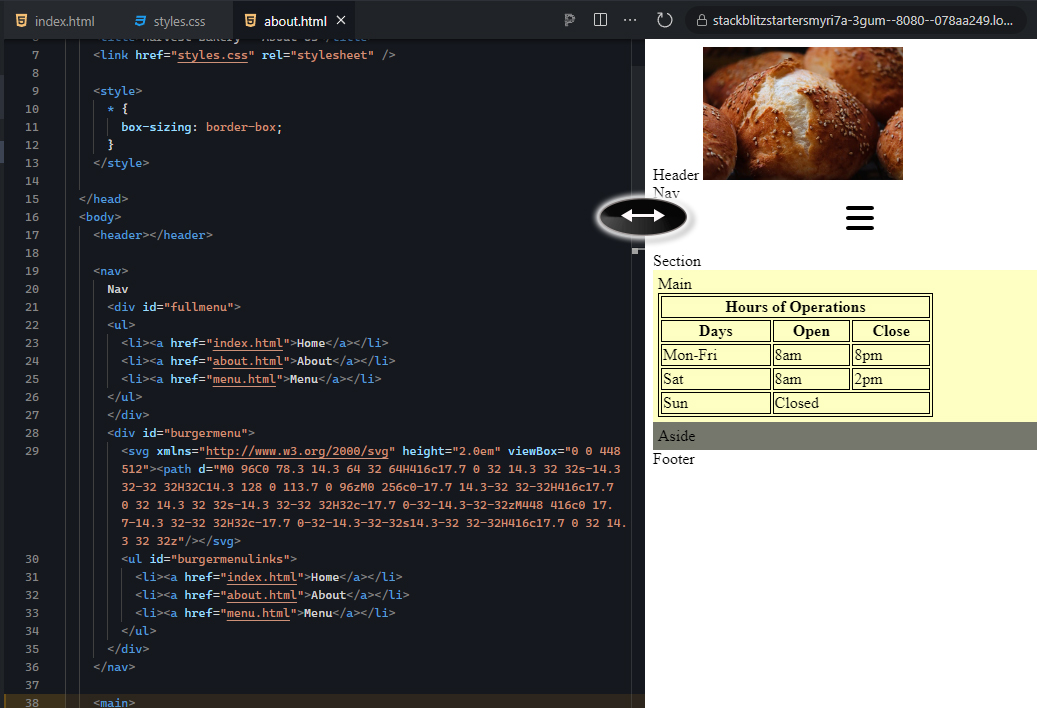
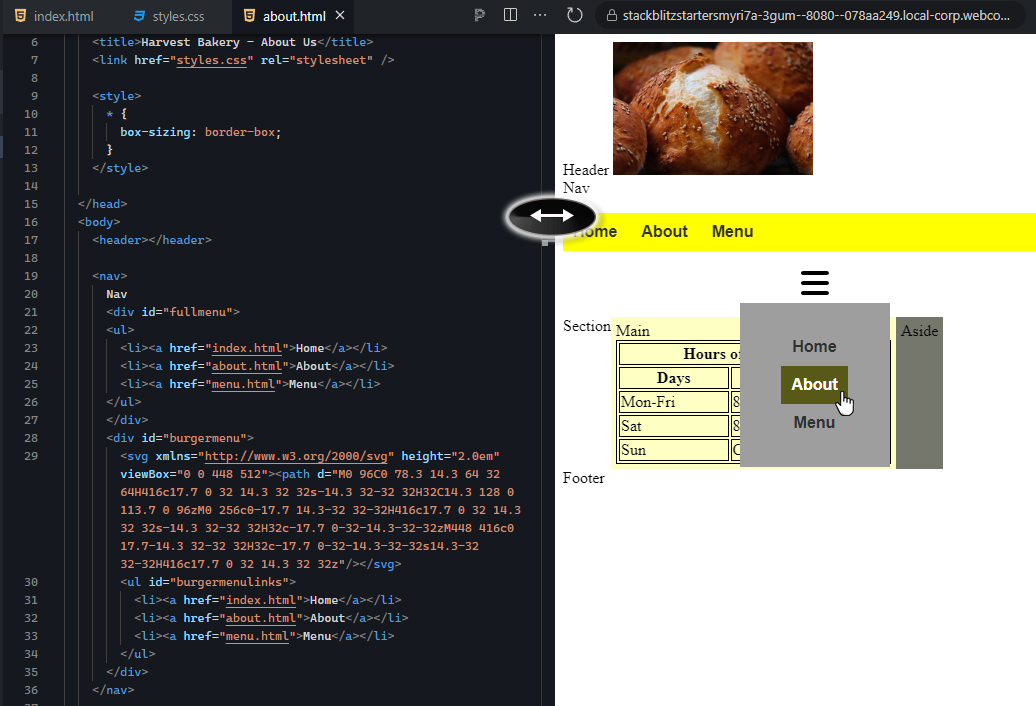
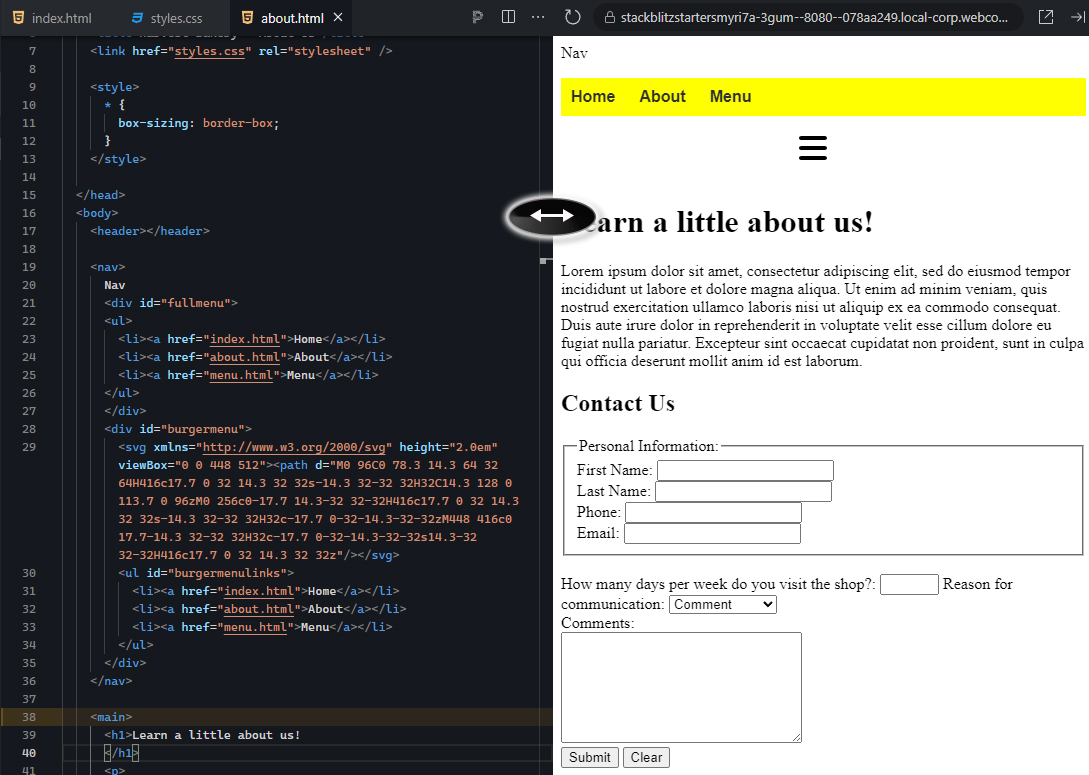
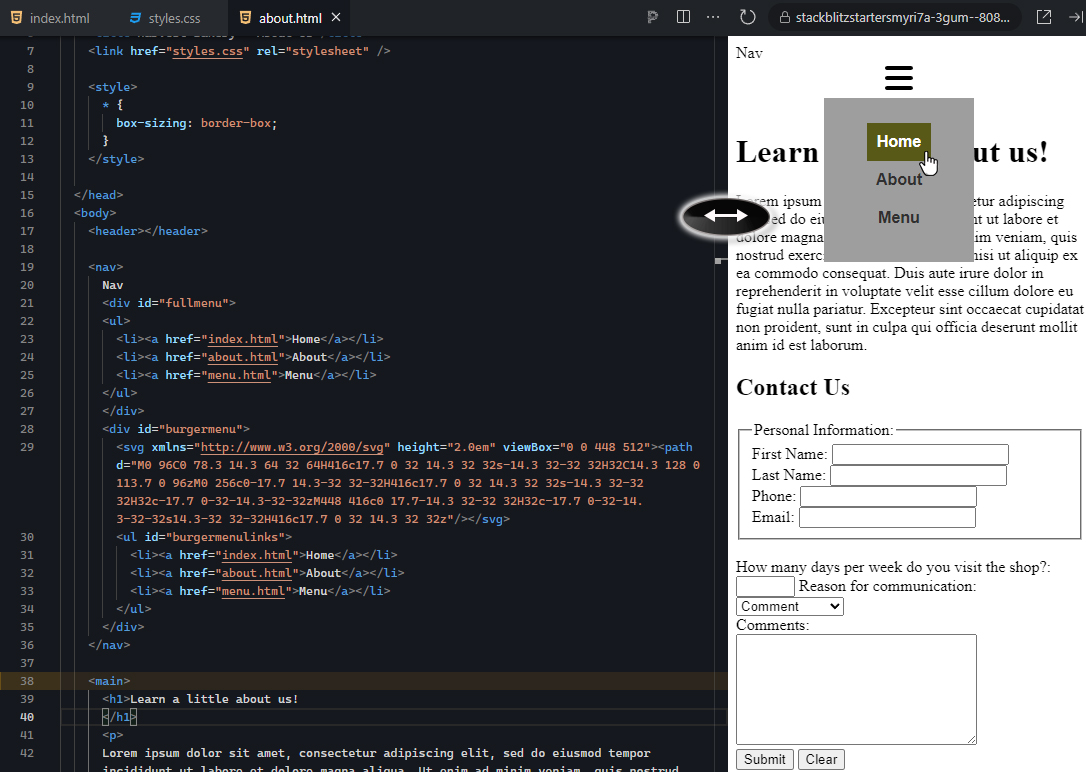
Note: In the about.html page, if your #burgermenulinks in the hover state are not vertically aligned, add the same style element that you added in the head section of the index.html. As in the index.html, use the universal selector “*,” set the box-sizing to border-box.
15. Make sure to save your project.
Congratulations! You have successfully set up a navigation menu to be responsive and convert into a compact hamburger menu. The popup menu itself is just a hidden section of HTML content that is positioned relative to its parent and is only visible when the mouse hovers over the icon. This is a valuable skill set to have, as all websites today really should be built using responsive web design.
At this point, you would want to stylize the popup menu according to the design of the website.
View the following video for more on how you can create content for all screen sizes with responsive design.
Source: This Tutorial has been adapted from "The Missing Link: An Introduction to Web Development and Programming " by Michael Mendez. Access for free at https://open.umn.edu/opentextbooks/textbooks/the-missing-link-an-introduction-to-web-development-and-programming. License: Creative Commons attribution: CC BY-NC-SA.



