Table of Contents |
Raster graphics are the most common type of computer graphics and are the original form of graphics and images. Raster graphics refers to images that were created at a specific resolution (width and height). Generally, the width and height can be specified in inches or centimeters for graphics like paintings, or they can also be specified in pixels for digital graphics. We will look at the characteristics of raster graphics as well as examine the common file formats and their attributes.
In addition to the height and width, digital raster graphics also have a dots per inch (DPI) measurement that indicates how many pixels are contained within a linear inch of space. So, if you were to place a ruler on your monitor and use a magnifying lens to count how many pixels there are in a 1-inch line, that is your screen’s DPI.
DPI is the relationship between the number of pixels and the physical measurements of a raster image’s height and width in the real world. This matters when taking an image and printing it on a physical medium. The printer needs to know how large the image is to be printed, and thus the DPI will impact the clarity and detail of the final printed image.
Thankfully, DPI is not much of a concern for web development as real-world length measurements are highly subjective on computer screens. For digital graphics being rendered on a computer monitor, the height and width in pixels are what determine the original size of the image on the screen. As such, height and width in inches or centimeters have little impact on how large the image is displayed. If you took a high-resolution image and saved it at 1,000 DPI, saved it again at 300 DPI, and again at 72 DPI, and embedded them all into a webpage using the same height and width in pixels, the three images will look no different. This is because anything beyond the natural DPI of your computer screen (100–200 for desktop screens and 300–600 for mobile devices) gets lost since the monitor only has so many pixels per square inch. One accepted rule of thumb for images that will be displayed on the web is to ensure that the image has a DPI of at least 72.
Raster Graphics
Digital images created or captured as a set of samples (pixels) of space arranged in a grid.
Dots Per Inch (DPI)
The number of individual pixels within a 1-inch linear space. Also refers to the number of pixel data within what is considered to be a 1-inch linear area of a digital image.
Since raster graphics are created at an initial height and width, this generally limits how the graphic can be scaled. If a graphic was originally created at 1,000 pixels by 1000 pixels, scaling the image down presents no loss of quality, just a smaller version of the image. However, if you scale the same image up to 2,000 by 2,000 pixels, the image will become blurry and possibly appear “pixelated,” a term that refers to being able to clearly see the individual pixels of an image that was scaled up.
EXAMPLE
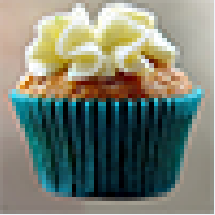
The following image was created at a resolution of 100 pixels by 100 pixels. This image can easily be scaled down and can still look good, just smaller. However, take a look at the quality of, or lack thereof, the image that was scaled up to 300 by 300.
| Original (100 x 100) | Scaled Down (50 x 50) | Scaled Up (300 x 300) |
|---|---|---|

|

|
|
As you can see from the example, while we can still tell that the scaled-up graphic is that of a cupcake, the quality of the image has suffered and the image has become pixelated from scaling it up beyond its original dimensions.
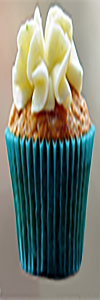
Another issue with raster graphics and vector graphics (which will be discussed in the next tutorial) is the impact of changing the ratio of the height to the width, called the aspect ratio. Additionally, note that the aspect ratio of 1:1 (width devices by height) has been maintained. Failure to maintain the aspect ratio when resizing graphics will cause issues like the following. For web developers, the easiest way to avoid this is to only specify one dimension, either the height or the width. Web browsers will automatically maintain the aspect ratio and scale the other dimension proportionally.
EXAMPLE
| Original (1:1 @ 100 x 100) | Stretched (1:3 @ 100 x 300) | Stretched (3:1 @ 300 x 100) |
|---|---|---|

|
|

|
Pixelated
A generally negative quality of an image wherein the individual pixels are visible to the eye.
Aspect Ratio
The ratio of the width to the height of an image.
In this section, we will compare the common raster image file formats, their characteristics, and their features. As you will see, different scenarios for the use of graphics will dictate which file format or formats are most appropriate. In some cases, you may have multiple options; in others, you may only have one.
Additionally, there are several different raster image file formats that have specialized uses and applications in other industries. We will focus on only the formats that you may encounter as a web developer.
There are several considerations when comparing an image file’s general qualities. Browser compatibility refers to whether or not the current web browsers have the ability to display the image format without additional third-party software. Lossy images use a compression algorithm that reduces the file’s size at the expense of image quality. Lossless image formats either do not employ compression (such as the BMP format) or employ compression techniques that do not impact the quality of the image. As for the file size, this value is impacted by each individual image, but assuming you are using the exact same image, this shows the general file size comparison of each format. The following table compares the raster image file’s general qualities.
| Extension | Name | Browser Compatible | Lossy/Lossless | File Size (Relative) |
|---|---|---|---|---|
| BMP | Windows Bitmap | Yes | Lossless | Large |
| GIF | Graphics Interchange Format | Yes | Lossless | Small |
| JPG and JPEG | Joint Photographic Experts Group. Pronounced “jaypeg” | Yes | Lossy | Medium |
| JPEG2000 | Joint Photographic Experts Group 2000. Pronounced “jaypeg 2000” | No | Both | Large |
| PNG | Portable Network Graphics | Yes | Lossless | Medium |
| APNG | Animated Portable Network Graphics | Partial | Lossless | Small |
| WebP | Web Picture Format. Pronounced “webpy” | Yes | Both | Small |
| HEIC | High Efficiency Image Container | Emerging | Lossless | Medium |
| TIFF | Tag Image File Format | No | Both | Large |
Additionally, the following table compares the different features and capabilities of common raster image file types.
| Extension | Transparency | Animation |
|---|---|---|
| BMP | No | No |
| GIF | Yes | Yes |
| JPG and JPEG | No | No |
| JPEG2000 | No | No |
| PNG | Yes | No |
| WebP | Yes | No |
| HEIC | Yes | No |
| TIFF | Partial | No |
The raster formats you are likely going to use most often because of compatibility and file sizes are as follows:
Browser Compatibility
Whether or not current web browsers have the ability to display an image format without additional third-party software.
Lossy
A compression technique wherein a digital file’s size is reduced at the loss of data and thus the loss of quality.
Lossless
A compression technique wherein a digital file’s size is reduced without losing any data or quality.
GIFs have the most features (animation and transparency) but the lowest capability when it comes to quality. This is because GIF images only support 256 colors for a single image. For colors, GIF images use what are called indexed colors, which means that the graphic software creating the GIF file can choose 256 colors to use for the image, and those colors get added to the color index of the file itself. GIF files containing different images will each have their own set of 256 indexed colors. With this limitation, you will see noticeable stippling when it comes to gradient colors. Remember the following image; the pixelation between the gradient colors of that shape illustrates the stippling effect. This is purposeful as it allows for the simulation of additional colors while still remaining within the 256-color range.

Indexed Colors
Used in GIF graphic files, the set of 256 colors used to reproduce the image.
Stippling
A feature of GIF images that attempt to “reproduce” additional colors beyond 256 by dispersing pixels of one color throughout the area of another color.
JPEG, or JPG, images provide better image quality than GIFs as they support the full RGB color range, which comes out to about 16.8 million colors. However, since the JPG compression algorithm is lossy, it can result in slightly lower image quality. It is not as bad as a GIF trying to show too many colors, but you will see a slight distortion or graphical anomalies around the edges of colors and shapes. When creating and saving JPG images, you are often given a slider control that allows you to set the quality level of the compression and reduce the distortions at the expense of increasing the file size.
Graphical Anomalies
Often the result of lossy compression, graphic anomalies or “artifacts” are unsightly distortion, pixelation, and other negative quality issues of an image.
WebP files are the newest formats for graphics that provide superior compression both with and without the loss of quality. While most browsers today support the WebP format, creating WebP images often requires you to utilize third-party plugins for your image editor. For example, the latest version of Adobe Photoshop does not natively allow you to create WebP files.
PNG images provide better quality than JPG images at the cost of a slightly increased file size. JPG and PNG file sizes are often comparable. Additionally, PNGs also support transparency as they contain an alpha channel.
Which format should you use? Generally, PNGs and JPGs are some of the most commonly used image types for graphics on websites, especially when you do not need any special features for the image such as animation. PNGs give you the ability to use transparency and thus create some cool effects with images and graphics. When you need to optimize files to the max, smaller images with less detail and color ranges can be converted to the GIF format to save space and improve loading performance. Additionally, if you need a simple animation, a GIF is also a good option. When in doubt, you will be safe choosing a PNG or JPG format.
Special computer applications called image editing software can be used to open, edit, and save images. These applications allow you to choose what format you want when saving a copy of the image file. In most cases with image editing software, when you want to save the image file as a different file type, you will use the “Save As” feature and change the “Save as type” to either JPG, PNG, GIF, or any other standard image formats.
As a web developer, it is a valuable skill set to be able to edit and properly save images using image editing software. Even when the client provides graphical assets for the project, you may still need to modify them to optimize their dimension, change the format, and reduce their file size. Some examples of popular image editing software include Adobe Photoshop, InkScape, GIMP, and Photopea.
Image Editing Software
Computer applications that are designed specifically for editing, creating, and saving digital graphics.
Source: This Tutorial has been adapted from "The Missing Link: An Introduction to Web Development and Programming " by Michael Mendez. Access for free at https://open.umn.edu/opentextbooks/textbooks/the-missing-link-an-introduction-to-web-development-and-programming. License: Creative Commons attribution: CC BY-NC-SA.



