Table of Contents |
Note: This unit will focus on the use of Microsoft Office desktop applications when providing instructions and examples since they are the most commonly used in work environments. You can use the web version of the applications for free at Microsoft365.com to complete the assignments but may have to adapt the instructions for that environment. See tips and tricks under learning new technology.
When you open a word processing software—a program used to create, edit, and format text-based documents—you typically see two main options: create a blank document or choose a template. Modern office suites offer both to meet different user needs.
The table below compares these options.
| Option | Description | Best For | Key Benefits |
|---|---|---|---|
| Template | Predesigned document with built-in formatting and placeholder text that shows where to enter content | Resumes, business letters, reports, and other common formats | Saves time, ensures a professional look, follows standard formatting, and is often customized by professionals for repeated use |
| Blank document | Document that starts from scratch with no preset formatting or text | Unique or custom projects | Offers full control and is ideal for flexible formatting needs |
IN CONTEXT: Saving Time With a Template
An employee at a marketing agency needs to create a client proposal. Instead of starting from scratch, they open Microsoft Word and choose a proposal template from the business category.
The template already includes key sections like the executive summary, project scope, timeline, and budget. All the employee needs to do is replace the placeholder text with client-specific details, add the company logo, and adjust the color scheme to match the brand.
What could have taken hours of formatting is finished in just 30 min—and the final document looks clean, polished, and professional.
The screenshot below shows the Microsoft Word start screen, which offers a quick way to open a new file—either as a blank document or by selecting from professionally designed templates.
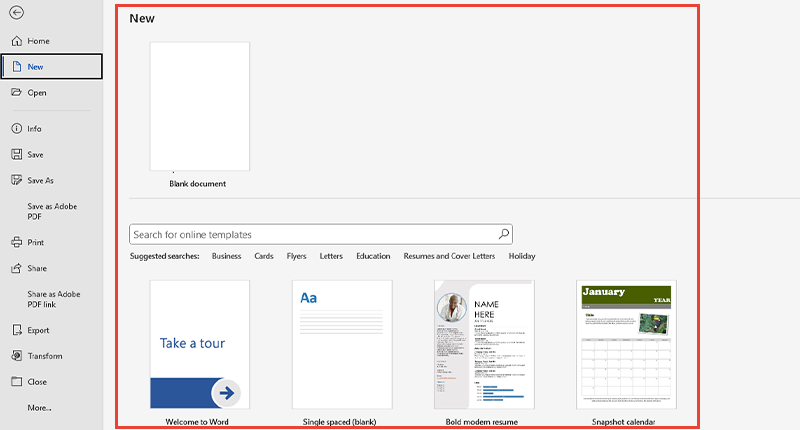
Most office suites let you preview templates by categories—such as business, education, or personal use—making it easier to find one that fits your needs. You can also save your own documents as templates for future use.
Once you have created a document, the next step is deciding where and how to save it so you can access and manage it later.
You looked at local and cloud storage in a previous lesson. Now, we will take another quick look at the key differences in how documents are saved. The table below summarizes these differences.
| Storage Type | How It Works | Advantages | Limitations |
|---|---|---|---|
| Local storage | Saves files directly to your computer’s hard drive | Works without the internet; fast file access | Files are only available on that device |
| Cloud storage | Saves files on internet servers | Syncs across devices; accessible from anywhere | Requires internet access |
It is important to note that although internet access is required to sync changes in documents saved in the cloud, many services allow offline access to previously downloaded files. Research shows that 94% of enterprises now use cloud services in their operations (Edge Delta, 2024).
EXAMPLE
An event planner saves schedules in the cloud so they can pull them up quickly on a phone while on site.Most office applications now autosave your work. The keyboard shortcuts Ctrl+S (Windows) and Cmd+S (Mac) manually save changes. Always save your work before closing a program. This helps prevent file loss if something goes wrong.
Clear file names make it easier to find documents. Poor names can waste time and cause confusion. In fact, research shows that employees spend about 1.8 hr a day just looking for information (Chui et al., 2012).
Clear naming conventions—standard rules for naming files—solve this problem by keeping file names consistent and easy to understand.
The tips below show how to name files clearly so they are easy to find and understand later.
| Tip | Why It Matters | Example |
|---|---|---|
| Avoid generic names. | Generic names like “Document1” or “Untitled” can make it hard to know what the file contains later. |
✗ Document1 ✗ Untitled |
| Use specific descriptions. | Specific file names help users quickly recognize the content and purpose of the file. | ✔ Marketing_Plan_Q3_2024 |
| Include key details. | Including the project name, date, or version helps keep files organized and easy to locate. | ✔ Johns_Contract_Draft_v2 |
The screenshot below shows an example of a well-organized file system that uses folders and clear file names to make documents easier to find.
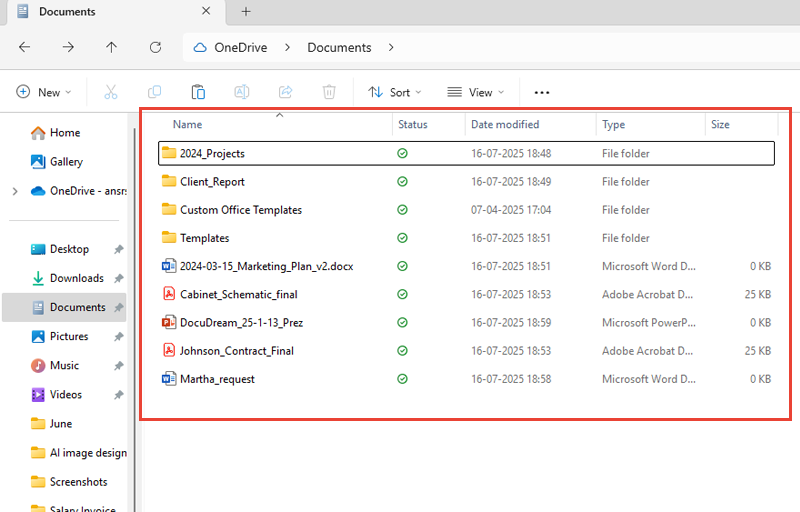
Many organizations use naming standards, which may include department codes, project numbers, or dates. Following these rules ensures consistency across teams and makes it easier to find files in shared systems.
To support this, a clear folder hierarchy helps organize related documents into logical groups. The complete file path shows how to navigate from a broad folder to a specific file. The table below breaks down how to build this structure step by step.
| Level | Description | Example |
|---|---|---|
| Top-level folder | Is a broad category to group related files | 2024 or Marketing |
| Subfolder 1 | Narrows the category by project or type | Campaigns or Reports |
| Subfolder 2 | Adds more detail or time-based grouping | Q1 or Social Media |
| Subfolder 3 (optional) | Provides further refinement if needed | Instagram or Drafts |
EXAMPLE
A finance assistant saves budget files under Finance > Budgets > 2025 > Final Reports to keep everything organized by year and purpose.Office applications support multiple file formats, which are specific ways in which information is saved and stored in a file. Each format serves different purposes. Understanding when to use each format improves workflow efficiency.
The table below compares some common formats to help you choose the right one for each task.
| Format | Description | Best Use | Editability |
|---|---|---|---|
| Portable Document Format (PDF) | Preserves layout across all devices and software | Final documents, forms, and publications | Limited—recipients cannot edit without special software or permissions |
| Word document (DOCX) | Supports full editing and advanced formatting features | Collaborative work and files that need future updates | Fully editable |
| Plain text file (TXT) | Plain text with no formatting; works on any system but does not support visual elements | Simple notes or code where formatting is not needed | Fully editable |
| Rich Text Format (RTF) | Maintains basic formatting with broad compatibility; works well across different software programs | Documents requiring some formatting without software limits | Fully editable (basic) |
EXAMPLE
A student writes an essay in DOCX for easy editing, submits it to their teacher as a PDF to keep the formatting, saves coding notes in a TXT file, and uses RTF to share a formatted draft with someone using a different software.Knowing when to use each file format helps you save and share documents more effectively. But sometimes, you need to switch from one format to another. This is where exporting and importing come in—two helpful features built into most office applications.
The table below explains these features.
| Action | What It Means | Why It Is Useful | Things to Watch For | Basic Steps |
|---|---|---|---|---|
| Exporting | Saving a document in a different format (e.g., DOCX to PDF) | Makes sharing and printing easier by preserving the layout | Choose the right format for your audience or purpose. | Go to File > Save A Copy or File > Export and then select the desired file format. |
| Importing | Opening a file created in another program or format | Allows you to work with documents from different sources | Formatting may shift—always review for layout or content issues. | Go to File > Open, browse to the file, and select it. The software will convert it if needed. |
| Renaming a file | Determining the name others will see and will easily identify | Keeps files named consistently and well organized | By default the file will automatically be named for the first few words in the document. | Click the filename in the upper left to change it. |
| Moving a file | Determining the directory where others will expect to find the file | Keeps files where people can easily find them | By default the file may be saved to your personal directory instead of a shared directory. | Go to File > Move File and browse your directory to find the folder you want to move it to. |
The screenshot below shows a user saving a Word document as a different file type.
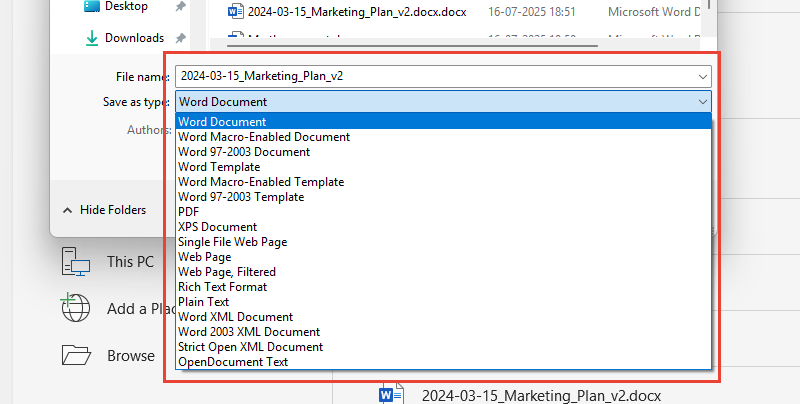
The “Save as Type” menu appears when you choose “Save As” and lets you pick a different file format. The dropdown list shows several export options. This helps you choose the format that works best for your audience or task, like sharing a PDF or saving a version for older software.
Understanding how and when to export or import files helps you stay flexible when working across different programs or sharing files with others.
Keep in mind that some formats may lose features (like formulas or comments) during conversion, so always double-check the final result. Using these tools confidently can save time and reduce errors when managing documents.
When you share a document, it might be opened on a different device or in a different program than the one you used to create it. This is where cross-platform compatibility and software compatibility come in. Here is a table comparing these.
| Term | What It Means | Examples |
|---|---|---|
| Cross-platform compatibility | A file looks and works correctly across different operating systems. | Windows, Mac, iOS, Android |
| Software compatibility | A file opens and functions properly in different programs or apps. | Microsoft Word, Google Docs, Apple Pages |
Some tools handle these differences better than others:
EXAMPLE
A team creates a report in Microsoft Word on a Windows computer, reviews it in Google Docs on a Chromebook, and opens it in Apple Pages on an iPad—each program displays the file slightly differently, especially when advanced formatting is used.To reduce issues with formatting or readability across devices and programs:
Source: THIS TUTORIAL HAS BEEN ADAPTED FROM OPENSTAX’S “WORKPLACE SOFTWARE AND SKILLS.” ACCESS FOR FREE AT OPENSTAX.ORG/DETAILS/BOOKS/WORKPLACE-SOFTWARE-SKILLS. LICENSE: CREATIVE COMMONS ATTRIBUTION 4.0 INTERNATIONAL.
REFERENCES
Edge Delta. (2024, May 17). How many companies use cloud computing in 2024? edgedelta.com/company/blog/how-many-companies-use-cloud-computing
Chui, M., Manyika, J., Bughin, J., Dobbs, R., Roxburgh, C., Sarrazin, H., Sands, G., & Westergren, M. (2012, July 1). The social economy: Unlocking value and productivity through social technologies. McKinsey & Company. www.mckinsey.com/industries/technology-media-and-telecommunications/our-insights/the-social-economy



