In this lesson, you will learn how to build a complete multipage website by creating multiple HTML files and connecting them with consistent navigation. Specifically, this lesson will cover the following:
1. Planning Site Structure
Before writing any code, successful web developers plan their website structure. A multipage website consists of two or more HTML documents linked together through navigation, allowing users to move between different sections of content.
-
- Multipage Website
- A website composed of two or more separate HTML files that are connected through navigation links.
1a. Pages and Purpose
Every website serves a purpose, and each page has a specific role. When planning a multipage website, start by identifying the core pages your site needs.
A typical small website includes these essential pages:
- Home page (
index.html): The main entry point that welcomes visitors and provides an overview of the site
- About page (
about.html): Information about the person, company, or organization behind the site
- Contact page (
contact.html): Ways for visitors to get in touch, such as email addresses or contact forms
- Services or Products page: Details about what you offer (if applicable)
- Portfolio or Gallery page: Examples of work or visual content (if applicable)
-
The home page file must be named
index.html. Web servers automatically look for this filename when visitors access the root address of a site. If the home page is named differently, the browser may not load the correct page.
When defining your pages, consider what information visitors need. A portfolio website might include Home, Portfolio, About, and Contact pages, while a small business site might add Services and Testimonials pages.
1b. Site Maps
After deciding on your pages, create a simple site map. A site map is a visual diagram that shows all pages in your website and how they connect through navigation.
For a basic multipage website, the structure often looks like this:
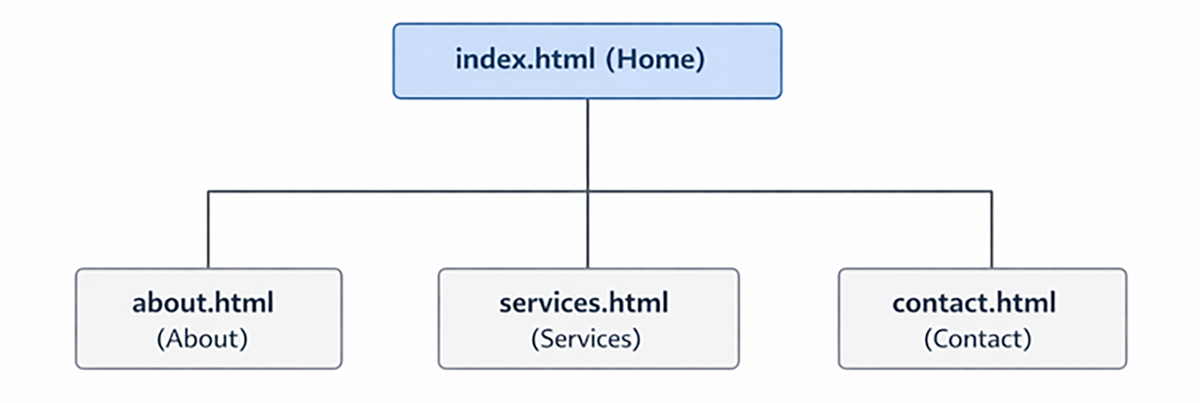
In this structure, every page connects directly to the home page. This keeps navigation simple and makes linking between pages easier. Most small websites use this straightforward approach.
-
Choose a simple website idea such as a personal portfolio, hobby site, or small business site.
- List three to four pages your site will include.
- Assign a filename to each page.
- Write one sentence describing the purpose of each page.
What might a personal portfolio site map look like?
A personal portfolio might include:
-
index.html: Home page introducing you and highlighting recent work
-
projects.html: A showcase of completed projects
-
about.html: Background, skills, and experience
-
contact.html: Email address and professional profile links
-
- Site Map
- A visual diagram that shows all pages in a website and illustrates how those pages connect to each other through navigation.
2. Project Folder Setup
With your site planned, you will now create and organize your project files inside your Codespace. Keeping your files organized from the beginning prevents broken links and makes navigation easier to manage.
2a. Folder Structure
In Codespaces, your GitHub repository serves as the project for your multipage website. The top-level directory shown in the Explorer panel is your project’s root folder. All primary website files should be created directly inside this location unless you intentionally create subfolders later.
Organizing your files carefully from the beginning helps prevent broken links and keeps your project manageable as you add more pages.
-
To set up your multipage website in Codespaces:
- Open your repository in Codespaces.
- In the Explorer panel, confirm you are in the top-level directory.
- Create a new file named
index.html if it does not already exist.
- Create additional HTML files such as
about.html, projects.html, and contact.html in the same location.
-
EXAMPLE
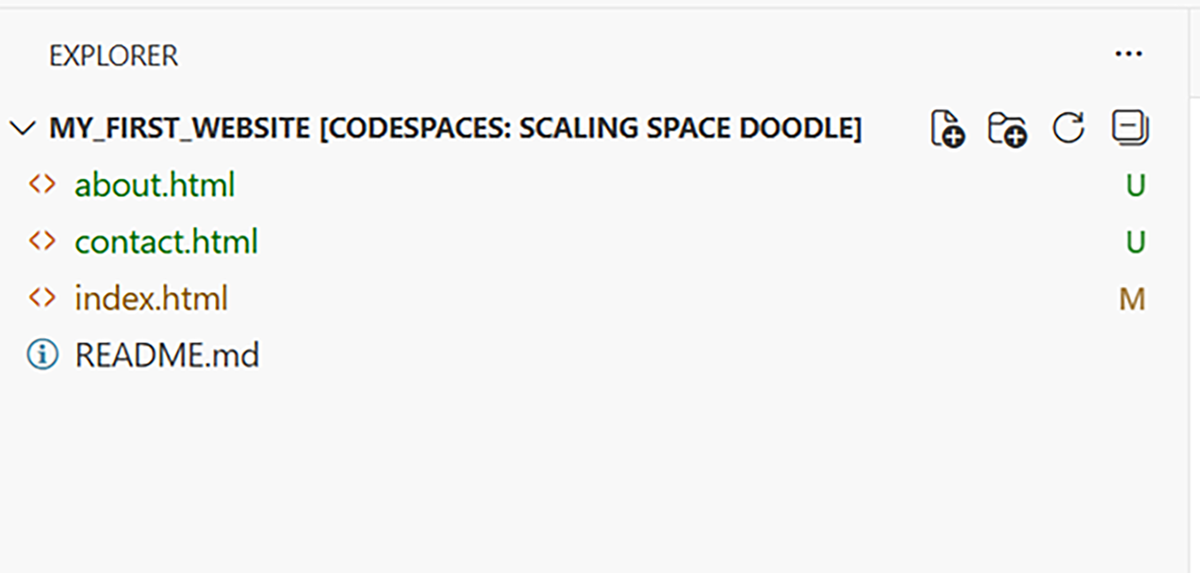
In the Explorer panel, the repository name appears at the top. All website files are stored directly beneath it at the top level.
In the example shown, the repository is named MY_FIRST_WEBSITE, and the HTML files appear directly inside it:
-
index.html
-
about.html
-
contact.html
The
README.md file is part of the repository but is not part of the website itself.
Keeping all HTML files at the same level in the project root simplifies navigation and makes relative paths easier to manage. As your projects become more complex, you will organize files into subfolders of the project root folder such as
images,
css, or
scripts to keep your work structured and scalable.
-
- Project Root Folder
- The main directory that contains all files for a website; also called the root folder or project directory.
2b. File Naming
You previously learned that clear and consistent file naming improves organization. In a multipage website, filenames also determine your page URLs and navigation links.
Because filenames appear directly in web addresses, they should be simple, descriptive, and consistent.
Follow these conventions when creating HTML files in Codespaces:
- Use all lowercase letters, such as
about.html.
- Use hyphens to separate words, such as
contact-us.html.
- Choose descriptive names that reflect the page’s content.
- Always name your home page
index.html.
-
Filenames appear in your website’s URLs. For example, a file named
about.html creates a URL such as
yoursite.com/about.html. Clear naming improves usability and professionalism.
-
Avoid spaces in filenames. Browsers convert spaces to
%20, making addresses harder to read and share.
3. Building HTML Pages
You have already created structured pages with navigation links. Now, you will refine and expand your work into a complete multipage website with consistent layout and navigation across all pages.
The goal is to ensure that every page feels like part of the same site.
3a. Home Page
-
Open your existing
index.html file in Codespaces. Confirm that it includes:
- A complete HTML document structure
- A
<header> containing your site title and navigation menu
- A
<main> section with page-specific content
- A
<footer>
Your home page serves as the template for the rest of your website. Its structure should remain consistent across all other pages.
-
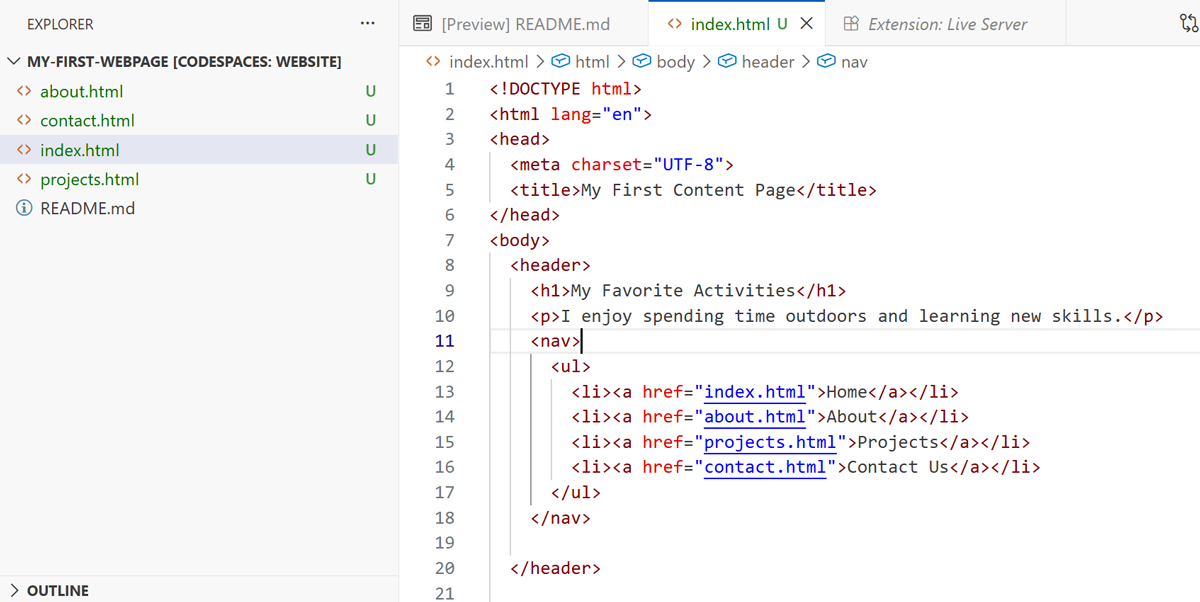
- Review the structure of
index.html.
- Confirm that your
<nav> menu includes links to all current pages (index.html, about.html, contact.html).
- Preview the page in Codespaces.
- Click each navigation link to confirm it works correctly.
- If any links are broken, correct them now before continuing.
3b. Additional Pages
You already created about.html and contact.html in the previous lesson. Now, you will expand your website beyond a basic three-page structure.
Most multipage websites include additional pages such as:
-
projects.html
-
services.html
-
gallery.html
-
blog.html
Adding new pages allows you to organize content clearly and scale your site.
-
Add one new page to your website.
- In Codespaces, create a new file (for example,
gallery.html).
- Copy the structural layout from
index.html, including the <header>, <nav>, <main>, and <footer>.
- Update the
<title> to reflect the new page name.
- Replace the content inside
<main> with information specific to the new page.
- Add a link to this new page in the navigation menu on all existing pages.
- Preview your site.
- Test navigation in both directions to confirm all links work correctly.
What should remain the same across pages?
The <header>, <nav>, and <footer> should remain consistent across all pages. Only the <title> and <main> content should change to reflect the purpose of each page.
-
In this video, you will learn how to create a new web page, link it to your site, and preview the changes.
-
A cohesive multipage website maintains a consistent structural framework across all pages while allowing each page’s main content to serve a unique purpose.
4. Consistent Navigation
As your website grows, maintaining consistent navigation becomes essential. Every page should allow visitors to move easily between sections without confusion or broken links.
Your navigation menu should:
- Appear in the same location on every page
- Include the same set of links
- Use consistent structure and formatting
When you add a new page, you must update the navigation menu on every existing page. Navigation does not update automatically in HTML. Each file must be edited manually.
-
- Add a new link to your navigation menu in one file (for example,
index.html).
- Copy the updated
<nav> element.
- Paste it into the
<header> of every other page.
- Preview each page in Codespaces.
- Click every navigation link to confirm that all pages connect correctly.
After updating navigation, test your entire site carefully.
- Click each link from every page.
- Confirm that filenames are spelled correctly.
- Verify that relative paths point to the correct location.
-
Intentionally change one navigation link to an incorrect filename.
Preview the page and observe what happens.
Then correct the link and test again.
-
A cohesive multipage website requires ongoing consistency. Every time you add or modify a page, you must verify that navigation remains accurate across the entire site.
In this lesson, you learned how to move from individual pages to a cohesive multipage website. You began with planning site structure, identifying pages and purpose and organizing your ideas with site maps to create a clear blueprint for your site. You then focused on project folder setup, establishing proper folder structure in Codespaces and applying consistent file naming conventions to support clean URLs and reliable linking. Next, while learning how to build HTML pages, you refined your home page and expanded your site by creating additional pages that maintain a consistent layout while presenting unique content. Finally, you reinforced consistent navigation, ensuring that every page includes identical navigation links and that all connections function correctly across your entire website.