Table of Contents |
Many digital systems require users to sign in before they can access apps, files, or settings. When you log in to an email account, a learning platform, or a banking app, you use a user account, a personal profile that gives you access to a system or service. To access that account, you enter credentials: the information you provide to prove your identity. Credentials typically include a username and password but may also involve other verification methods, such as security codes or biometric scans, which are detailed in the next section.
The system then performs authentication: the process of confirming that the credentials you entered match the account on record before granting access. Without authentication, anyone could read your email, access workplace files, or reset other passwords linked to your account.
EXAMPLE
Niah signs in to a new online learning portal. The system asks for a username and password before allowing access to assignments and grades. By entering the correct credentials, Niah confirms their identity and gains access to the correct user account.Protecting your digital access starts with strong password habits. The National Cybersecurity Alliance recommends using at least 16 characters and a unique password for every account (National Cybersecurity Alliance, 2024).
The following table summarizes key characteristics of strong passwords.
| Characteristic | What It Means | Why It Matters |
|---|---|---|
| Length | 16+ characters | Increases the time taken to guess |
| Uniqueness | Different password for each account | Prevents a problem with one account from affecting others |
| Randomness | No predictable names, dates, or patterns | Reduces the chance that attackers can guess it |
One effective method is a passphrase: four to seven unrelated words strung together. “river-clock-guitar-window-marble” is a good example—long enough to resist guessing and easy enough to remember. A passphrase does not need to make sense. The words just need to be unrelated to each other and to you personally.
Reusing the same password across accounts is risky. If someone gains access to your password on one site, they may try it on other services right away. This tactic is known as credential stuffing.
A password manager helps solve this problem by generating and storing a strong, unique password for every account. You only need to remember one master password to unlock the manager itself.
EXAMPLE
A part-time nursing assistant taking online classes through a community college portal uses the same password for student email, a scheduling app, and a banking account. One day, a notification appears stating that the student email account may have been exposed in a security incident.Many web browsers include a free, built-in password manager. Check your browser settings under Passwords or Autofill to see if one is already available.
While strong passwords protect accounts, additional security layers help prevent unauthorized access even if a password is exposed.
Strong passwords help protect accounts, but they are not the only safeguard. Sometimes, people can gain access to passwords through security incidents, fake messages, or harmful software. For this reason, many services add extra layers of protection.
One of the most effective protections is multi-factor authentication (MFA). MFA is a security method that requires two or more forms of verification before granting access. Instead of relying on only a password, MFA confirms identity using multiple types of information.
For instance, after entering a password, a service may send a one-time code, which is a temporary numeric code that can be used only once during a login attempt. Some systems may also use biometrics, such as a fingerprint or facial scan, to verify identity.
Authentication factors generally fall into three categories.
| Factor Type | Example | Why It Helps |
|---|---|---|
| Something you know | Your password | Protects the account with a secret you created |
| Something you have | A one-time code | Adds a second required step |
| Something you are | Biometrics | Requires something physically unique to you |
EXAMPLE
A student logs in to an online banking app. After entering a password, the app sends a one-time code to the phone number linked to the account. The student enters the code to complete the second verification step before access is granted.Most banks, school portals, email providers, and social media platforms offer MFA in their security settings. When setting up MFA, check for options labeled “Two-Step Verification,” “Two-Factor Authentication,” or “2FA.” These labels appear on different platforms and all point to a process that requires more than just your password to log in.
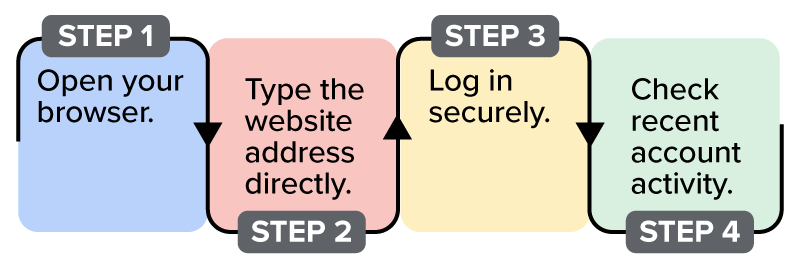
Security does not stop at login setup. Many services send alerts when someone signs in from a new device or unfamiliar location. If you receive a message saying “New sign-in from an unrecognized device” and you did not just log in, avoid selecting links inside the alert message. Instead, open your browser and access the website directly to review your account activity.
If you receive a one-time code you did not request, that may mean someone is attempting to log in using your password.
Instead of selecting links inside the message, access the website by manually typing the address in your browser, log in securely, and review your recent account activity. This is illustrated in the following image.
MFA adds a second layer of protection beyond your password. When combined with careful handling of login alerts and suspicious messages, it significantly reduces the risk of unauthorized access.
Even with strong passwords and multi-factor authentication, account access problems can still occur. At some point, most people experience being locked out, meaning they cannot access an account because they forgot a password or lost access to their verification method.
When this happens, users rely on account recovery, the process of regaining access to an account after forgetting a password or losing access to a second verification factor.
Safe recovery practices begin before a problem occurs. Many services allow users to set up a recovery email, which is a backup email address used to verify identity during a password reset. Services may also ask for a recovery phone number that can receive verification messages.
Keeping this information current is important. If a phone number or recovery email changes and the account settings are not updated, it may become difficult to verify identity when trying to regain access.
Some services also provide backup codes, which are one-time-use codes generated during MFA setup. Backup codes allow users to sign in if they lose access to their primary verification method.
Store backup codes in a secure location separate from your device, such as a printed copy in a locked drawer. These codes allow you to regain access if your phone or authentication app becomes unavailable.
EXAMPLE
Suman, a warehouse supervisor, uses a scheduling app to manage shifts. One morning, access is blocked because the phone linked to MFA was lost over the weekend.When an account is locked, most services guide users through a secure password reset process. Following these steps helps ensure that recovery attempts remain safe and legitimate.
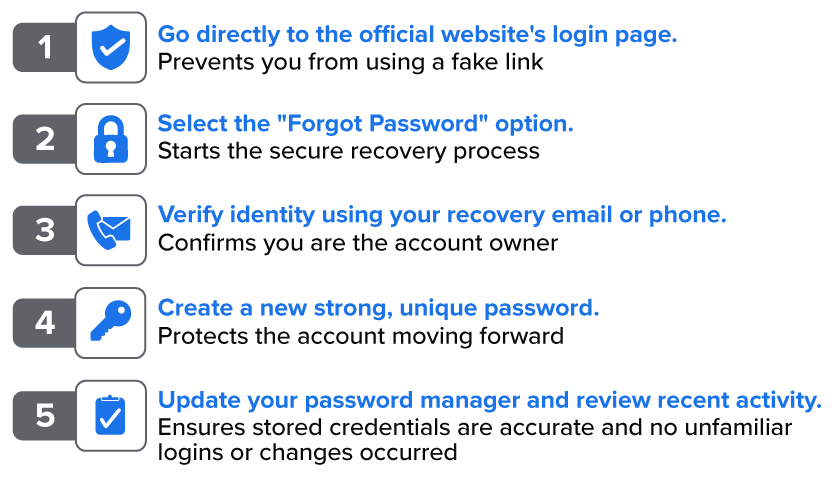
Use the process outlined in the following image to reset your password safely. Go directly to the official website’s login page, select the “Forgot Password” option, verify your identity using your recovery email or phone, create a new strong, unique password, and update your password manager when you are done.
Prepare for account recovery before you need it. Keeping recovery information updated and following secure reset procedures helps protect your digital access when problems occur.
Secure access allows users to return to the work stored in their accounts. Digital systems often contain files, documents, and other information that must be organized and located efficiently in order to complete everyday tasks.
Source: THIS TUTORIAL WAS AUTHORED BY SOPHIA LEARNING. PLEASE SEE OUR TERMS OF USE.
REFERENCES
National Cybersecurity Alliance. (2026, February 25). How to create strong passwords (and remember them!). www.staysafeonline.org/articles/passwords



