Table of Contents |
Variables in JavaScript are used to hold individual data values or objects (objects are complex data structures with multiple values and functions). A variable’s data type is the specification of what kind of data is contained within the variable. Variables can be numbers, strings, objects, arrays, functions, booleans, and more. Furthermore, each variable can be created in one of three ways: const, let, and var.
| Name | Example | Description |
|---|---|---|
| var | var myAge = 34; | Variables created with var are globally accessible throughout the JavaScript code, or they are only accessible from within the function’s scope in which it was defined. Vars are mutable; that is, their value can be modified. |
| let | let myAge = 34; | Variables created with let are not globally accessible; they are limited to any block scope (any set of curly brackets) whether the block is a function or the body of a decision statement. Let variables are also mutable (capable of being changed). |
| const | const myAge = 34; |
Variables created with const are also block scoped and not globally accessible, just like let. Const variables are immutable, meaning they cannot be changed once established.
If the value of a const variable is an object, the object’s internal data can be changed, but the object as a whole cannot be replaced. |
Up until the ECMAScript6 was released, the only variable type available was “var.” The inherent problems with vars are their global scope and mutability. While globally accessible variables and objects may be “convenient,” they are not secure and can result in run-time errors that are difficult to track down.
Variables can be created (i.e., variables are declared) by simply providing the variable type and its identifier. Variables can then be initialized with their first value either after the declaration or at the same time.
EXAMPLE
A variable cannot be referenced or accessed until after it has been declared and initialized.
let myAge;
myAge = 34;
or
let myAge = 34;
EXAMPLE
After a variable has been declared, the value of a let or var can be changed by simply assigning it a new value.
myAge = 35;
When assigning values to variables or objects, the object to the left of the assignment operator “=” is the destination of the data value. Anything on the right is the expression, which will first be evaluated or executed by the system and the final resulting value will be assigned to the destination left of the assignment operator. Values, variables, and even functions that return a value are valid expressions. This is typical of almost all programming languages.
Another line of code you will see regularly with JavaScript is the console.log() method. This method is used to output the message to the web console.
Directions:
1. In your browser, open up the Developer Tools (this is where you have been accessing Lighthouse as well) and select the Console tab.

2. Depending on what webpage you currently have open in your browser, some content may already be displayed. You can ignore that and go to the first empty line with the prompt (>).
3. In the empty prompt, type let myAge = 35 and press “Enter.” An undefined message will appear (you can disregard this message).
4. In the next line, type console.log(myAge).
You should see the value of the myAge variable displayed. If you typed in let myAge = 35, then the number 35 is returned.
Declared
To create a named location in memory.
Initialized
To assign the first value to a newly defined variable.
Expression
A series of objects, operators, and values that are evaluated by the system, with a final result being returned.
Number variables are the most basic of variables and can hold any kind of numeric values such as 0, 24, 15.5, and 12000. Number literals only contain digits 0 through 9 and an optional decimal point. Numbers also respond to mathematical operators as expected and follow the same order of mathematical precedence.
EXAMPLE
Only parentheses are used to override the order.
let overtimePay = ( (hours - 40) * (payRate * 1.5) ) + (40 * payrate);
One thing to keep in mind is that a computer does not care about the meaning of or difference between an inch and a centimeter. To a computer, they are just numbers. It is up to the developer to keep units of measurement straight and ensure that values are being converted appropriately. Also, the only important punctuation in numbers is the decimal point, called the radix point. The comma or dot used to denote thousands, millions, billions, and so on is called a digit group separator and is never included in programming literals.
EXAMPLE
Accumulators are statements that add additional value to a variable, such as keeping a running total of numbers:let myNumbers = [4, 7, 10, 3, 12];
let total = 0;
myNumbers.forEach( (x)=>{total = total + x;} );
In the example above, we create an array of numbers and a total variable equal to 0. Then, we use the array’s built-in forEach function to add the value of each element to the total. The accumulator command is total = total + x;, which takes the value of total, adds it to the value of x, and then stores the new value back into total. There are mathematical shorthands called mathematical assignment operators, such as “+=” and “-=”, which perform the same operation but without the repetition: total += x;
Number
A data value that is numeric in nature and can be operated on using mathematical operators.
Radix Point
Punctuation, usually a comma or period, that denotes the change from fractional digits to whole digits.
Digit Group Separator
Punctuation, usually a comma or period, that denotes the change from thousands to millions, billions, and so on.
String variables contain textual data and are made up of a collection of characters.
EXAMPLE
They include any sequence of characters surrounded by a set of single or double quote marks.
let myName = "John Doe";
let welcome = "Welcome " + myName + ", it is nice to meet you!";
console.log(welcome);  //prints:   Welcome John Doe, it is nice to meet you!
String variables behave differently than number variables in that they do not respond well to math operators, with the exception of the “+” operator, which, instead of adding, will concatenate the strings on the left and right.
Characters within a string can be accessed using the index indicator, a set of square brackets surrounding a whole number (the index) appended to the name of the string variable. Each character in a string is numbered, starting with 0, and is called the index. This is referred to as zero-based numbering. With 0-based numbering, the first element is assigned the index of 0 instead of 1, which is what is typically used for nonprogramming purposes. Furthermore, string variables also contain several built-in functions for accessing and manipulating the contents of the string.
EXAMPLE
The name “John Doe” would be indexed as follows:
let myName = "John Doe";
console.log(myName[0]);  //prints the letter: J

let space = myName.indexOf(" "); //gets index position of the space.
let lastName = myName.slice(space+1);
console.log(lastName) //prints the letters: Doe;
In the example above, we declare and initialize a string “myName” to the string “John Doe.” Then, we log the first letter to the console using the index indicator [0], which accesses the first element of the string myName, which is a capital J.
The remaining code’s goal is to print the last name only. We need to find the starting location of the last name; we can use indexOf() to return the index value of the space “ ”. Then, we can use slice() to extract the characters starting after the space through to the end.
We first create a variable called “space” which will hold the location of the space character. We then assign it the value returned from the string’s “indexOf()” function. The indexOf() method takes a character or string of characters as the argument and returns the index number of where the string is located. In this case, since the space character is the fifth element, its index is 4; thus, the variable “space” is assigned the value of 4. We then use the space variable in the fourth line, wherein we call the string’s slice() function, which takes the index of where it should begin extracting characters. We provided the argument of 'space+1' to slice(), which is equal to index 5; thus, slice starts with the sixth element and extracts that character and all following characters, thus returning “Doe” to the lastName variable.
Concatenate
To append together, end to end.
Index
In programming, the value of an element’s location in a collection, beginning with 0 as the first element.
Index Indicator
A special syntax appended to the end of a collection object that includes a set of square brackets and a whole number between to indicate the position of the element being accessed.
Collections are objects that can contain multiple values. The most common collection object is called an array. Arrays are simple lists of values that can be accessed using a single identifier. Each value in an array is referred to as an “element,” and each element is assigned an index value, starting with 0 as the first element.
IN CONTEXT
The following examples can be practiced right in your browser’s Developer Tools Console tab. Open the Developer Tools in Google Chrome (F12), and click on the Console tab. At the bottom of the console, you will see the “>” symbol where you can type in your JavaScript commands.
When you type a command and hit “Enter,” the command will execute immediately. You can declare and initialize a variable in the console, press “Enter,” and then use the console.log function to print the value of the variable to the console.
You can type multiple lines of code without immediately executing each one by using the “Shift” + “Enter” key combination to start a new line. Once you have entered all of the lines of code that you want to execute, you can press “Enter.”
Consider practicing the following examples in the console. If you feel you need to start over, just create a new tab in the browser and you will have a brand-new console.
EXAMPLE
Arrays in JavaScript are created using const and assigned a value of a comma-separated list surrounded by square brackets:const fruit = [ "Banana", "Apple", "Cherry", "Jackfruit" ];
Array elements can also be nonhomogeneous data types. This means that the elements can be different data types.
EXAMPLE
Next, let us use an array (fruit), an integer (45), a string (“Braun”), and a float (9.5). Notice that there are no quotation marks when using an array variable name as an array element.const collection = [fruit, 45, "Braun", 9.5];
As you can see from the previous example, an array can contain different data types, even other arrays and complex objects. Collections also utilize index indicators in order to access individual elements in the array. This includes retrieving a value and reassigning an element a new value.
EXAMPLE
Assigning a new value to the third elementcollection[2] = "Brown";
console.log(collection); //logs: [fruit, 45, "Brown", 9.5];
When dealing with an array within an array, if you want to access one element from the inner array, you simply start with the identifier of the outer array, and then use two sets of index indicators. Using the example arrays above, the first index indicator will refer to the outer array’s 0 element (which is an array of fruit), and the second index indicator will refer to the specific element in the inner fruit array.
EXAMPLE
Accessing the third element in fruit, which is the first element in “collection”const fruit = [ "Banana", "Apple", "Cherry", "Jackfruit" ];
const collection = [fruit, 45, "Brown", 9.5];
console.log( collection[0][2] ); //Logs the word 'Cherry'
Arrays are valuable as they help transfer large sets of values as a single object. This is particularly helpful in designing functions or operations that can handle any number of values. Arrays and most collection objects also include their own built-in functions as well as attributes such as the length attribute. Whenever we access the length attribute of an array, it will return the total number of elements contained within the array. This is also helpful in creating loops that will process collections and terminate when they reach the end.
EXAMPLE
Afor loop is a programming structure that repeats its body of commands and has a set of parentheses with three sections:
const collection = [fruit, 45, "Brown", 9.5];
for (let x = 0; x < collection.length; x++)
{
console.log(collection[x]);
}
The first section is the counter variable; this is used to track how many times the loop has run and is used in the body of the loop to step through the array.
EXAMPLE
The counter variable in this sample is “x = 0”:const collection = [fruit, 45, "Brown", 9.5];
for (let x = 0; x < collection.length; x++)
{
console.log(collection[x]);
}
The second section is the condition statement, which is a true/false expression, and as long as the expression evaluates to true, the loop will continue to run. The condition is checked after each time the loop’s body finishes executing to see if the body needs to run again.
EXAMPLE
The condition statement in this sample is “x < collection.length”:const collection = [fruit, 45, "Brown", 9.5];
for (let x = 0; x < collection.length; x++)
{
console.log(collection[x]);
}
The third section is the modifier and is used to increment the counter variable after each time the body runs (notice the use of the double plus sign “++”; this is the increment operator, which simply adds 1 to the current value).
EXAMPLE
The modifier in this sample is “x++”:const collection = [fruit, 45, "Brown", 9.5];
for (let x = 0; x < collection.length; x++)
{
console.log(collection[x]);
}
Let us take a closer look at the condition statement:
x < collection.length
This condition statement says “execute the body of the loop, for as long as the value of x is less than the value of the length of the collection.” Keep in mind that the collection (this collection) has four elements, and their indexes range from 0 to 3. The list below provides a breakdown of how this statement is parsed.
[fruit, 45, "Brown", 9.5]), which is the fruit array. collection.length), the loop runs again using x as 1 and prints collection[1], which is 45. Directions: Practice this lesson’s example in your browser’s Developer Tools Console tab.
1. Open the Developer Tools in Google Chrome (F12), and click on the Console tab.
2. At the bottom of the console, you will see the “>” symbol where you can type in your JavaScript commands. Recall that you can type multiple lines of code without immediately executing each one by using the “Shift” + “Enter” key combination to start a new line. Type the following, using the “Shift” + “Enter” key combination at the end of each line:
const collection = [fruit, 45, "Brown", 9.5];
for (let x = 0; x < collection.length; x++)
{
console.log(collection[x]);
}
3. Once you have typed all of the lines of code that you want to execute, you can press “Enter.”
EXAMPLE
The expected output is shown below. Keep in mind there may be some variances in other visible content because of the webpage you are on when accessing the console pane.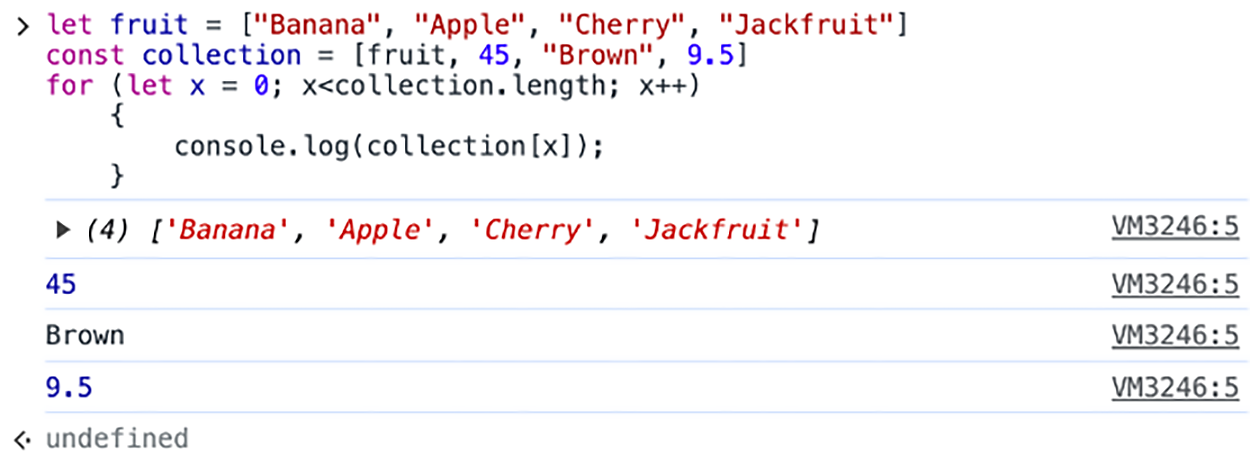
Before moving on, display your array in further detail by clicking on the triangle. You will see the index value of each fruit in the array. Note that the first element in the array (Banana) has a 0 value, and it increments by 1 as it goes to the next fruit.
EXAMPLE
You can also see that the length of the array is 4 (four fruits).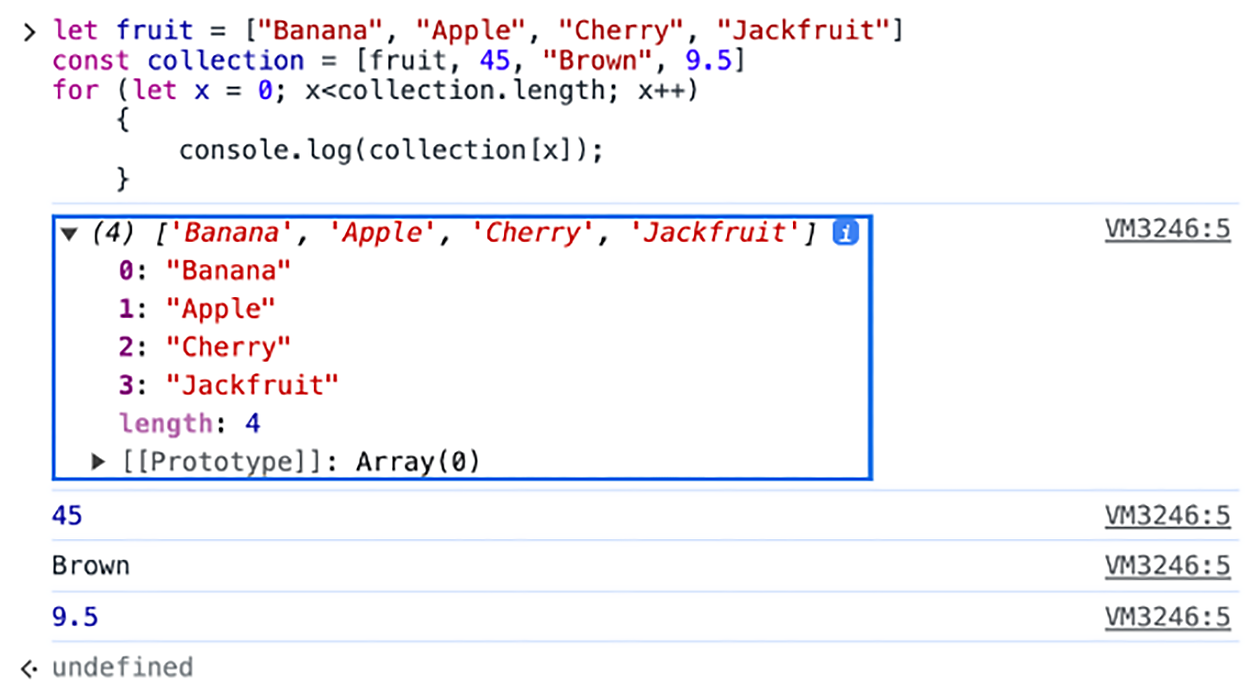
It is important to remember the difference between the index values and the length. The last index value is always 1 less than the total.
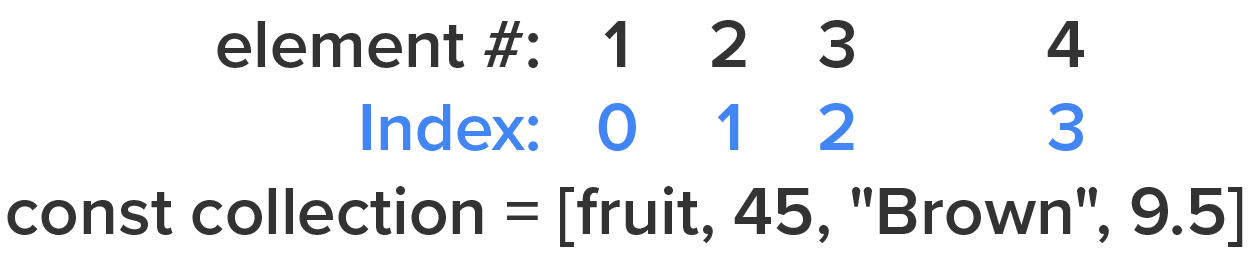
Failure to keep this in mind when setting up for loops and collections will result in an “out of bounds” or “bounds” error. This is due to the loop attempting to access collection[4], which would be the fifth element in the list, which does not exist. Attempting to access an index value that is outside of the index range of a list results in this error.
Collections
Objects that can hold more than one individual value element under a single identifier.
Arrays
A type of collection object where each element is automatically assigned an index value.
Condition Statement
A programming expression that evaluates to a true or false outcome and is used to control the flow of a program’s execution.
A variable’s data type can be converted from one type to another using special operations called type casting (not referring to an actor’s career). Some programming languages use implicit type casting (automatic), while others require explicit type casting (manual).
When a user types data into a console or field, most often the data is string based. Even when the user enters the value of 45, it comes through as a string “45.” If we want to perform a mathematical operation on this value, it first needs to be converted into a numeric type. Languages that use implicit casting will automatically attempt to convert the value to a usable type in order to carry out the operation. More often, programming languages are explicit and require the programmer to first cast the value to a proper type before it can be used in a math operation.
Because JavaScript is loosely typed, it is an example of a language that uses implicit type casting. While this may seem like a convenience, it can be problematic as the JavaScript engine attempts to interpret what we want from the implicit conversion. Sometimes, we do not get what we expected.
IN CONTEXT
Imagine we were asked to create some code that will add and subtract a specific numeric value from a starting value.
EXAMPLE
We came up with the following solution:
let strAge = "45";
let newAge1 = strAge - 5;
let newAge2 = strAge + 5;
console.log(newAge1);
console.log(newAge2);
When we used the subtraction operator, the string was converted to a number and the operation performed as expected. However, when we used the addition operator, the literal 5 was converted and concatenated to the end of “45,” becoming “455.” This is due to the “+” operator having a different meaning when used with numbers versus strings. “+” concatenates strings but adds numbers.
EXAMPLE
Implicit type casting issue
let strAge = "45";
let newAge1 = strAge - 5;
let newAge2 = strAge + 5;
console.log(newAge1); //prints: 40
console.log(newAge2); //prints: "455"
Since the system cannot read our mind, it tries to make the best decision. When this happens, we can use an explicit method of type casting. In the next example, we will use the Number() function to return the numeric version of “45,” add 5, and then print the numeric value of 50.
EXAMPLE
The Number() function
let strAge = "45";
let newAge2 = Number(strAge) + 5;
console.log(newAge2); //prints: 50
Directions: Practice writing the previous example in your console pane.
1. Open the Developer Tools in Google Chrome (F12), and click on the Console tab.
2. At the bottom of the console, you will see the “>” symbol where you can type in your JavaScript commands. Recall that you can type multiple lines of code without immediately executing each one by using the “Shift” + “Enter” key combination to start a new line. Type the following, using the “Shift” + “Enter” key combination at the end of each line:
let strAge = "45";
let newAge2 = Number(strAge) + 5;
console.log(newAge2);
3. Once you have typed all of the lines of code that you want to execute, you can press “Enter.”
EXAMPLE
The output should be as shown below. Keep in mind there may be some variances in other visible content because of the webpage you are on when accessing the console pane.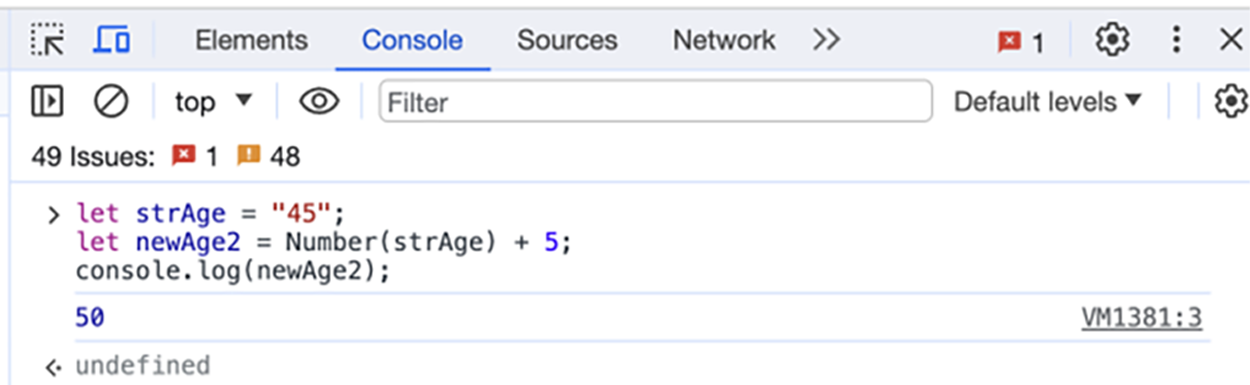
4. In the JavaScript Syntax table shown earlier, the typeof operator was introduced. The typeof operator can be used to discover or detect a variable’s type. Run the two lines below to your console pane.
console.log(typeof(strAge));
console.log(typeof(newAge2));
EXAMPLE
The output should be as shown below. Keep in mind there may be some variances in other visible content because of the webpage you are on when accessing the console pane.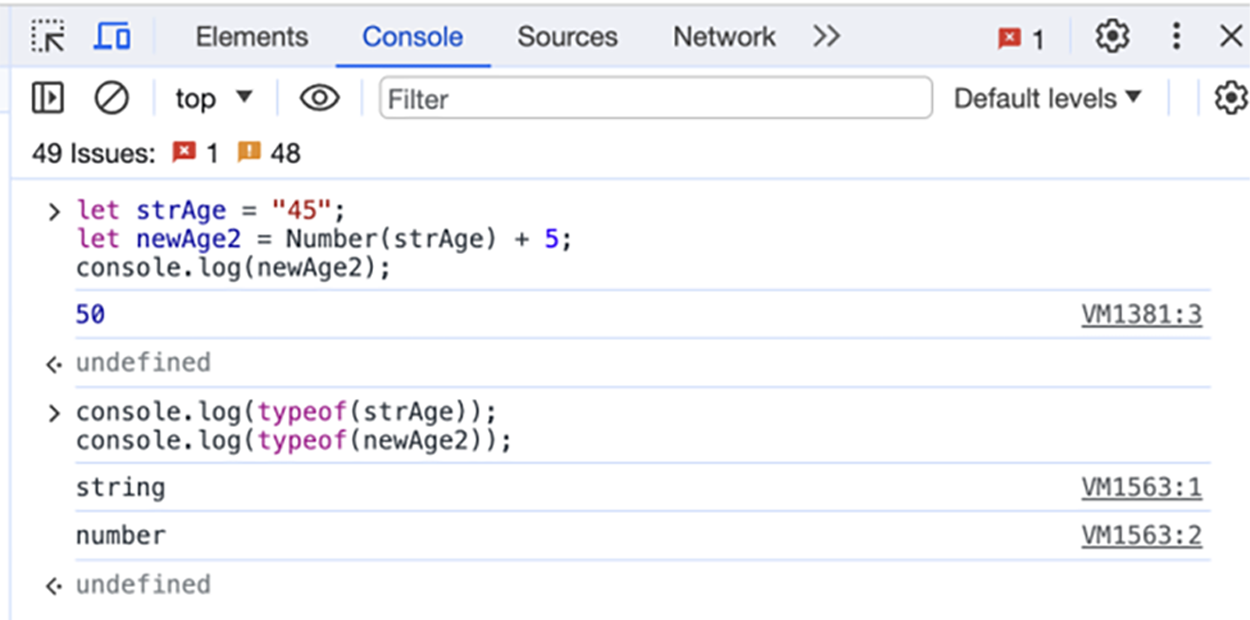
You see that the output shows the variable strAge as a string and the variable newAge2 as a number.
Each programming language, whether it uses implicit or explicit type conversion, contains multiple sets of conversion functions. JavaScript contains three methods that will attempt to convert a string into either a generic number, an integer, or a float.
| Name | Example | Description |
|---|---|---|
| Number() |
Number("45"); //returns: 45 |
Returns a generic number value from the string or returns Not a Number (NaN) if the conversion fails because of the presence of an alpha character or lack of any valid number characters. |
| parseInt() |
parseInt("45.55"); //returns: 45 |
Returns a whole number value or NaN if the conversion fails. Any numeric fractional data (numbers after the decimal) that is present is discarded. |
| parseFloat() |
parseFloat("45.55"); //returns: 45.55 |
Returns a decimal fraction, if fractional data is present. |
Additionally, we often have the need to convert a variable’s or object’s data into a string, in which case we can use the stand-alone String() function or the object’s .toString() function.
EXAMPLE
Converting a variable into a stringconsole.log( newAge2.toString() ); //prints: "50"
console.log( String( newAge2 ) ); //prints: "50"
Directions: In your console pane, type the code below and press “Enter.”
1. Open the Developer Tools in Google Chrome (F12), and click on the Console tab.
2. In your console pane, type the code below, using the “Shift” + “Enter” key combination at the end of each line:
let strAge = "45";
let newAge2 = Number(strAge) + 5;
console.log(newAge2);
3. Next, press “Enter.” You should see an output of 50.
4. Next, type the code below into the console pane, using the “Shift” + “Enter” key combination at the end of each line:
console.log(strAge);
console.log(newAge2.toString());
console.log(String(newAge2));
5. Next, press “Enter.” You should have seen an output of 45, 50, and 50.
EXAMPLE
The expected output is shown below (for both examples). Keep in mind there may be some variances in other visible content because of the webpage you are on when accessing the console pane.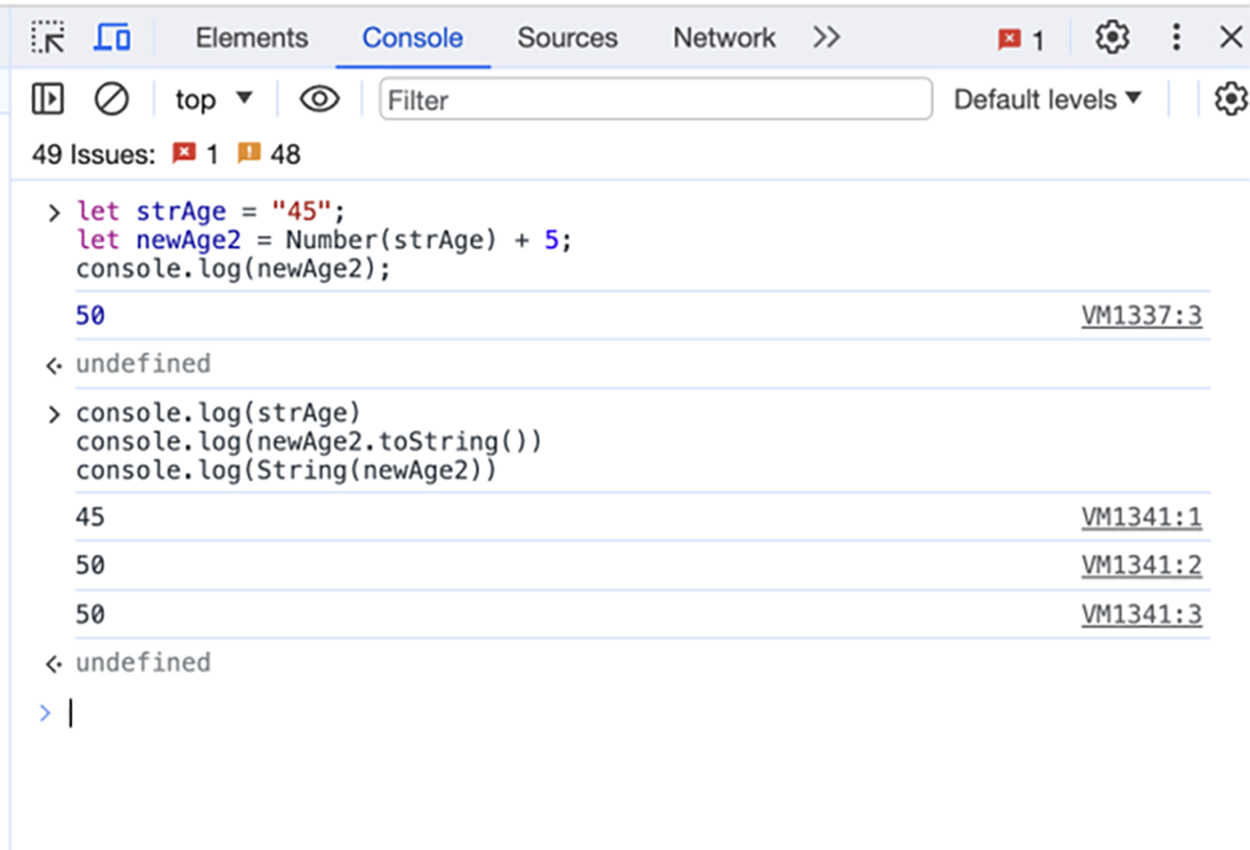
In the first code set, you started with the strAge variable with the value of 45. Because quotes were used, the data type is a string. Before you can add 5, the strAge needs to be changed to a number data type. Then, you can produce the sum of 45 and 5. In the second code set, you practiced displaying the outputs for the different variables. The first line strAge was the original variable and displayed its original value of 45. The second and third lines display the sum of strAge and 5.
View the following video for more on strings and variables.
Type Casting
An operation in programming that changes a value’s data type from one to another.
Implicit Type Casting
The automatic conversion of a value’s data type according to the context of the operation.
Explicit Type Casting
The manual conversion of a value’s data type using a specific function or method.
Not A Number (NaN)
A designation used in some programming languages to indicate a value is not a number.
Source: This Tutorial has been adapted from "The Missing Link: An Introduction to Web Development and Programming " by Michael Mendez. Access for free at https://open.umn.edu/opentextbooks/textbooks/the-missing-link-an-introduction-to-web-development-and-programming. License: Creative Commons attribution: CC BY-NC-SA.



