Use Sophia to knock out your gen-ed requirements quickly and affordably. Learn more
×

Introduction to GDB Online Interface

Author: Sophia

what's covered
In this lesson, you will identify the key components of the GDB Online development environment and learn how to set it up for use in this course. Specifically, this lesson will cover:

Table of Contents

1. Introduction to GDB Online

Source code is written by a programmer, checked by a compiler, translated into machine code, and assembled into an executable file. That process requires tools. For this course, that environment is GDB Online.

GDB Online is a free coding environment that runs entirely in a web browser. There is nothing to download. No administrator’s access is required. Open any modern browser, navigate to GDB Online, and a full coding workspace loads on your screen within seconds. You can write C++ code, compile it, and run it without installing a single piece of software on your machine. That simplicity is exactly what makes GDB Online a practical choice for this course. The focus stays on learning C++, not on configuring tools.

Tools like GDB Online belong to a category called integrated development environments (IDE). An IDE is a software environment that combines the tools needed to write and test programs in one place. Without an IDE, a programmer would need to juggle separate applications: one to type code, another to compile it, and a third to view output and messages. An IDE brings those functions together in a single workspace. Professional developers often use full desktop IDEs with many advanced features.

EXAMPLE

A student enrolled in an online C++ course uses a shared family computer. The computer has parental controls that prevent the installation of new software. The student opens a web browser, types GDB Online in the address bar, and the full GDB Online workspace appears immediately. No installation prompt appears. No permission is needed. The student begins reading the starter code on screen within two minutes without changing a single system setting on the computer.

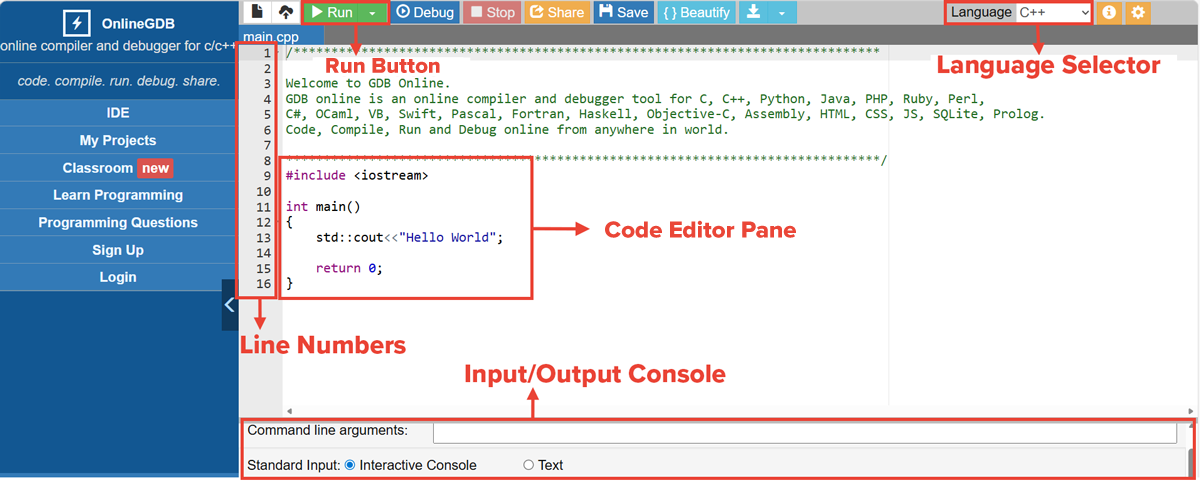
The following illustrates the key components of the GDB Online workspace that this lesson covers.

Annotated diagram of the GDB Online workspace illustrating five labeled components. The Run button compiles and runs the program when clicked. The Language selector controls which programming language is active and must be set to C++ before running any program. The Code Editor Pane is the main area where source code is typed. The Line numbers column identifies each row of code by number, which is used to locate errors from compiler messages. The Input/Output console is where program output appears after running, where the user types responses when a program requests input, and where compiler error messages are displayed.

terms to know
GDB Online
A free, browser-based development environment that allows you to write, compile, and run programs in multiple languages, including C++, without installing any software on your computer.
Integrated Development Environment (IDE)
A software environment that combines a code editor, a compiler or interpreter, and an output panel in one place, so programmers can write and test code without switching between separate applications.


2. Creating a GDB Online User Account

Now that you have access to GDB Online, there is one step that protects your work from the first day: creating a free user account. You can use GDB Online without creating an account. The workspace is fully functional either way. The difference is what happens when you close the browser. Without a user account, your work is not automatically stored. If the browser tab is closed before you save your code manually, the program you were writing may be deleted. With an account, every program you choose to save is stored in your profile and retrievable the next time you log in. For a course where you will return to programs over days and weeks, that protection matters.

To create a free account, visit the GDB Online homepage and look for the registration option. The process follows the same pattern as most web services:

  • Provide a name, email, and password
  • Verify your email through a confirmation message, and
  • Log in with the credentials you created.
The process takes about two minutes.

Once you are logged in, your username appears in the top-right corner of the GDB Online interface. That display is your confirmation that the session is active. Programs you save during that session are stored in your account immediately. The next time you open GDB Online and log in, your saved programs are waiting in the same state you left them.

A logged-in account also allows you to name and organize your saved programs. As this course progresses, you will build many short programs. A file saved with a descriptive name, like "hello_world.cpp" or "loop_practice.cpp," is much easier to locate later than an auto-generated label. Building the habit of naming files clearly from the start will pay off by mid-course when you have a growing list of saved programs to navigate.

hint
If you already have a Google account, GDB Online allows you to sign in with your existing Google credentials, skipping the registration form entirely.

EXAMPLE

A student spends thirty minutes writing a short C++ program during class. The class ends before the student can finish. Because the student was not logged in, there is no save option tied to an account. The browser tab is closed. When the student returns to GDB Online the following day, the editor is blank, and the program is not available. The student has to start over.

The same situation plays out differently for another student in the same class. That student logged in at the start of the session, saved the file as "first_program.cpp" before leaving, and returns the next day to find the program exactly where it was left. Logging in took thirty seconds. The account protected forty minutes of work.

The following table explains what happens to your work when the browser closes, depending on whether you are logged in.

No Account Logged In
Work saved between sessions? No, browser closes, editor resets Yes, files saved to your profile
Can you name and organize files? No Yes, e.g., hello_world.cpp
How do you know your session is active? You cannot tell Your username appears in the toolbar area, confirming your session is active
What happens if you close the tab early? Your code is gone Your saved files are waiting next session


try it
GDB Online hands-on:
  1. Open a browser and go to GDB Online.
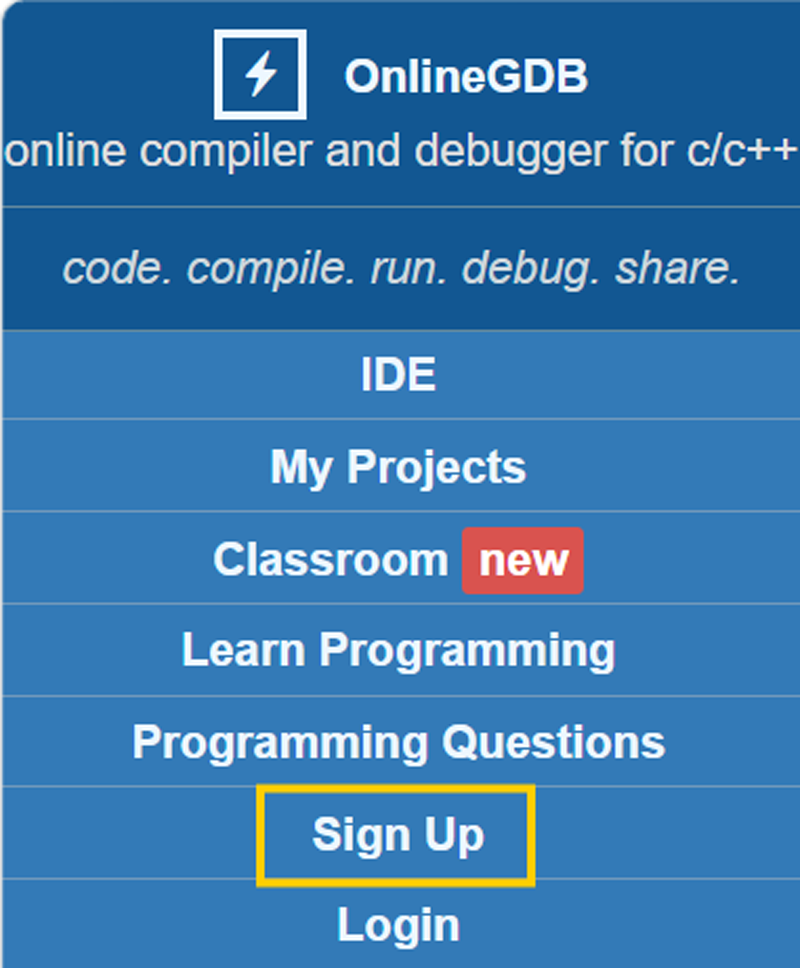
  2. Locate the Sign-Up link in the top-right corner. Do not select it yet. Just note where it is on the page.
  3. Notice what changes in the top area of the page after a user logs in.
How can you tell briefly whether you are currently logged in to GDB Online?
When you are logged in, your username or email address appears in the top-right corner of the page instead of the Sign Up or Login links. That display confirms your session is active.

term to know
User Account
A registered profile in GDB Online that stores your saved programs between sessions, allows you to organize files by name, and lets you return to previous work by logging in from any device or browser.


3. The GDB Online IDE

With your account set up, you are ready to look at the workspace itself and identify each component you will use in every session. The GDB Online workspace has three visible areas: the toolbar at the top, the code editing area, and the output panel. The toolbar contains the Run button, which starts the build process and executes your program. Of those three, two are the primary working regions you will use in every session. The code editor pane is where you type your program. The input/output console is where your program communicates with you after it runs. Understanding what each region does will help you work efficiently from your very first session.

watch
Check out the following video for a guided tour of the GDB Online workspace before reading the sections that follow.

terms to know
Code Editor Pane
The main text area in GDB Online where you type your source code; it displays line numbers along the left edge, uses syntax highlighting to color-code different parts of the code, and applies auto-indentation as you write.
Input/Output Console
The panel in GDB Online where a program's output is displayed after running, where you type responses when a program requests input, and where compiler error messages appear when the code contains a problem.

3a. Code Editor Pane

The largest area in the GDB Online workspace is the code editor pane. This is the text area where you type your program. It behaves similarly to a word processor in that you can click anywhere and start typing, but it is purpose-built for writing code. Several features built into this pane help you write and read programs more effectively.

Along the left edge of the code editor pane is a column of numbers. Those are line numbers. Every row in the editor is assigned a number, starting from 1 at the top and increasing as you add code. Line numbers matter because when the compiler finds a problem in your code, the error message it generates includes the line number where the problem appears. You move to that line in the editor, find the issue, and fix it. Without line numbers, you would have to scan every row of code manually each time an error occurs.

The code editor pane also uses syntax highlighting to display your code in multiple colors. Reserved keywords in C++ appear in one color, text inside quotation marks in another, and numbers in yet another. These colors are visual guides only. They do not affect how the program runs. What they do is help you read through code faster and catch small mistakes, like a missing quotation mark or a misspelled keyword, before you click Run.

The editor also keeps code organized as you write:

  • Auto-indentation: pressing Enter after a line positions the cursor at the correct indentation level for the next row, so the structure of the code stays visually clear
  • Language selector: a dropdown near the top of the editing area that controls which programming language GDB Online uses when you click Run. Confirm that C++ is selected before starting any session. Choosing the wrong language produces error messages that have nothing to do with the code you typed.

EXAMPLE

A student runs a short program, and the console throws a message. The message says: "error: expected ';' before 'return'.", along with a line number. The student moves to that line in the code editor, looks at the end of the line above it, and immediately spots the missing semicolon. The fix takes three seconds. Without the line number in the error message, the student would have needed to scan every line in the program individually.

terms to know
Line Numbers
Numbered labels along the left edge of a code editor that identify each row of code, allowing compiler error messages to point to the exact location of a problem in the file.
Syntax Highlighting
A feature of code editors that displays different elements of a program, such as keywords, text strings, and numbers, in different colors to make the code easier to read and to help identify mistakes at a glance.

3b. Input/Output Console

The second main region in the GDB Online workspace is the input/output console, often called simply the console. Depending on your screen size and layout, the console appears either to the right of the code editor or in a panel below it. It is visually distinct from the editing area: the console uses a different background color and has no line numbers.

Two things happen in the console that do not happen anywhere else in the workspace.

  1. Any text your program sends to the screen appears in the console. In C++, you will write instructions that display messages, numbers, and calculated results. Whatever output those instructions produce is displayed in the console panel after you click Run. If you write a program meant to print the message "Program complete," that text appears in the console. If the console stays blank after running, something went wrong: either the program produced no output, or an error prevented it from running at all.
  2. If a program pauses and asks you to type something, you type your response directly into the console. In C++, you can write programs that request input from the user: a name, a number, a choice. When the program reaches that instruction, it stops and waits. You click inside the console, type your response, and press Enter. The program reads what you typed and continues from that point. Keeping all communication between the running program and the user in the same panel makes the flow of the program easy to follow.

EXAMPLE

A student writes a program that asks the user to enter their name, then prints a greeting. After clicking Run, the console displays a prompt: "Enter your name:". The student clicks inside the console, types "Jordan", and presses Enter. The console immediately displays: "Hello, Jordan!" The student did not need to change anything in the code editor to interact with the running program. The entire exchange happened in the console.

The console is also where compiler messages appear. When the compiler finds a problem in your code, the error message is displayed in the console area, not in the code editor. The message usually includes the line number of the problem and a short description of what went wrong. Knowing how to look in the console after every run, whether to read output or to read an error message, is the most important habit this section is asking you to build.

One additional feature worth knowing: the size of the console relative to the code editor is adjustable. A thin divider bar separates the two panels. Clicking and dragging that bar lets you resize either panel. If your program produces a lot of output, making the console taller gives you more room to read it. If you are writing a long program, making the code editor taller lets you see more lines at once. Adjusting the layout at any point during a session takes only a few seconds.

With the GDB Online workspace mapped out, you have everything in place to start writing code. The next step is putting it into practice: writing, compiling, and running your first C++ program.

summary
In this lesson, you identified the key components of the GDB Online development environment. In Introduction to GDB Online, you learned that GDB Online is a free, browser-based integrated development environment (IDE) available at https://www.onlinegdb.com/, requiring no software installation and accessible from any modern browser. In Creating a GDB Online User Account, you saw how a user account protects your work by saving programs between sessions and how naming files clearly keeps your growing list of programs organized. In The GDB Online IDE, you explored the two primary working regions of the workspace. In the Code Editor Pane, you identified line numbers, syntax highlighting, and auto-indentation as the features that make writing code easier. In the Input/Output Console, you saw where program output appears after clicking Run, where you type responses when a program requests input, and where compiler messages are displayed when the code contains an error.

Source: THIS TUTORIAL WAS AUTHORED BY SOPHIA LEARNING. PLEASE SEE OUR TERMS OF USE

REFERENCES

OnlineGDB. (n.d.). Online compiler and debugger. www.onlinegdb.com/

Terms to Know
Code Editor Pane

The main text area in GDB Online where you type your source code; it displays line numbers along the left edge, uses syntax highlighting to color-code different parts of the code, and applies auto-indentation as you write.

GDB Online

A free, browser-based development environment that allows you to write, compile, and run programs in multiple languages, including C++, without installing any software on your computer.

Input/Output Console

The panel in GDB Online where a program's output is displayed after running, where you type responses when a program requests input, and where compiler error messages appear when the code contains a problem.

Integrated Development Environment (IDE)

A software environment that combines a code editor, a compiler or interpreter, and an output panel in one place, so programmers can write and test code without switching between separate applications.

Line Numbers

Numbered labels along the left edge of a code editor that identify each row of code, allowing compiler error messages to point to the exact location of a problem in the file.

Syntax Highlighting

A feature of code editors that displays different elements of a program, such as keywords, text strings, and numbers, in different colors to make the code easier to read and to help identify mistakes at a glance.

User Account

A registered profile in GDB Online that stores your saved programs between sessions, allows you to organize files by name, and lets you return to previous work by logging in from any device or browser.