When working with a computer, whether you are at home, school, or work, you should be able to identify its key external components and how they function. In this lesson, you will explore the components commonly found on the outside of a computer system. Specifically, this lesson will cover:
1. Built-in Components
Although there are many different types of computers available, on a typical computer you will always find several components. The common exterior components are divided into two types, the first being built-in external components. Built-in components are integrated into the computer’s body and are not typically removable or customizable.
- Buttons: Every computer, regardless of type, has some way to turn the system on. The power button is what turns it on. Depending on the computer type, you may also see buttons that adjust sound or screen settings. Modern devices may also include fingerprint scanners or other biometric buttons for secure access.
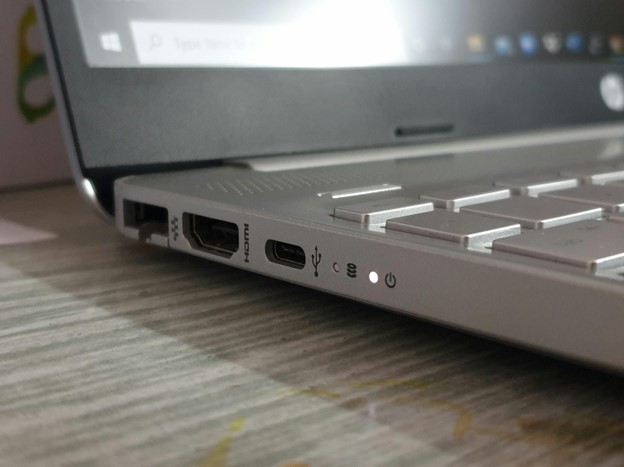
- Status Lights: Many computers provide status lights to let the user know that the computer is powered on. Other indicator lights may show when information is being written to a disk, battery status, or network activity. Some modern devices also have RGB lighting for aesthetic customization.
-
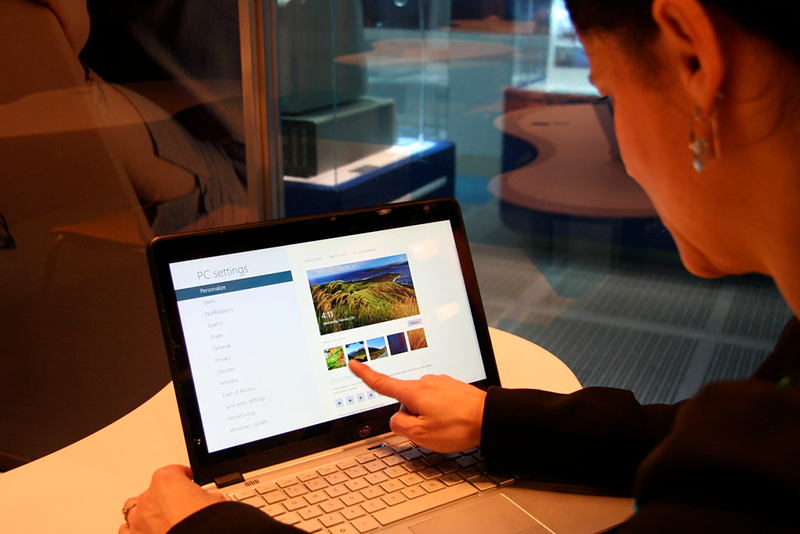
Touchscreen: A touchscreen acts as an input device by allowing users to interact directly with the displayed content using physical touch, typically with a finger or stylus. The screen detects the location and sometimes the pressure of the touch, translating these physical actions into digital signals that the computer interprets as commands, selections, or data entry.
- Vents: As a computer is used, it generates heat. To dissipate this heat, most computers contain a fan and at least one externally located vent that cools down the electronic components.
-
Ports: Computers provide ports for users to plug in cables and peripheral devices. The types of ports available depend on the age and type of the computer. Common ports include the USB (Universal Serial Bus) ports, including the older rectangular USB-A and the newer, reversible USB-C, which are widely used for connecting devices like keyboards, mice, external drives, and smartphones. USB-C ports often support Thunderbolt 4 or 5, enabling ultra-fast data transfer, video output to monitors, and device charging through a single connection. HDMI (High-Definition Multimedia Interface) remains a standard for connecting external monitors and TVs, while some devices may use DisplayPort or Mini DisplayPort for higher-end video support.
For network access, many desktops and some laptops still include an Ethernet (LAN) port for fast, stable wired connections, though this is becoming less common on thin portable devices. Audio jacks, typically the 3.5mm combo jack, allow users to connect headphones, microphones, or speaker systems.
-
Optical Drive: Built-in CD/DVD-ROM drives were once standard in desktops and laptops, allowing users to read and write CDs or DVDs. However, due to the widespread adoption of digital downloads, streaming services, and cloud storage, built-in optical drives have become increasingly rare in modern systems. When present, they are typically found in older or specialized business hardware and are now considered legacy components.
-
Check out the following video to learn more about these components.
-
- Built-in External Component
- Hardware element that is physically integrated into the exterior of a computer system and not typically removable or upgradable by the user.
- Touchscreen
- Built-in display that responds to touch input from a finger or stylus, allowing direct interaction with digital content.
- Ports
- Connection points on the computer used to plug in cables and peripheral devices such as monitors, drives, or headphones.
- Optical Drive
- Legacy drive used to read and write CDs or DVDs; now uncommon in modern systems.
2. Peripheral Devices
Peripheral devices are external tools that expand a computer’s input, output, or storage capabilities. They are typically connected to the system via a port or wireless technologies such as Bluetooth. Common Bluetooth peripherals include wireless keyboards, mice, speakers, and earbuds—offering flexibility and reducing cable clutter.
-
Keyboard: All personal computers need components that allow the user to input data. Keyboards help the user enter text or numbers as input for documents or files. Keyboards are available in different sizes. Some keyboards are designed for ergonomics, while others are designed to be small. Wireless keyboards often use Bluetooth for cable-free convenience.
- Pointing Device: A pointing device is an input device that moves an on-screen pointer and gives users the ability to click to initialize applications or open files. The most common type of pointing device is a mouse. Users move the mouse across a flat surface and press a button to click. Another modern example is the stylus, which offers precise control on touchscreen surfaces or drawing tablets. The stylus functions as a digital pen, enabling users to tap, draw, write, or select directly on the screen—making it especially useful for design, annotation, and creative applications.

-
Scanner: Scanners allow users to input documents into a computer, either as images or as text. Most scanners have flat surfaces on which users place documents to be scanned. However, some scanners feed documents one page at a time. Most scanners utilize the USB interface.
- Digital Camera: A digital camera is a device that captures a picture and converts it into digital information. While standalone cameras are still used in fields like photography, journalism, and content creation, many users now rely on built-in smartphone or webcam cameras for everyday use. Standalone digital cameras typically store captured media on internal memory or memory cards and connect to a computer via USB or wireless transfer (such as Wi-Fi or Bluetooth) for file upload and editing.
-
Monitor: A monitor is a device used to display video, images, or text. With a laptop computer, the monitor is built in. With a desktop computer, the monitor comes as a separate component connected to the system unit via cable (HDMI, DisplayPort). Some monitors include touchscreen capabilities, allowing them to function as both input and output devices.
-
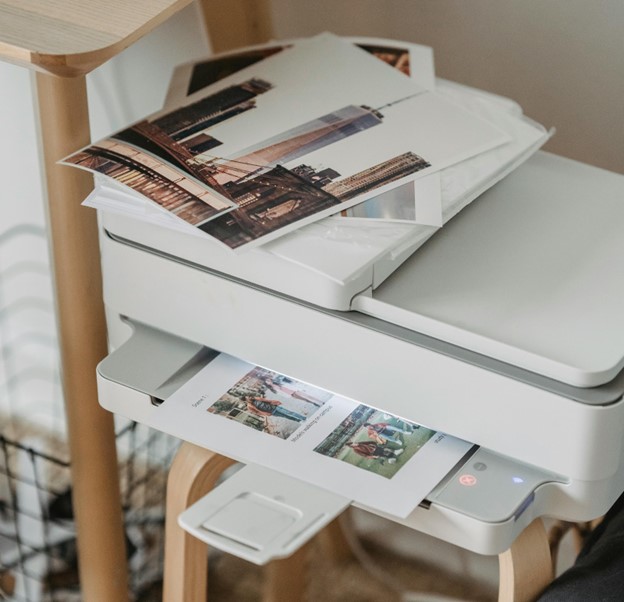
Printer: A printer is an output device that generates a hard copy of work created on a computer; traditional printers produce 2D documents or images on paper using inkjet or laser technology, while 3D printers build physical objects layer by layer from materials like plastic based on digital models.
-
VR Headsets: A wearable input device that tracks head and sometimes hand movements, letting users interact with 3D environments in virtual reality.
- Smart Displays: A touchscreen device with voice input that acts as both an input interface and sometimes a secondary monitor for a computer.
-
Learn more about the types of peripheral devices in the video below.
-
- Peripheral Device
- An external device connected to a computer to add input, output, or storage functionality.
- Bluetooth
- Wireless communication technology used to connect peripherals without cables.
- Keyboard
- Input device used to enter text and numerical data into a computer.
- Mouse
- A pointing device used to move the on-screen cursor and interact with digital content.
- Scanner
- Input device that converts physical documents or images into digital files.
- Monitor
- Output device that displays visual information such as images, video, and text.
- Printer
- Output device that creates a physical (2D or 3D) version of digital content.
- 3D Printer
- A printer that creates three-dimensional objects from digital models using materials like plastic or resin.
- VR Headset
- Input device that tracks physical movements to interact with a virtual environment.
In this lesson, you explored how computers connect with the outside world, starting with built-in components like power buttons, touchscreens, status lights, ports, vents, and the now less common optical drive, all parts that are built into the machine itself. Then you moved on to peripheral devices, which are the extra tools you plug in or connect wirelessly, like keyboards, mice, monitors, scanners, printers, and even VR headsets. Whether built in or added on, these components all work together to help you interact with your computer and get things done.




