In this lesson, you will learn about desktop operating systems (OS) and how they differ from server, mobile, and embedded OSs. You will explore the key characteristics of three popular desktop OSs: Windows, macOS, and Linux. You will also examine how they compare in terms of interface design, file and application management, system performance, networking capabilities, and security infrastructure. Specifically, this lesson will cover:
1. Key Characteristics of a Desktop OS
Desktop operating systems serve as the foundation for personal computing by bridging hardware resources and user-facing software. They provide a user-friendly GUI interface, support a wide variety of applications, connect with numerous peripherals, and offer robust networking and security features.
To better understand how these systems support everyday computing, let’s look at some of their key characteristics.
1a. Interface and Input
One of the defining features of a desktop OS is its graphical user interface (GUI), designed for multitasking and precise control via keyboard and mouse. These systems support high-resolution displays, multiple monitors, and complex workflows that involve resizing windows and managing several open applications. This makes them especially well-suited for productivity tasks, creative software, and development environments.
In contrast, mobile operating systems are optimized for touch input and small screens, limiting multitasking and precision. Server OSs are often administered through command-line interfaces and remote access tools, with little or no GUI for daily use. Embedded OSs frequently omit a user interface entirely, instead running dedicated code in appliances or specialized hardware without user interaction.
1b. Applications and Software Ecosystems
Rather than limiting users to preinstalled or curated software, desktop platforms offer broad application ecosystems. From productivity suites and media editors to development tools and games, users can install full-featured software from multiple sources, including websites, retail media, or network deployments. This flexibility supports innovation and enables professionals to customize their toolsets.
In contrast, mobile OSs restrict software installation to curated app stores, limiting user control and application complexity. Server OSs prioritize background processes like database hosting and web services, often excluding graphical apps entirely. Embedded OSs are typically preloaded with a single-purpose application and offer no mechanism for users to add or remove software.
1c. File and Resource Management
Robust file management is another key strength of desktop operating systems. Graphical file managers present a user-friendly way to navigate complex folder hierarchies, adjust permissions, manage connected drives, and sync with cloud services. These systems support a wide range of file formats and customizable folder structures.
Mobile and embedded operating systems take a more restrictive approach. Mobile platforms typically limit access to internal directories, often hiding the file system from users entirely or offering only sandboxed access for individual apps. Embedded systems may not expose any file system to the user, instead executing fixed instructions stored in firmware.
1d. Performance and Customization
Desktop systems are built to handle multitasking and demanding computing tasks. Users can run multiple applications simultaneously, allocate resources efficiently, and perform hardware-intensive tasks like video rendering or code compilation. Operating system updates, driver management, and optimization tools enable users to fine-tune performance for specific workflows.
Customization is another hallmark of desktop OSs. Users can modify settings, install extensions, replace hardware, and adjust system behavior through control panels and scripts. This level of control stands in sharp contrast to mobile OSs, which prioritize battery life and system stability over configurability, and embedded OSs, which operate on fixed hardware with limited flexibility.
1e. Networking and Security
Modern desktop operating systems include comprehensive networking tools that support domain integration, file sharing, virtual private network access, and remote desktop connectivity. These features are especially important in business and IT environments where devices need to be centrally managed and secured.
In addition, desktop OSs implement layered security strategies including user account controls, permission systems, encryption tools, firewalls, and regular updates. These capabilities are critical for protecting data and ensuring compliance with organizational policies. Server OSs may offer similar tools but lack user-centric features, while mobile and embedded OSs simplify security to reduce overhead and user involvement.
-
A desktop operating system uniquely combines a full-featured graphical interface with direct access to hardware resources and files, enabling users to run complex applications, manage files, customize the interface, and connect to networks with high performance and flexibility.
2. Common Desktop Operating Systems
Now that you have explored the key features that define a desktop operating system, including how users interact with it, what software it supports, how it manages resources, and how it connects and protects data, it is time to look at how these characteristics appear in real-world systems. The following sections introduce three of the most widely used desktop operating systems: Microsoft Windows, macOS, and Linux. Each one offers a unique approach to interface design, application support, customization, and system management.
2a. Windows
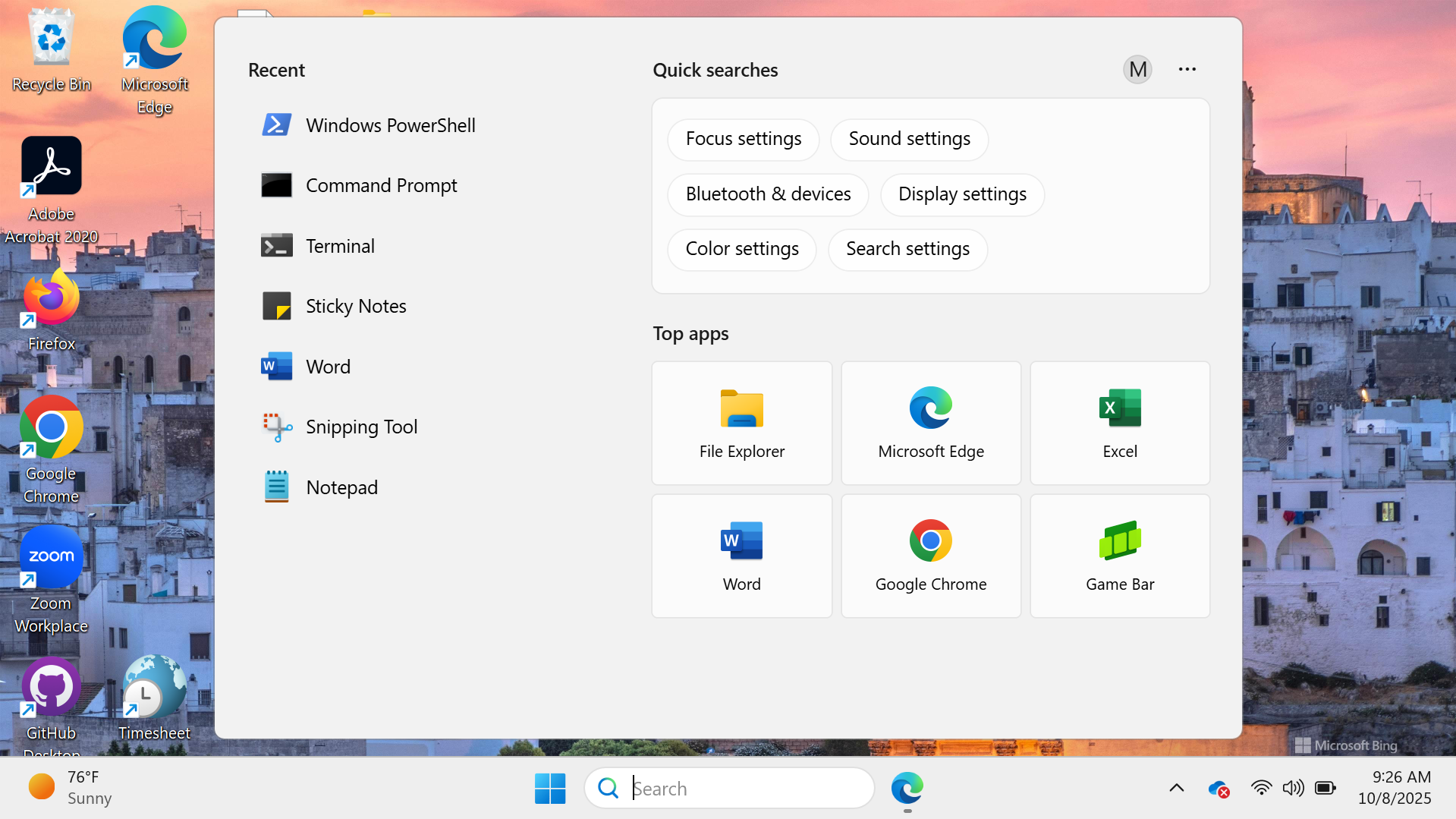
Microsoft Windows is the most widely used desktop OS globally, due in part to its compatibility with an enormous range of applications and devices. It powers personal computers in homes, businesses, schools, and gaming environments. Its familiar interface and support for legacy software make it an accessible and flexible choice.
- Interface and Usability: As shown in the screenshot above, Windows features a centered Start menu that provides quick access to frequently used apps, system settings, and search tools. The Taskbar at the bottom of the screen includes pinned apps, open windows, system notifications, and a clock. Users can open and resize multiple windows for multitasking, and the interface supports input from a keyboard, mouse, or touchscreen. Windows also offers a high level of customization, allowing users to change themes, adjust display settings, and manage app shortcuts.
- Applications and File Management: Windows supports a vast library of software, including productivity tools like Microsoft Office, specialized applications like AutoCAD, and a wide range of PC games. In the screenshot, apps such as Word, Excel, and PowerPoint appear in the Start menu, showing how users can launch commonly used programs directly from the desktop. File management is handled through File Explorer, a graphical tool that allows users to browse folders, search files, preview content, and connect to cloud storage using OneDrive.
- Networking: Windows includes native support for joining a domain, file and printer sharing, and remote desktop access. These features are key in enterprise environments.
- Security: Windows provides multilayered security features, including Windows Defender, BitLocker full-disk encryption, and file-level protection via Encrypting File System (EFS). User account control separates Standard and Administrator account permissions to reduce exposure to malware.
Windows is available in a variety of
editions, which are versions with different subsets of features. The Home Edition, for example, is designed for home and small business use. It is less expensive and does not include support for connecting to domain-based networks or encrypting files and folders with EFS and BitLocker. Other editions include Pro, Enterprise, and Education, each with its own feature set.
-
- Microsoft Windows
- A widely used desktop OS known for broad compatibility in business, education, and gaming.
- Edition
- A software version that contains a specific subset of features.
2b. macOS
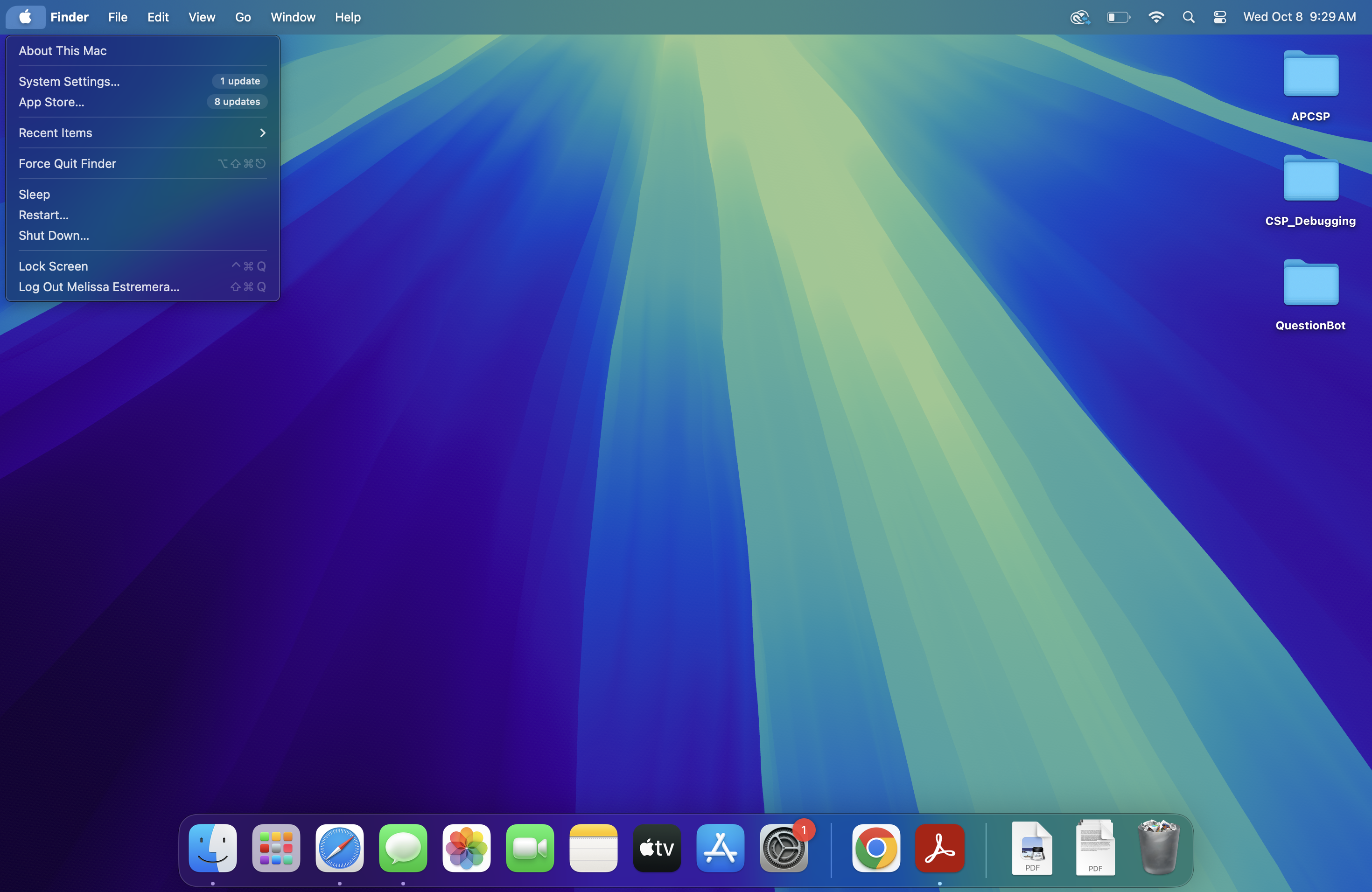
macOS, developed by Apple, is known for its seamless integration with Apple hardware and services. It is widely used by creative professionals and consumers who value design, simplicity, and privacy.
- Interface and Usability: As shown in the screenshot above, macOS features a clean and consistent interface. The Dock, located at the bottom of the screen, provides quick access to frequently used applications. The Menu Bar at the top changes based on the active application, helping keep each program’s controls in one place. This layout simplifies navigation and reduces clutter, making the system easy to use for both new and experienced users.
- Applications and File Management: While macOS offers fewer total applications than Windows, it supports most popular business and creative tools, including Microsoft Office, Final Cut Pro, and Adobe Creative Cloud. File management is handled through the Finder, macOS’s built-in file browsing tool. Finder allows users to organize folders, search for documents, manage external drives, and sync files through iCloud. It presents files in a visual, easy-to-navigate format that supports drag-and-drop actions and customizable views.
- Networking: macOS supports network file sharing, AirDrop, and remote desktop access. It integrates smoothly into mixed operating system environments, including networks with Windows-based servers and devices.
- Security: Built on a Unix-based architecture, macOS includes several built-in protections. System Integrity Protection (SIP) prevents unauthorized system changes, Gatekeeper blocks unverified apps, and FileVault offers full-disk encryption. User account permissions help ensure that sensitive files and settings are protected.
-
Windows and Linux can be installed on most PCs, enabling users to switch between them or set up a
multi-boot system without changing hardware. macOS, by contrast, runs only on Apple hardware and cannot legally be installed on non-Apple devices. However, Apple does permit installing other operating systems on its computers, so you can multi-boot an Apple desktop or laptop PC with macOS, Windows, and Linux.
-
- macOS
- Apple’s exclusive desktop OS known for design, performance, and seamless integration with Apple hardware.
- Multi-Boot System
- A computer that has been set up with multiple operating systems. Each time you start up, you choose which OS to run.
2c. Linux
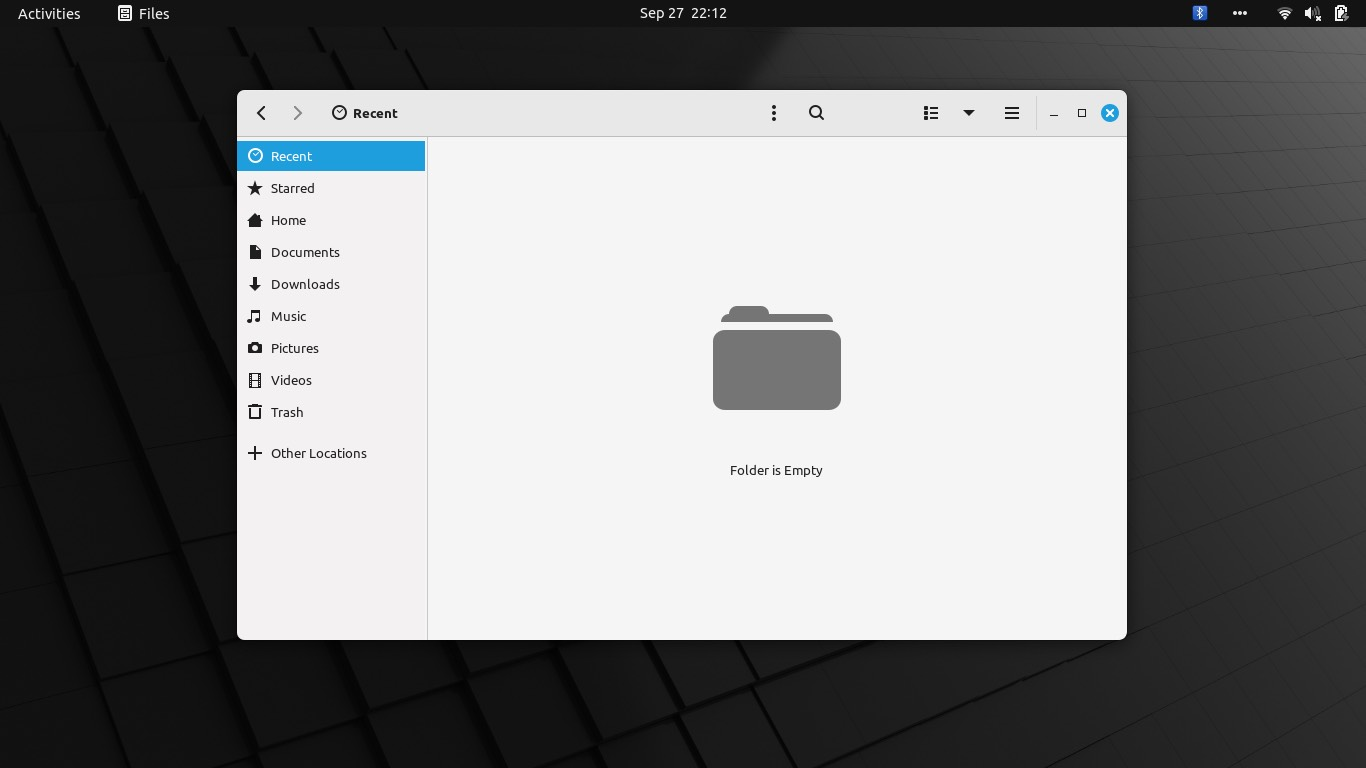
Linux is a family of open-source operating systems known for their flexibility, stability, and security. Widely used in servers and infrastructure, Linux also powers desktops for developers, IT professionals, and privacy-conscious users. Its open development model is supported by a global community that actively contributes to its improvement.
- Interface and Usability: The screenshot above shows a desktop environment in Ubuntu, one of the most popular Linux distributions. On the left side, the Dock contains quick-launch icons for applications such as Firefox and system utilities. The top bar displays system status, the clock, and user session options. The interface can vary widely depending on the Linux distribution and desktop environment (such as GNOME, KDE, or XFCE), allowing users to choose a look and feel that matches their preferences. This level of customization is a major strength of Linux.
- Applications and File Management: Linux supports a wide range of open-source applications, including alternatives to popular commercial software like LibreOffice, GIMP (for image editing), and VLC Media Player. Many distributions come with a built-in software center or package manager to download and update applications. The screenshot shows a file manager open to the Home directory, where users can organize folders, access media, and manage files. While Linux may have fewer commercial applications than Windows or macOS, it excels in developer tools, command-line utilities, and lightweight apps.
- Networking: Linux offers robust networking features and is widely used in environments where stability and security are essential. Desktop distributions support home and enterprise networking tools, including SSH (secure shell), VPN clients, and remote desktop access. Many IT professionals use Linux to manage servers or connect to remote systems.
- Security: Security is one of Linux’s core strengths. Its Unix-like permissions model limits access to system-critical files, and most malware written for other operating systems does not affect Linux. Software installation typically requires administrator access, and updates are handled through trusted package managers. Linux is also commonly used in penetration testing and cybersecurity fields because of its security-focused tools and transparent design.
-
The name “Linux” comes from its creator, Linus Torvalds, who began the project in 1991. It’s short for “Linus Unix.”
Linux is available in many versions, called distros, each designed for different users. For example, Ubuntu is a beginner-friendly distro for desktops and laptops, while Red Hat Linux is a commercial version used on enterprise servers and sold with support and specialized tools. Linux's kernel is always free, but some distributions offer packaged solutions with additional features and paid support.
One key drawback of Linux for casual users is its limited software availability. Many popular business, creative, and gaming applications are not released in Linux versions. However, the growing shift to web-based apps has helped bridge this gap, allowing Linux users to access online versions of many commonly used tools.
-
- Linux
- A flexible, open-source OS popular with developers and advanced users for its customization and security.
- Distro
- Short for distribution; a packaged version of Linux that includes the kernel, user interface, and additional tools tailored to specific needs.
- Ubuntu
- A free, user-friendly Linux distro designed for desktop and laptop computers.
2d. Comparison of the Operating Systems
The following table summarizes the key features and characteristics of each OS you studied in this tutorial. Understanding these distinctions can enable you to select, configure, and manage systems based on performance needs, software requirements, network architecture, and security expectations.
|
Feature
|
Windows
|
macOS
|
Linux
|
|
Interface Type
|
Customizable GUI with Taskbar/Menu
|
Unified GUI with Dock/Menu Bar
|
Multiple GUIs or CLI-based
|
|
App Ecosystem
|
Broadest range, especially for games
|
Creative and productivity focused
|
Mostly open-source and developer tools
|
|
File Management
|
File Explorer, OneDrive integration
|
Finder, iCloud integration
|
Nautilus, Dolphin, full control
|
|
Hardware Compatibility
|
Extensive
|
Apple hardware only
|
Broad, with possible driver issues
|
|
Networking
|
Domain join, RDP, file sharing
|
Bonjour, Remote Desktop, SMB support
|
SSH, firewalls, containers, servers
|
|
Security Features
|
Defender, BitLocker, EFS, UAC
|
FileVault, SIP, Gatekeeper
|
LUKS, GnuPG, file permissions
|
|
User Base
|
General users, businesses, gamers
|
Creatives, Apple ecosystem users
|
IT professionals, developers
|
-
You can try out each of the operating systems covered in this tutorial using online simulators. Visit
www.onworks.net to explore Windows 10 (Windows 11 is not available there), as well as macOS and several versions of Linux including Ubuntu.
For an even larger selection of operating systems to explore, check out
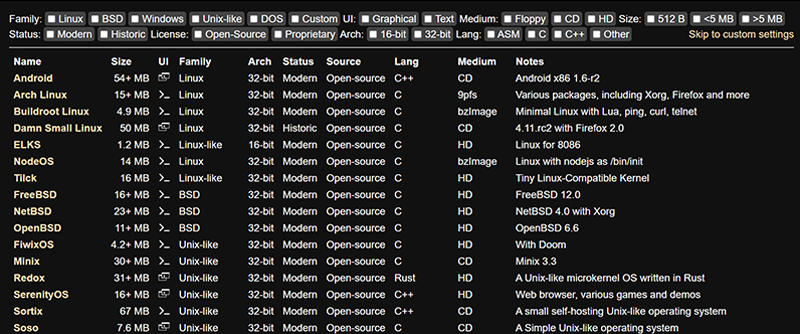
Copy.sh, which provides free web-based emulations of nearly 100 different OSs. Most of these are desktop OSs, but there are also some mobile and specialty types. Note the Status column in the list, which contains either Modern or Historic; the Historic ones are old versions. You can explore very early versions of Windows here, starting with Windows 1.01! The UI column indicates whether the OS is GUI or CLI.
In this lesson, you explored the key characteristics of a desktop OS, learning how common desktop operating systems like Microsoft Windows, macOS, and Linux support productivity through rich interface and input, broad applications and software ecosystems, and effective file and resource management. You examined how these systems enable performance and customization for diverse tasks and deliver robust networking and security capabilities. A final comparison of operating systems illustrated how each OS addresses different user needs, from Windows’ versatility and macOS’s integration to Linux’s adaptability.



