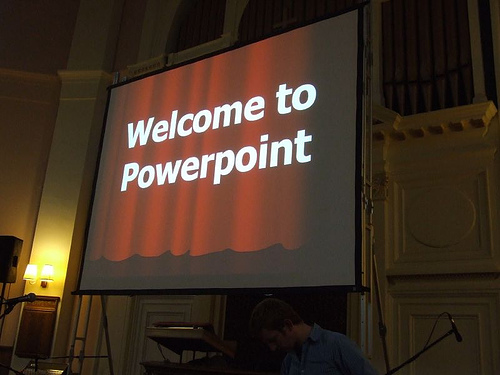
Using software like PowerPoint can allow the speaker to create an engaging presentation.
Let's face it. Love it or hate it, PowerPoint, or PowerPoint-type slides, are the most common form of visual aid seen during a presentation. We all know that we have encountered boring powerpoints presentations with an overload of information and a lack of creativity.
Developed by Microsoft, PowerPoint is a presentation software that enables users to communicate text, graphics, video, and other content via electronic slides.
The following design tips can help users develop effective PowerPoint presentations while keeping in mind PowerPoint etiquette.
terms to know
PowerPoint
An electronic slide presentation created and presented using the program (verb) to communicate to (an audience) by electronic slides.
Design
To plan and carry out (a picture, work of art, construction, etc.).
2. PowerPoint Tips
Do not write the entire presentation on your PowerPoint. Instead, create bullet points and headings no longer than three to five words that give the main points.
Present no more than five to seven lines per slide.
Use two slides rather than cramming too much information into one.
Be consistent with your "theme" throughout the presentation (i.e., do not use a different theme for each slide).
Do not overuse transitions. They are meant to enhance, not overwhelm, your presentation.
Be careful with your color scheme. Again, this is meant to enhance your presentation. Make sure the audience can read the text.
Make an outline of what you will be talking about so listeners can know what to expect from the presentation.
Use a font size of 18–24 points. Avoid using complicated and unreadable fonts.
Use a font color that stands out against the background.
3. Easy-to-Read Text and Graphics
Use graphics! People identify items more quickly with images rather than just text alone. When creating your visual aids, however, make sure your text and graphics are readable.
Visual Aid
Tip
Labeling
Use headings and subheadings in a larger font.
Bold, italicize, or CAPITALIZE important information.
Use bullet points or create lists to organize material. Make sure this is "nice" to look at (i.e., easy-to-read).
Charts and graphs
Make sure the information is clear and supports your presentation. Color coordinate charts/graphs if necessary.
Use text to support/explain your charts and graphs (be brief but cover the high points).
Avoid charts and graphs that can be misleading to your readers.
Wording and lettering
Use large, easy-to-read fonts.
Be concise, using as little text as possible. Use simple language to avoid confusion.
Limit your text to one or two fonts.
Think of the demographic (e.g., age) of your audience when setting font size and type.
Minimize the number of lines to no more than six lines per slide with six words per line.
Overcrowding slides is common and can be easily avoided by limiting the amount of text.
Color
Use color for clarity and emphasis, not for decoration.
Use color schemes.
Keep a similar color scheme throughout the entire presentation.
Use contrasting colors to highlight main points.
4. The Role of Color
When properly used, colors should draw attention to the important terms or concepts in your presentation. They can also create emotion. Color should be consistently used throughout the design of the visuals to achieve these goals.
Learners and audiences are more attracted to colors and may find presentations without color to be boring. Some presenters change their color schemes regularly to prevent their presentations from becoming too monotonous. You can also change the shades of your colors.
One disadvantage of using color is that individuals who are color-blind may miss out on some information in certain colors. Using certain shades, and using them consistently, can eliminate this problem.
4a. Suggestions for Using Color
Be consistent with the use of color.
Use color to highlight a difference or change.
Try to keep color use to a minimum; each color should communicate necessary information.
Make sure that there is a good contrast between the background and the color of the text to allow the learner to read the text easily.
Use color for clarity and emphasis, not for decoration.
4b. The Psychology of Colors
It may also be useful to apply some color psychology when choosing which colors to use. Back in the 1940s, a study by Faber Birren provided radical insight into human emotional reactions to color.
Something else to consider is that on flip charts, blue, black, and green inks have the best visibility. People say that blue is the most pleasing color to view. Red comes in second, even though it is not the most visible. But too much red can be too strong. Avoid using purple, yellow, pink, and brown, which can be more difficult to see.
When creating graphs, bright colors will bring focus to a small graph, while subtle colors will keep a large graph from overwhelming the audience.
summary
In this lesson, you learned some design tips for visual aids, including tips for using PowerPoint in your presentation that you should not write your entire presentation on your PowerPoint. Rather, use bullets and sub-bullets to break up the text into manageable chunks. Be consistent with your color themes. To ensure text and graphics are easy to read, use at least 18-point font for main points and smaller font sizes for sub-points. Use a font color that is readable and stands out against the background. One of the disadvantages of using color is that individuals who are colorblind may miss out on some information in certain colors. Thus, do not "waste" information by using unnecessary colors. It may also be useful to apply some color psychology when choosing which colors to use.
Source: This content has been curated and revised from Boundless.com. License: CC BY-SA: Attribution-ShareAlike
Terms to Know
Design
To plan and carry out (a picture, work of art, construction, etc.).
PowerPoint
An electronic slide presentation created and presented using the program (verb) to communicate to (an audience) by electronic slides.