Table of Contents |
Productivity software is a broad term that refers to digital applications designed to help users accomplish common work-related tasks. While the phrase sometimes includes specialized tools like graphic design or accounting programs, it typically refers to applications used for everyday office and knowledge work.
Perhaps the most widely recognized form of productivity software is the office suite. An office suite is a collection of applications bundled together, usually including at least a word processor, spreadsheet, and presentation tool. Office suites sometimes also include other applications such as databases, desktop publishing, email and calendaring, and access to online storage and collaboration tools.
Project management applications help teams plan, track, and complete projects. They provide tools for organizing tasks, assigning responsibilities, and monitoring progress toward goals. Common features include task lists and deadline management, resource allocation, and progress tracking.
No matter how powerful individual applications are, modern productivity requires people to communicate and work together, especially in an era of remote work and distributed teams. Communication and collaboration applications make this possible. Features often include text-based chat, video and audio conferencing, file sharing, real-time co-authoring, and notification systems.
As businesses collect more data than ever before, data visualization and analytics applications help turn raw numbers into meaningful insights. These tools range from simple chart creation in spreadsheets to specialized platforms designed for large-scale data analysis. They enable users to import data from multiple sources, create dashboards and reports, identify patterns and trends, and share visual insights.
Note-taking and organization applications help individuals manage personal knowledge and tasks. These may seem less formal than office suites or project management platforms, but they play an important role in personal productivity. Features may include digital notebooks, categorization, calendar integration, support for multimedia clips, and cloud synchronization across devices.
Some people use a single application to handle most of their work, while others combine multiple programs across categories. The best solution depends on the task at hand.
This tutorial discusses office suites; you will learn more about the other categories later in the course.
As mentioned in the previous section, an office suite is a collection of related productivity applications bundled together. Instead of installing separate programs from different vendors, an office suite bundles core tools like a word processor, spreadsheet, and presentation app. Some suites also include extras such as a database, email client, or note-taking tool, all designed to work together.
In the past, office suites were installed directly on a computer and used offline. Today, most are cloud-based, letting you edit from any device and collaborate in real time. Many also integrate with cloud storage, like Microsoft 365 with OneDrive or Apple iWork with iCloud.
The right suite depends on budget, features, and compatibility. Free options such as Google Workspace and LibreOffice make it easy to start, though they may lack advanced functions or smooth compatibility. Commercial suites like Microsoft 365 charge a subscription but provide powerful tools, professional support, and frequent updates.
Each suite has its strengths: Google Workspace excels at real-time collaboration, Apple iWork is tailored for Mac and iOS users, and LibreOffice is a strong free offline option. The best choice depends on which mix of features, usability, and cost fits your needs.
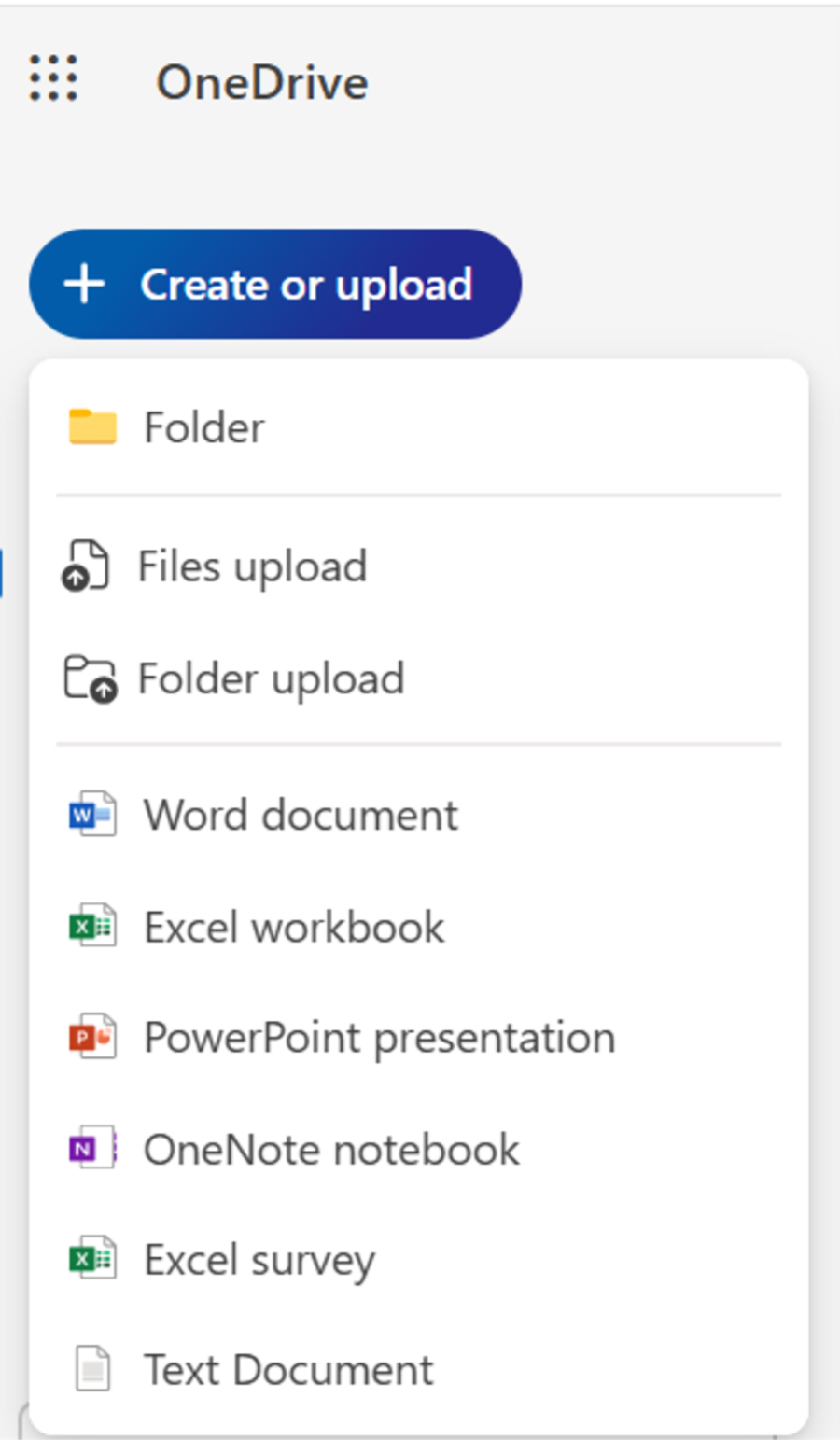
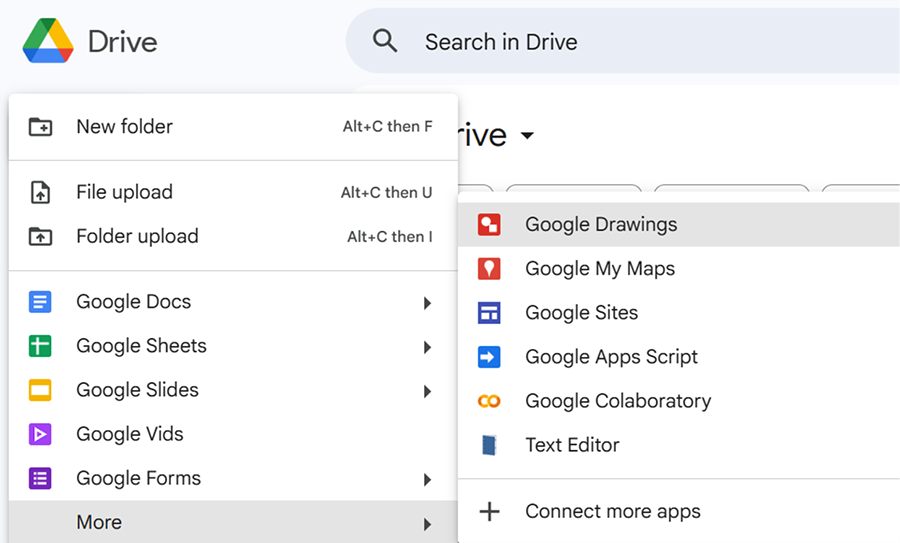
As seen below, both Microsoft 365 and Google Workspace organize their apps in one place. These dashboards make it easy to launch word processors, spreadsheets, and other tools.
Some of the most popular office suites include the following:
| Office Suite | Pros | Cons |
|---|---|---|
| Microsoft 365 (Microsoft Office) |
|
|
| Google Workspace |
|
|
| Apple iWork |
|
|
| LibreOffice |
|
|
| WPS Office |
|
|
The different office suites each have their own collection of apps, but three specific app types are common to most suites:
Word processing apps are designed for creating text-based documents such as letters, reports, essays, and articles. Features usually include formatting tools (fonts, margins, styles), spell-checking, templates, and the ability to insert images or tables. Some apps also include advanced features such as outlines, indexes, tables of contents, footnotes, and citation management.
The most widely used word processor is Microsoft Word, though alternatives like Google Docs and LibreOffice Writer are also popular. Word processors are used in virtually every industry for documentation, proposals, and correspondence.
Key use cases include:
Spreadsheet apps provide a grid of rows and columns where users can input data and apply formulas. This structure makes spreadsheets ideal for calculations, data analysis, and modeling scenarios.
The most common spreadsheet application is Microsoft Excel, though Google Sheets and LibreOffice Calc are also widely used. Spreadsheets support functions ranging from simple arithmetic to complex statistical analysis.
Use cases include:
Presentation apps help users create slide-based visual aids for speeches, meetings, or training sessions. They can create not only consistently formatted bulleted list slides, but also slides containing graphics, charts, diagrams, sound, and video.
Microsoft PowerPoint is the most widely known, though Google Slides, Apple Keynote, and LibreOffice Impress are alternatives. Features include slide layouts, multimedia integration, animations, and transitions.
Use cases include:
In addition to those basic three core apps that you just learned about, most office suites offer at least a few extra apps, and the paid subscription tiers have more apps than the free versions. Here’s a quick look at the extra productivity tools that some popular office suites include in some subscription tiers:
| Function | Examples in Microsoft 365 | Examples in Google Workspace | Examples in Apple iWork | Examples in LibreOffice/WPS |
|---|---|---|---|---|
| Email & Calendar | Outlook | Gmail, Google Calendar | Mail, Calendar | - |
| Cloud Storage | OneDrive | Google Drive | iCloud Drive | WPS Cloud |
| Collaboration | Teams | Google Chat, Meet | FaceTime, Messages | - |
| Notes & Tasks | Notes, To Do | Keep | Notes, Reminders | - |
| Forms & Surveys | Forms | Google Forms | - | WPS Forms |
| Media and Design | Designer, Clipchamp | AppSheet, Sites, Drawings | Photos, iMovie, Keynote templates | WPS PDF, Templates, Draw |
| Databases | Access | - | - | Bsea |
One challenge with productivity apps is making sure files open correctly across different suites. A PowerPoint with animations might not look the same in Google Slides, and an Excel spreadsheet with macros may not work in LibreOffice Calc.
To reduce these issues, many people save files in common formats like PDF (great for sharing a final version) or rely on cloud platforms that handle compatibility automatically. Still, it helps to know the main types of formats you’ll encounter.
Source: THIS TUTORIAL WAS AUTHORED BY SOPHIA LEARNING. PLEASE SEE OUR TERMS OF USE.



